Configuration
General Tab
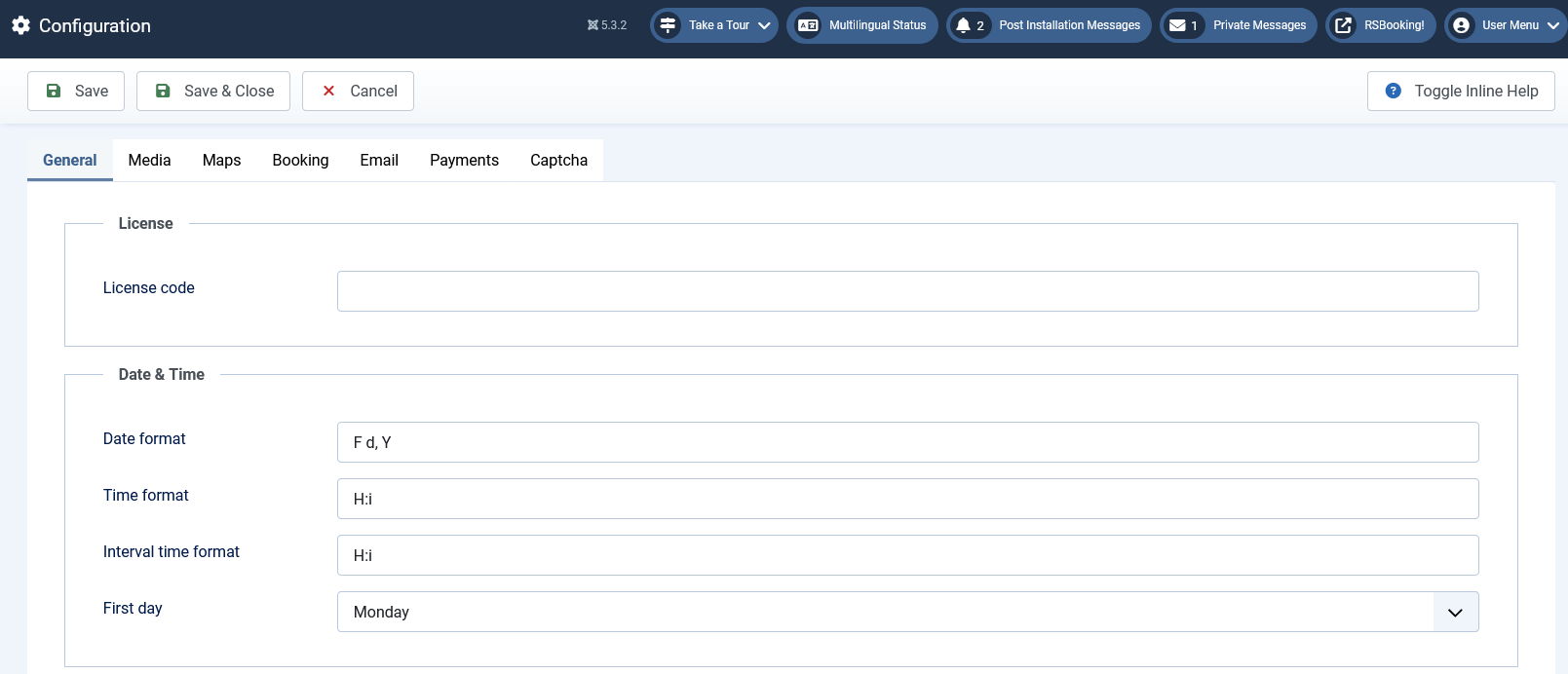
License
- License Code: Enter the valid license code for activation.
Date & Time
- Date Format: Choose the format in which dates will be displayed.
- Time Format: Choose the format in which time will be displayed.
- Interval Time Format: Defines the format for displaying time intervals.
- First Day: Select the first day of the week (e.g., Monday or Sunday).
Routing & SEO
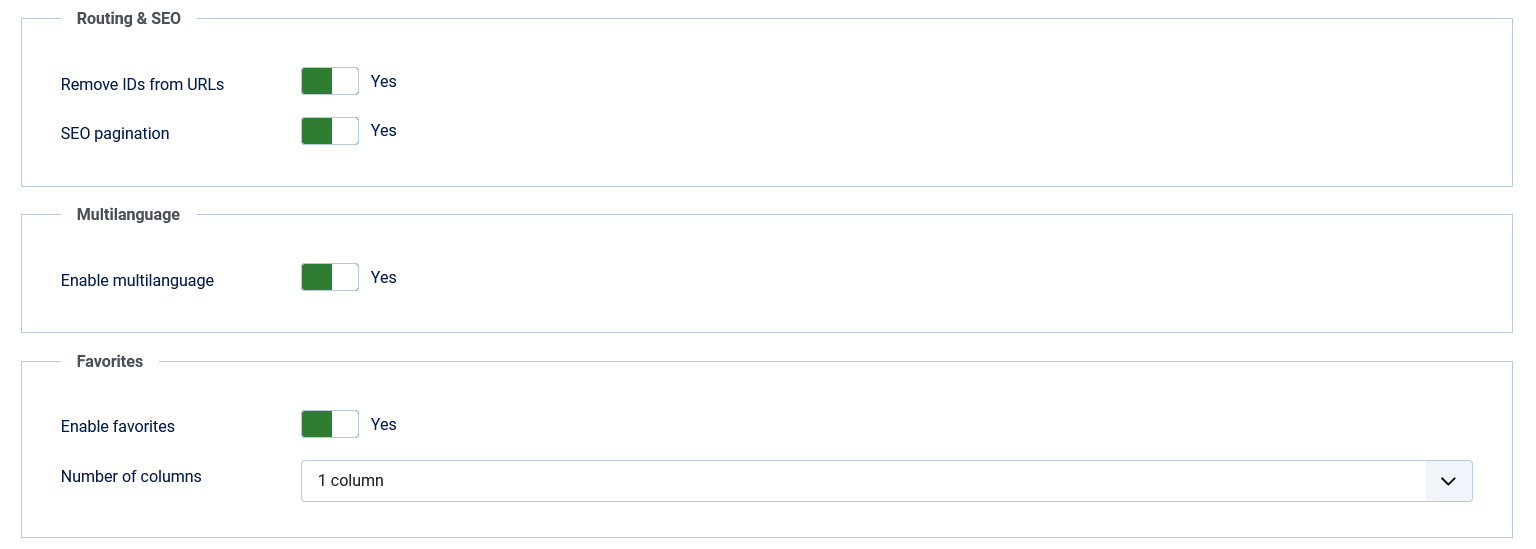
- Remove IDs from URLs: Choose whether to remove numeric IDs from URLs (Yes / No).
- SEO Pagination: Enable search engine–friendly pagination (Yes / No).
Multilanguage
- Enable Multilanguage: Allow content to be available in multiple languages (Yes / No).
Favorites
- Enable favorites: Enable or disable the favorites feature (Yes / No).
- Number of columns: Choose the number of columns for this section (1, 2, 3 or 4).
Reviews
- Enable Reviews: Enable or disable the review feature (Yes / No).
- Reviews Type: Select the type of review system to be used.
Miscellaneous
- Use 'Content plugins' in the property description?: Enable this to trigger content plugins in the property description.
- Load FontAwesome: Load FontAwesome library in frontend (Yes / No).
- Load Bootstrap: Load Bootstrap library in frontend (Yes / No).
- Require Consent: Require users to provide consent for data collection or other purposes.

Media Tab
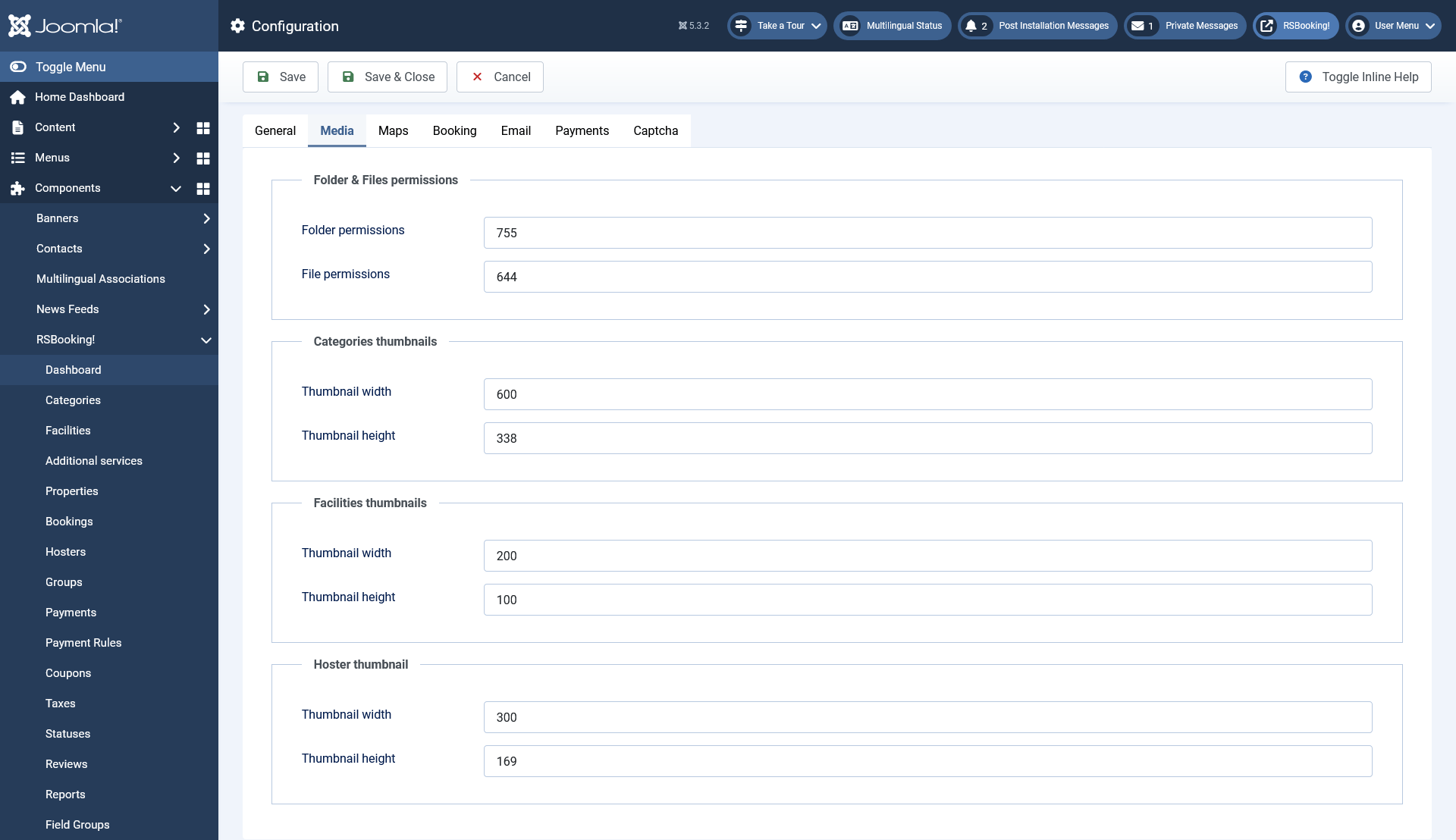
Folder & Files Permissions
- Folder Permissions: Set the appropriate permissions for folders. Images are saved in /media/com_rsbooking/images/original/{item_type} folders. When these folders are newly created, they will inherit the permissions setup here. Usually the default 755 will work, but some INSECURE servers will need 777.
- File Permissions: Set the appropriate permissions for files. When images are created in /media/com_rsbooking/images/original/{item_type} folders they will be enforced the permissions setup here. Usually the default will work, but if your server demands otherwise, please adjust accordingly.
Categories Thumbnails
- Thumbnail Width: Set the width for category thumbnails.
- Thumbnail Height: Set the height for category thumbnails.
Facilities Thumbnails
- Thumbnail Width: Set the width for facility thumbnails.
- Thumbnail Height: Set the height for facility thumbnails.
Properties Thumbnails
- Thumbnail Width: Set the width for property thumbnails.
- Thumbnail Height: Set the height for property thumbnails.
Property Services Thumbnails
- Thumbnail Width: Set the width for property service thumbnails.
- Thumbnail Height: Set the height for property service thumbnails.
Hoster Thumbnail
- Thumbnail Width: Set the width for the hoster thumbnail.
- Thumbnail Height: Set the height for the hoster thumbnail.
Maps Tab
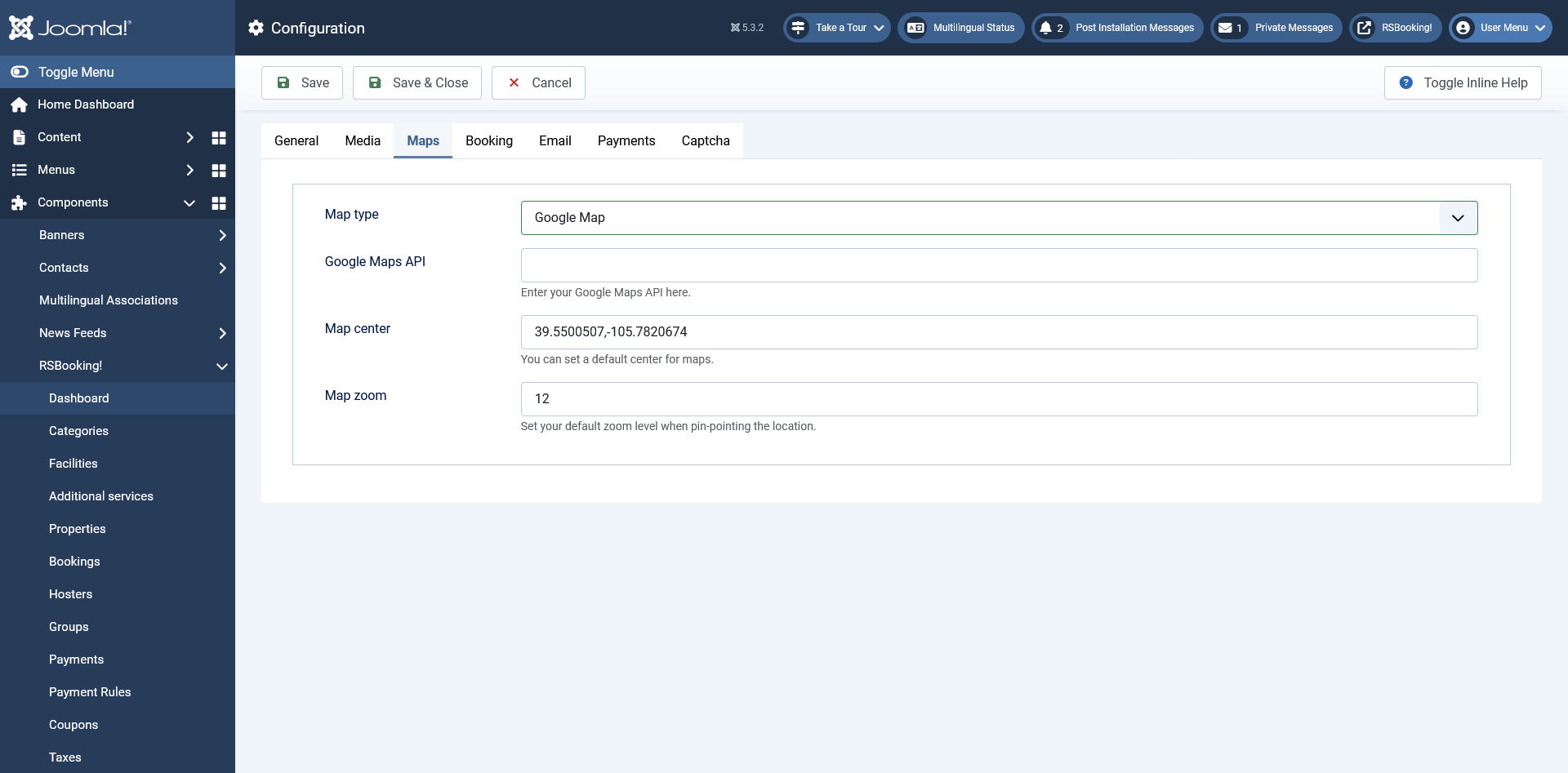
Google Map
- Google Maps API: Enter your Google Maps API key.
- Map Center: Define the default center coordinates for maps.
- Map Zoom: Set your default zoom level when pin-pointing the location.
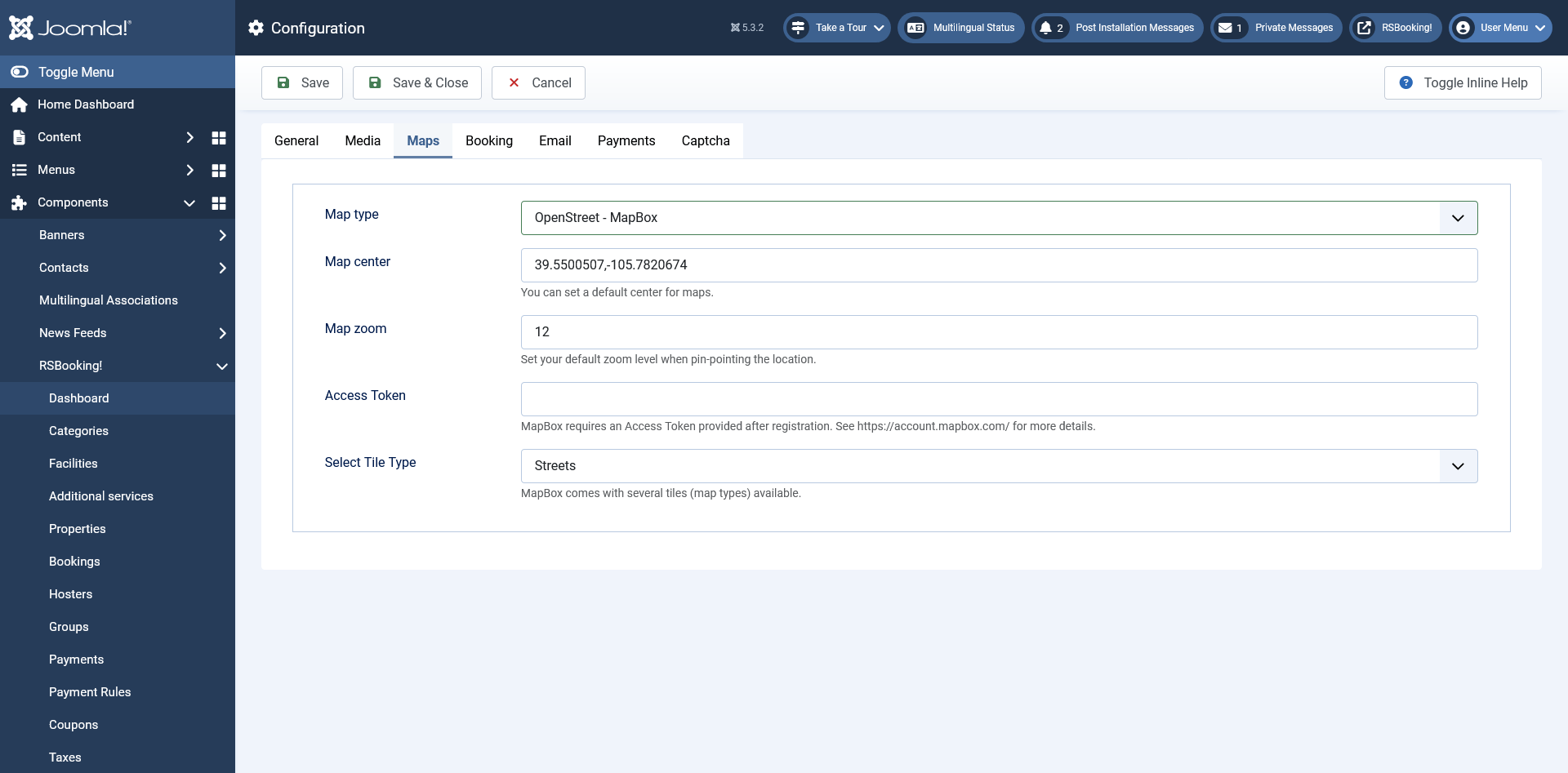
OpenStreet - MapBox
- Access Token: Enter your MapBox access token. See https://account.mapbox.com/ for details.
- Map Center: Define the default center coordinates for maps.
- Map Zoom: Set the default zoom level for map display.
- Select Tile Type: Choose from:
- Streets
- Dark
- Light
- Outdoors
- Satellite
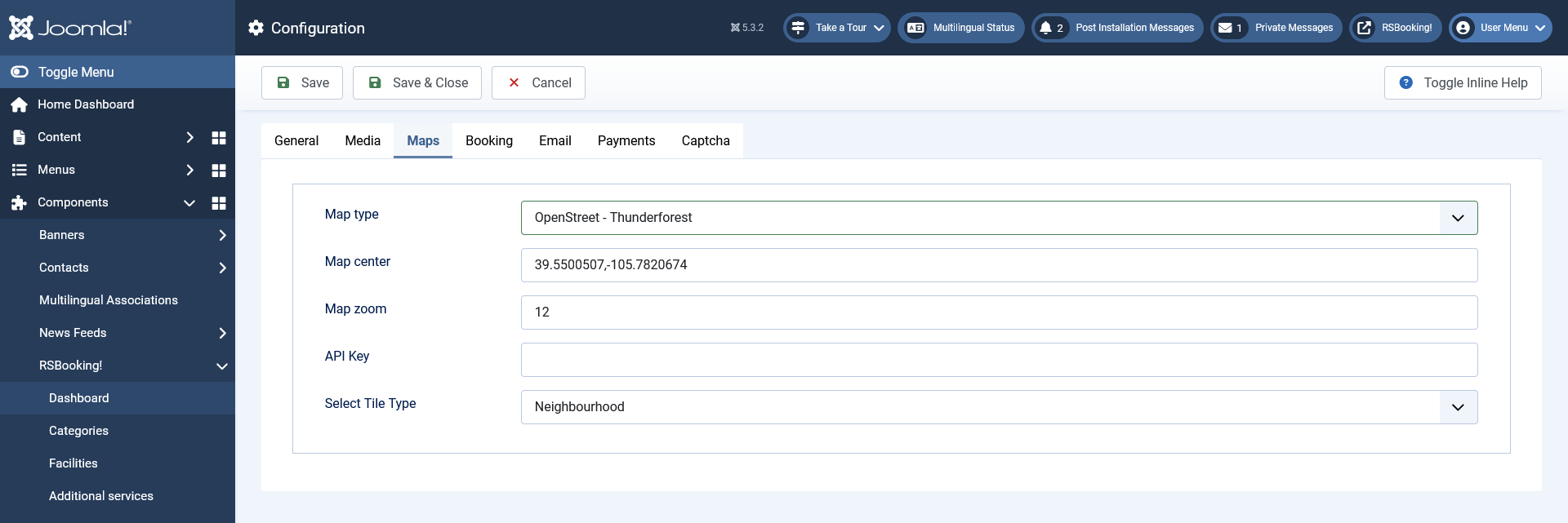
OpenStreet - Thunderforest
- Map Center: Define the default center coordinates for maps.
- Map Zoom: Set the default zoom level for map display.
- API Key: Enter your Thunderforest API key. See https://thunderforest.com/ for details.
- Select Tile Type: Choose from:
- Neighbourhood
- OpenCycleMap
- Transport
- Landscape
- Outdoors
- Transport Dark
- Spinal Map
- Pioneer
- Mobile Atlas
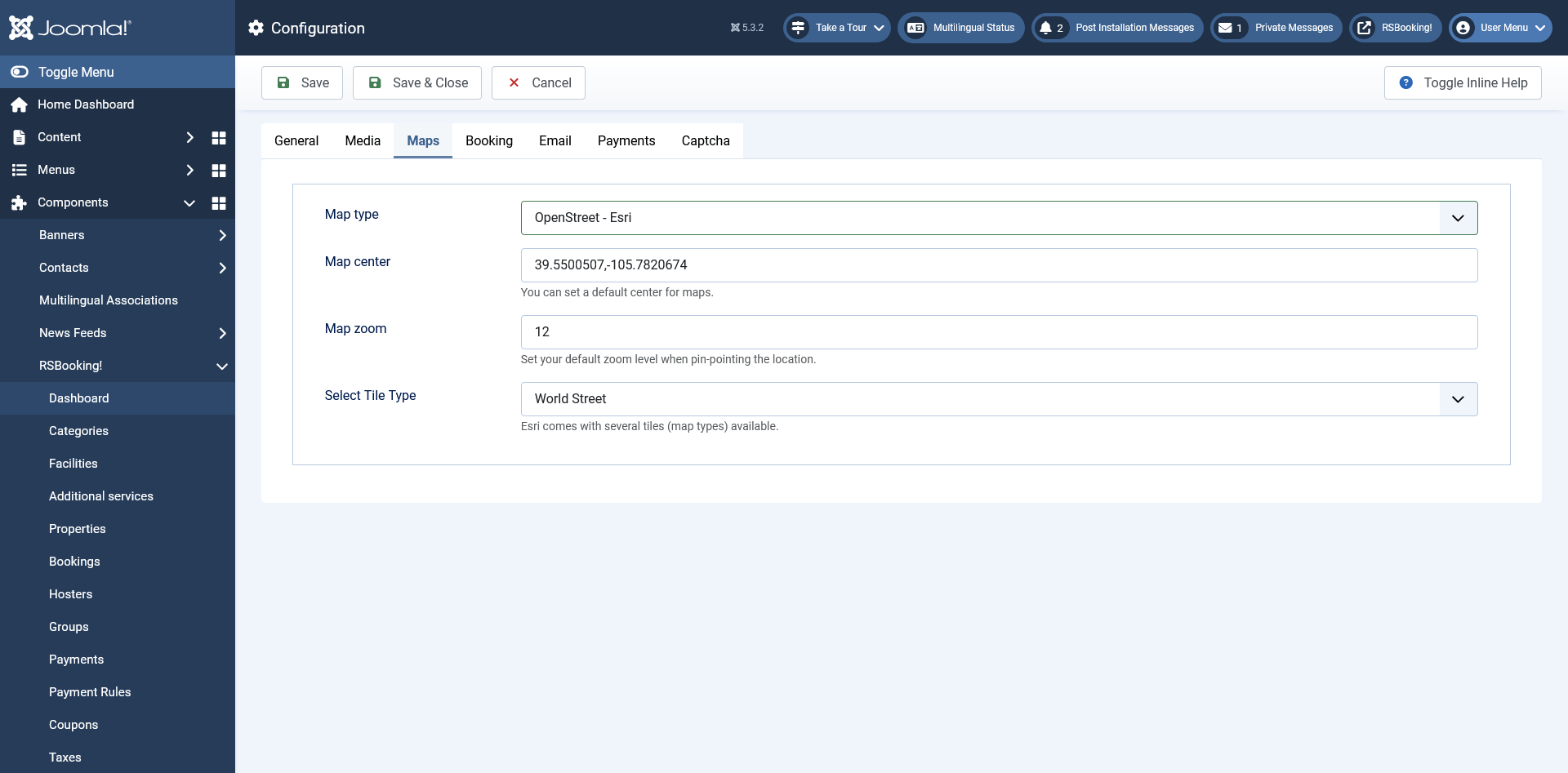
OpenStreet - Esri
- Map Center: Define the default center coordinates for maps.
- Map Zoom: Set the default zoom level for map display.
- Select Tile Type: Choose from:
- World Street
- World Imagery
- World Topo Map
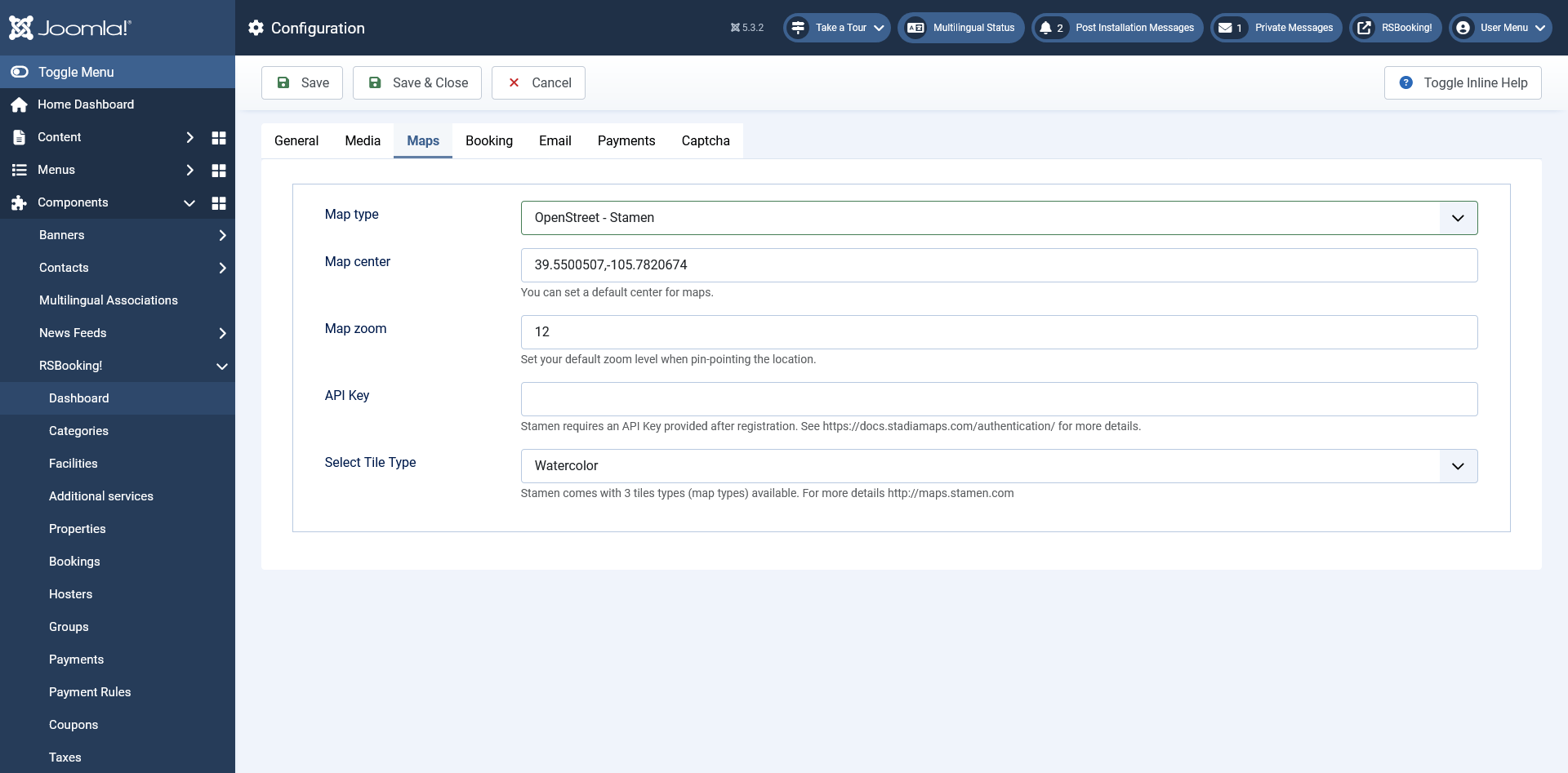
OpenStreet - Stamen
- Map Center: Define the default center coordinates for maps.
- Map Zoom: Set the default zoom level for map display.
- Map Zoom: Stamen requires an API Key provided after registration. See https://docs.stadiamaps.com/authentication/ for more details.
- Select Tile Type: Choose from:
- Terrain
- Tonner
- Watercolor
Booking Tab
Booking status
- Default status: The initial status for new bookings.
- Complete status: Status assigned when a booking is completed.
- Cancelled status: Status assigned when a booking is cancelled.
Booking form
- Auto-load user data: Automatically load existing user data in the form.
- Fallback phone country: Select the fallback country for the phone field. If the IP based country lookup fails or returns an error, the system will automatically fall back to the country selected here.

Email Tab
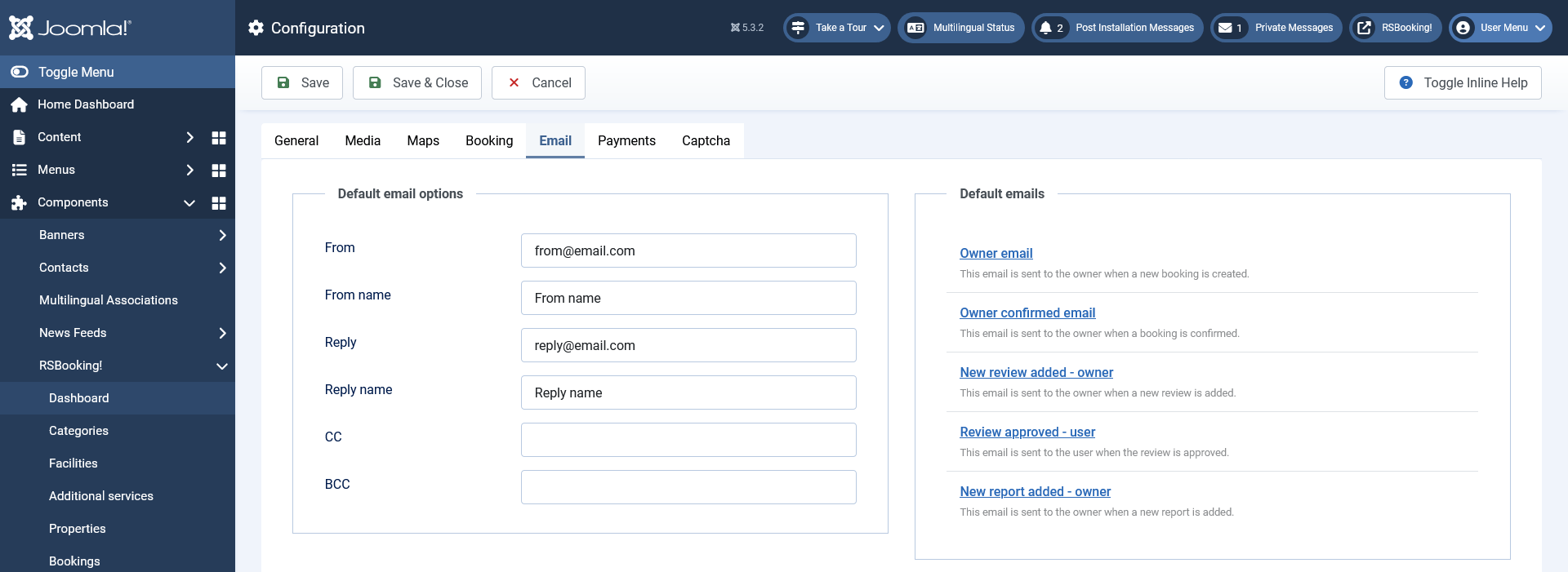
Default email options
- From: The email address from which emails are sent.
- From name: The name displayed as the sender of the emails.
- Reply: The email address to which replies are sent.
- Reply name: The name displayed for the reply-to address.
- CC: Email addresses to be copied on outgoing emails.
- BCC: Email addresses to be blind copied on outgoing emails.
Default emails
Owner email: This email is sent to the owner when a new booking is created. The following placeholders can be used:
| {property} | Property name |
| {property_email} | Property email |
| {property_phone} | Property phone |
| {property_web} | Property web address |
| {property_country} | Property country |
| {property_city} | Property city |
| {property_address} | Property address |
| {property_region} | Property region |
| {property_link} | Property link |
| {owner} | Owner name |
| {service_name} | Service name |
| {name} | Booker name |
| {first_name} | Booker first name |
| {last_name} | Booker last name |
| {phone} | Booker phone number |
| {email} | Booker email |
| {check_in} | Check-in date |
| {check_out} | Check-out date |
| {interval} | Days/Nights interval |
| {slot} | Time slot |
| {guests} | Guests names |
| {adults} | Number of adults |
| {children} | Number of children |
| {quantity} | Quantity |
| {coupon} | Coupon code |
| {payment} | Payment method |
| {total} | Total |
| {discount} | Discount |
| {taxes} | Taxes |
| {payment_url} | Payment URL |
| {booking_approval} | Booking needs approval |
| {approve_booking} | Booking approval URL |
Owner confirmed email: This email is sent to the owner when a booking is confirmed. The following placeholders can be used:
| {property} | Property name |
| {property_email} | Property email |
| {property_phone} | Property phone |
| {property_web} | Property web address |
| {property_country} | Property country |
| {property_city} | Property city |
| {property_address} | Property address |
| {property_region} | Property region |
| {property_link} | Property link |
| {owner} | Owner name |
| {service_name} | Service name |
| {name} | Booker name |
| {first_name} | Booker first name |
| {last_name} | Booker last name |
| {phone} | Booker phone number |
| {email} | Booker email |
| {check_in} | Check-in date |
| {check_out} | Check-out date |
| {interval} | Days/Nights interval |
| {slot} | Time slot |
| {guests} | Guests names |
| {adults} | Number of adults |
| {children} | Number of children |
| {quantity} | Quantity |
| {coupon} | Coupon code |
| {payment} | Payment method |
| {total} | Total |
| {discount} | Discount |
| {taxes} | Taxes |
| {payment_url} | Payment URL |
New review added - owner: This email is sent to the owner when a new review is added. The following placeholders can be used:
| {property} | Property name |
| {property_email} | Property email |
| {property_phone} | Property phone |
| {property_web} | Property web address |
| {property_country} | Property country |
| {property_city} | Property city |
| {property_address} | Property address |
| {property_region} | Property region |
| {property_link} | Property link |
| {owner} | Owner name |
| {name} | Reviewer name |
| {email} | Reviewer email |
| {subject} | Review subject |
| {review} | Review message |
| {reviews_link} | Reviews link |
| {moderation} | Review moderation message |
Review approved - user: This email is sent to the user when the review is approved. The following placeholders can be used:
| {property} | Property name |
| {property_email} | Property email |
| {property_phone} | Property phone |
| {property_web} | Property web address |
| {property_country} | Property country |
| {property_city} | Property city |
| {property_address} | Property address |
| {property_region} | Property region |
| {property_link} | Property link |
| {owner} | Owner name |
| {name} | Reviewer name |
| {email} | Reviewer email |
| {subject} | Review subject |
| {review} | Review message |
| {reviews_link} | Reviews link |
New report added - owner: This email is sent to the owner when a new report is added. The following placeholders can be used:
| {property} | Property name |
| {property_email} | Property email |
| {property_phone} | Property phone |
| {property_web} | Property web address |
| {property_country} | Property country |
| {property_city} | Property city |
| {property_address} | Property address |
| {property_region} | Property region |
| {property_link} | Property link |
| {owner} | Owner name |
| {name} | Reporting person name |
| {email} | Reporting person email |
| {report} | Report message |
| {reports_link} | Reports link |
Review property: This email is sent to users that have the 'approve property' permission in order to approve a new property.
| {property} | Property name |
| {property_email} | Property email |
| {property_phone} | Property phone |
| {property_web} | Property web address |
| {property_country} | Property country |
| {property_city} | Property city |
| {property_address} | Property address |
| {property_region} | Property region |
| {property_link} | Property link |
| {owner} | Owner name |
| {approve_link} | Property approval link |
Property approved - user: This email is sent to the owner when the property is approved.
| {property} | Property name |
| {property_email} | Property email |
| {property_phone} | Property phone |
| {property_web} | Property web address |
| {property_country} | Property country |
| {property_city} | Property city |
| {property_address} | Property address |
| {property_region} | Property region |
| {property_link} | Property link |
| {owner} | Owner name |
Payments Tab
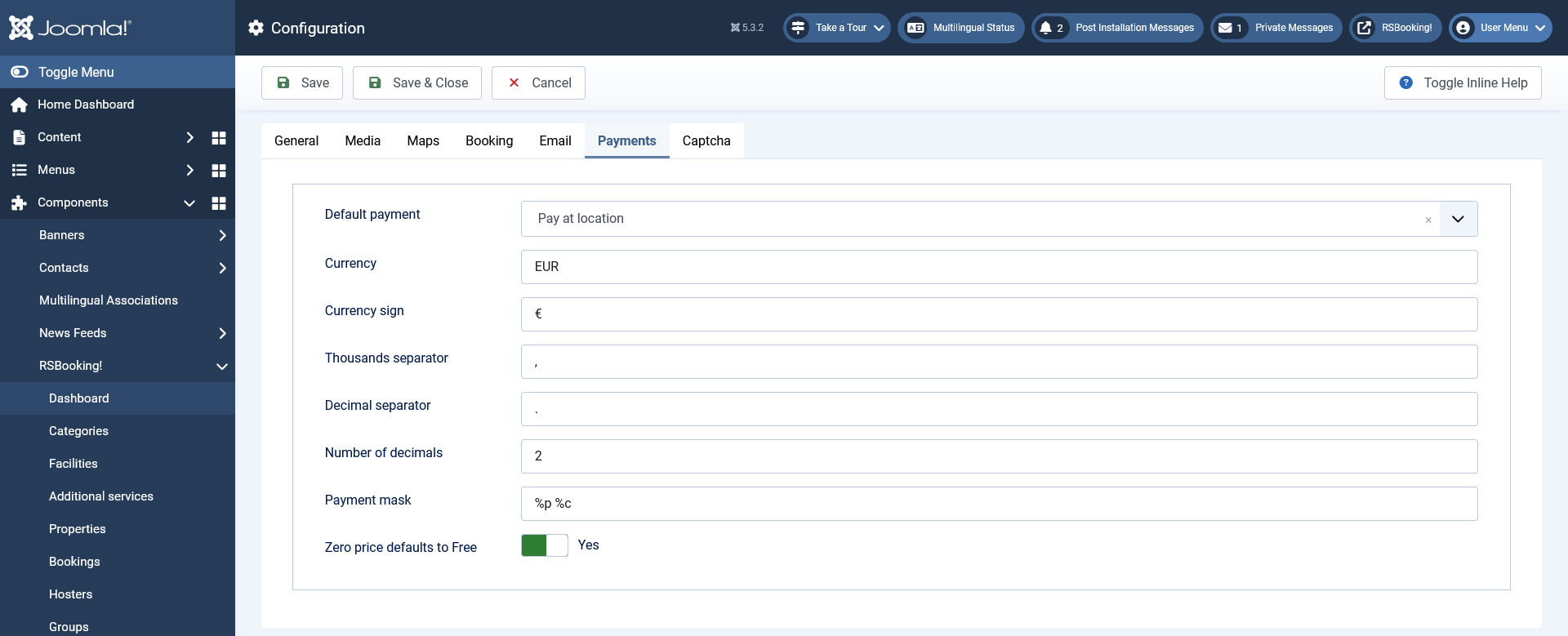
- Default payment: the configured payment integrations will be listed here
- Currency: (e.g. EUR)
- Currency sign: (e.g. €)
- Thousands separator: defaults to ,
- Decimal separator: defaults to .
- Number of decimals: defaults to 2.
- Payment mask: Set your desired payment mask. Use %p for the price and %c for the currency (defaults to %p %c).
- Zero price defaults to Free: Yes / No. If enabled, prices with 0 value will be replaced with the 'Free' text.
Captcha Tab
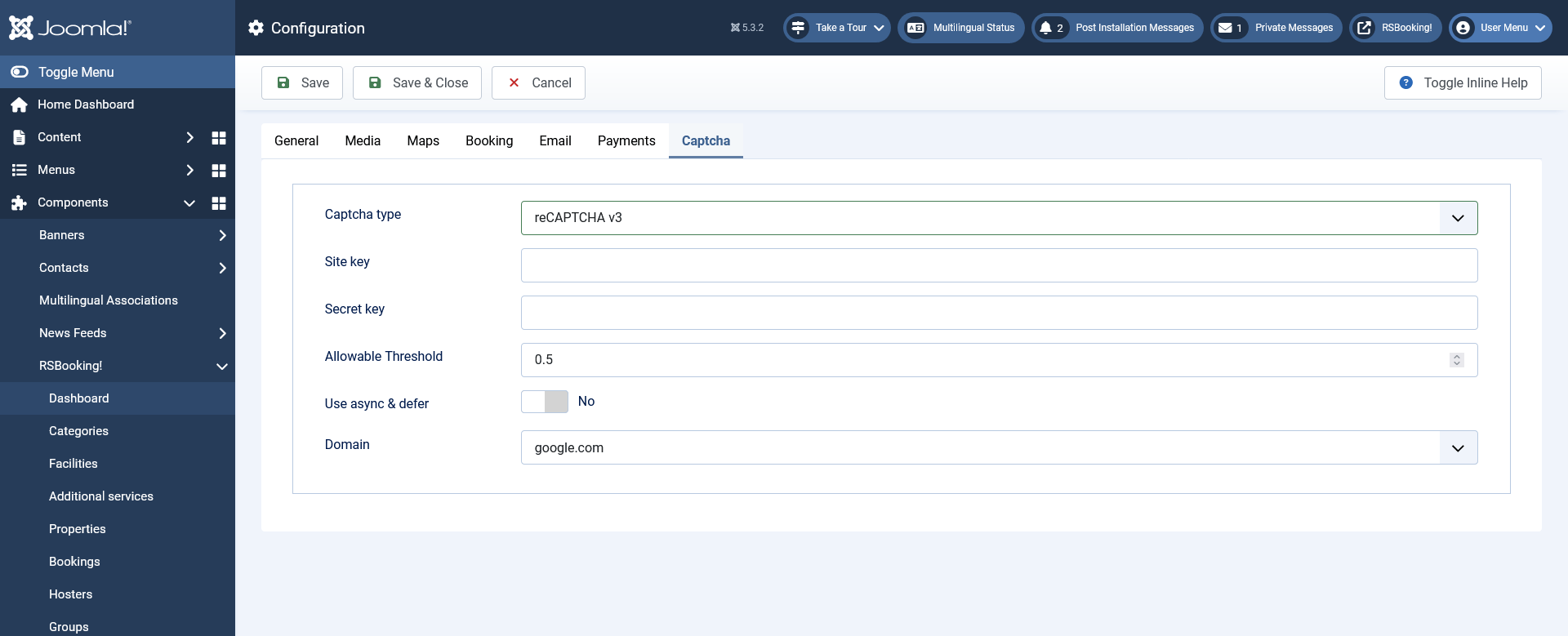
- Captcha type: None, reCAPTCHA v3, or hCaptcha
reCAPTCHA v3 options:
- Site key: Your reCAPTCHA v3 site key
- Secret key: Your reCAPTCHA v3 secret key
- Allowable Threshold: Score threshold below which submissions will be blocked (e.g., 0.5)
- Use async & defer: Yes / No — Load reCAPTCHA script asynchronously and deferred
- Domain: Load assets from google.com or recaptcha.net
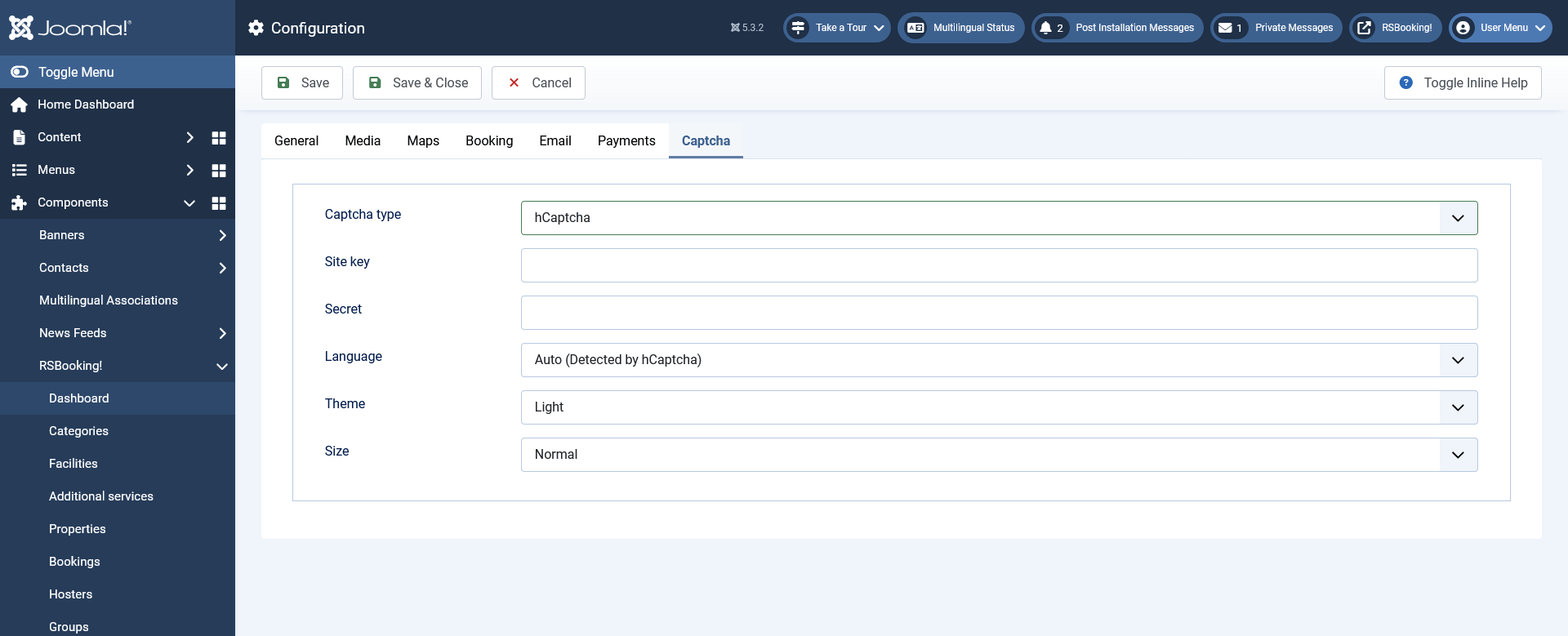
hCaptcha options:
- Site key: Your hCaptcha site key
- Secret key: Your hCaptcha secret key
- Language: Auto (detected) or Site (Joomla! language)
- Theme: Light or Dark
- Size: Normal, Compact, or Invisible
One person found this article helpful.
