RSBlog! Facebook Integration - create your own Facebook application
Recently, Facebook has changed the way their API works. To keep up with these new changes, below you will find the necessary steps you need to take in order to connect RSBlog! with your Facebook Pages.
Step 1 & 2
Go to Facebook Developers Console and click on the 'My apps' button. You'll need to Create a New App, then add the App details. Then click Next.


Step 3
In the Use cases section select 'Manage everything on your Page' then click Next

Step 4
In the Business verification area select 'I don’t want to connect a business portfolio yet' if there is no business available, then click Next

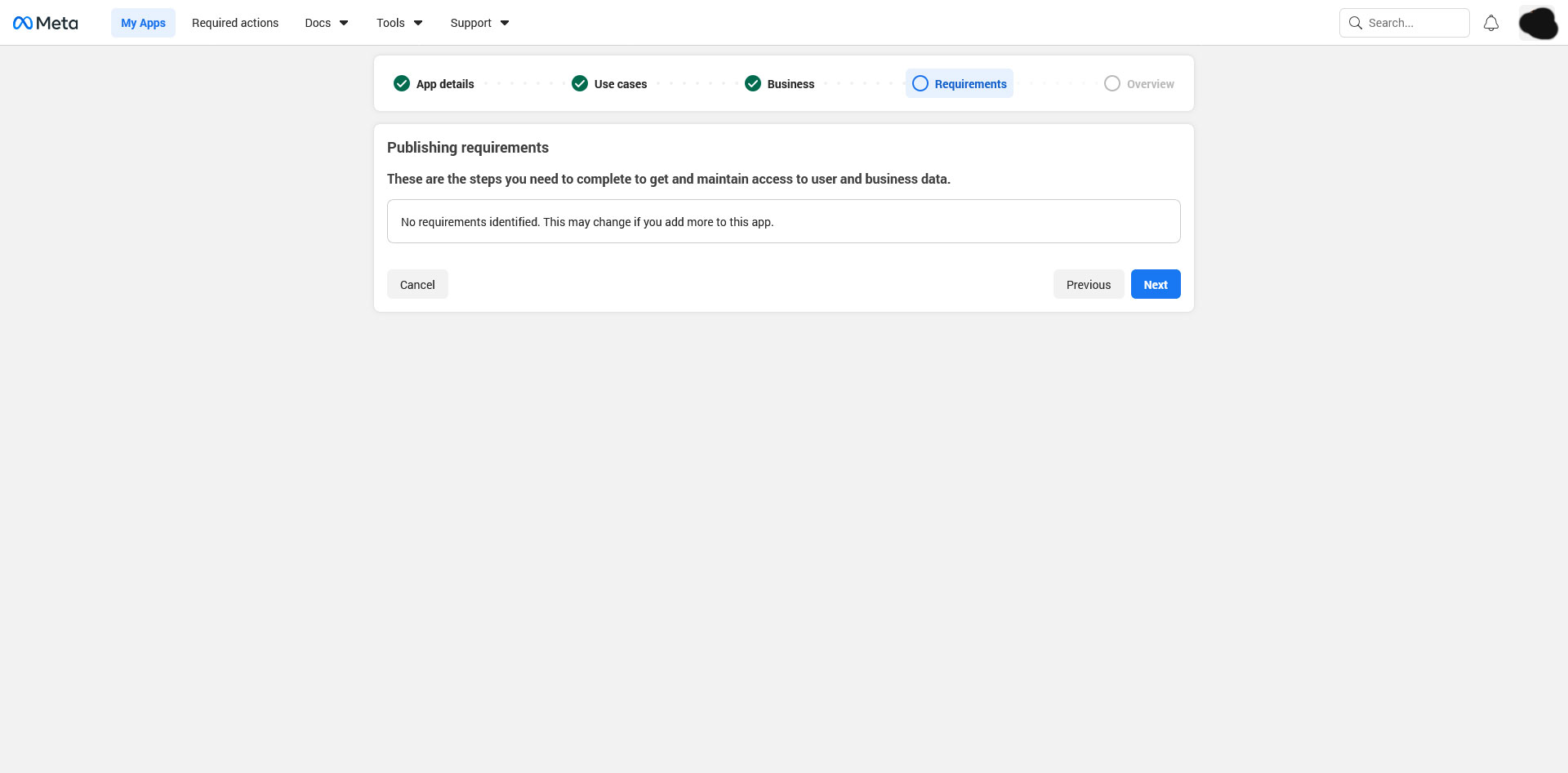
Step 5
In the Publishing requirements you'll see 'No requirements identified' since there's no business data. Click Next
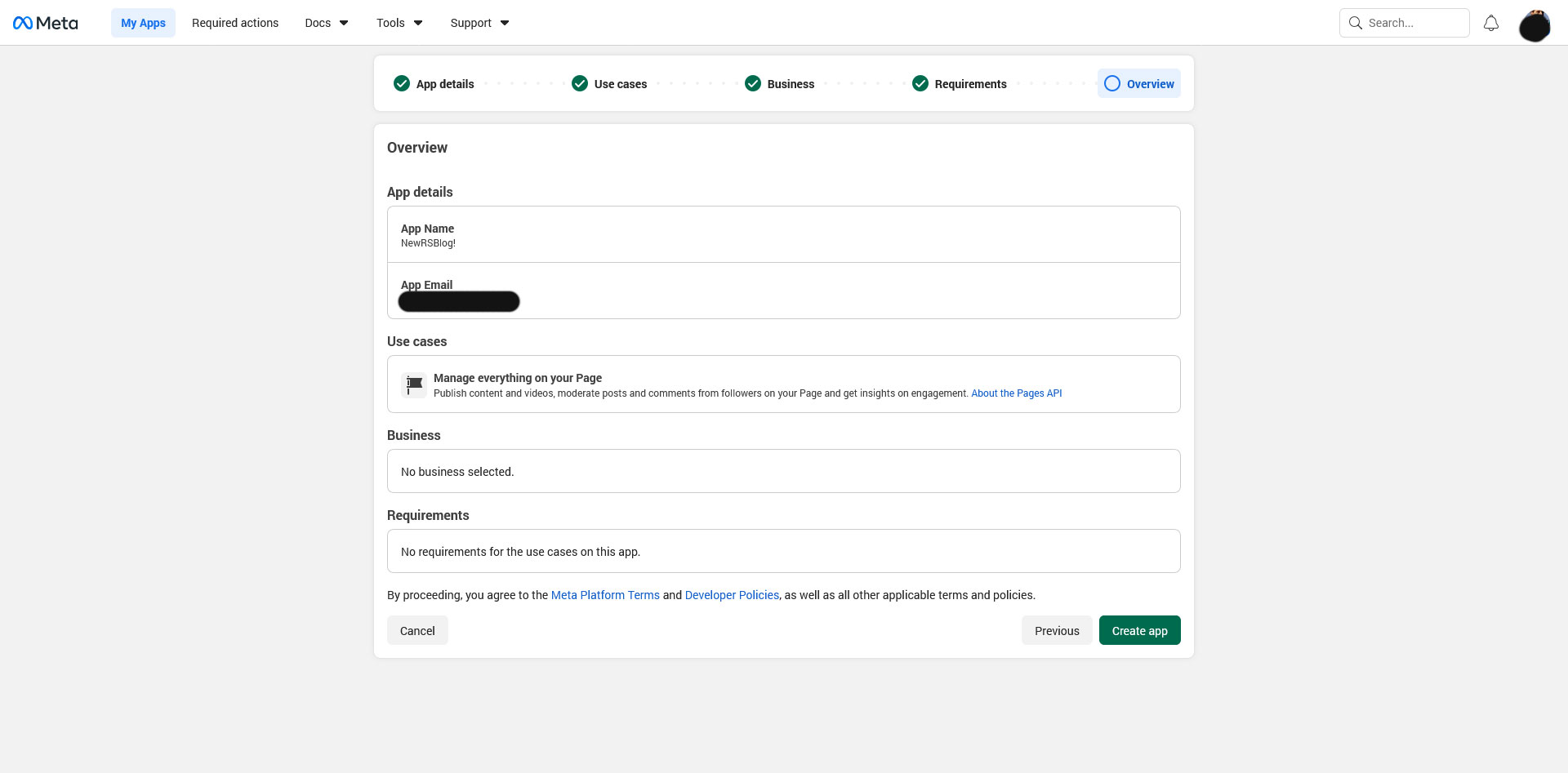
Step 6
In the Overview section click on the Create app
Step 7
After creating the app, in the Dashboard section click on 'Customize the Manage everything on your Page' and Add the 'pages_read_engagement / pages_manage_posts' permissions.

Step 8
On the left side menu, click on Facebook Login for Business > Settings. Here, in the Valid OAuth Redirect URIs, copy the Redirect URI from RSBlog! > Settings > Facebook > Redirect URI and click on Save changes.

Step 9
On the left side menu, click on App settings > Basic and add your domain in the App domains field, then click on Save changes.
In the same area you will find the followings:
- - App ID
- - App Secret

Step 10
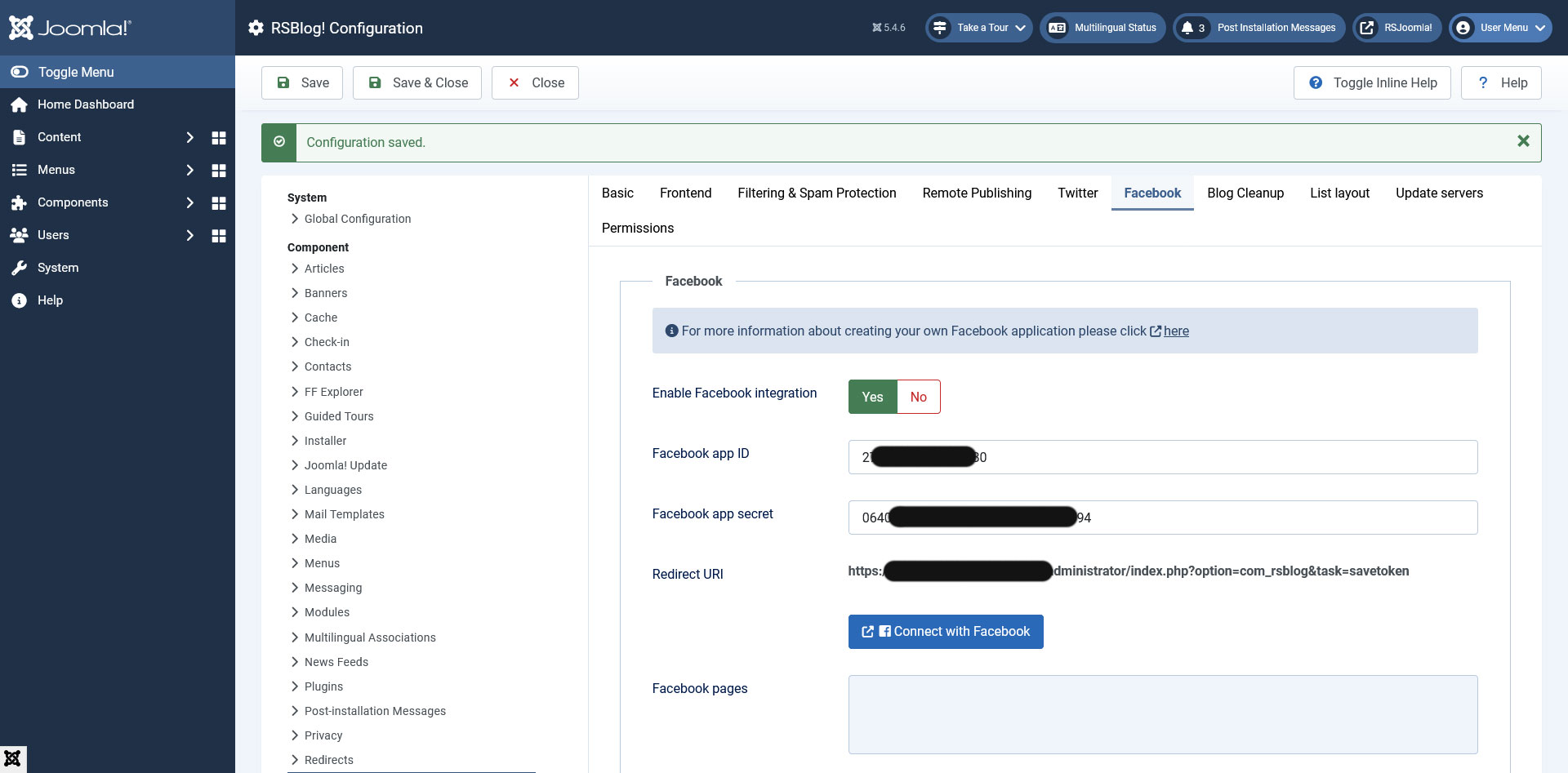
You will need to copy these options and input them in this path:
Components > RSBlog! > Dashboard > here, click the top Options button > FacebookBesides enabling the integration, ensure that you save your configuration afterwards using the top Save button.
After setting all the steps from the above, go to Components > RSBlog! > Dashboard > top Options button > Facebook and click the Connect with Facebook button. If your setup is correct, after being redirected back to your website you'll encounter a successful message.
You can then select your pages (you'll need to normally have administrator privileges on these pages to be able to post on them) by clicking within the input from the "Facebook pages" textbox. After choosing the desired pages, save your configuration (top Save button).
API Limitations
This Facebook Application will post only to the pages that you have administrator privileges (based on the account that you've made the connection). This will not work on your Facebook profile page.
Posting to Facebook
After the integration is configured a new option will be available when creating a new blog post in the Social interaction tab: Post to Facebook. Just set this to Yes in order to publish the post on Facebook pages.
Remote Publishing
RSBlog! Remote Publishing feature can also post to your Facebook pages. From its configuration simply enable the "Post to Facebook" option.
10 persons found this article helpful.
