RSMediaGallery! System Plugin
Unlike the Content Plugin, the RSMediaGallery! System Plugin allows you to publish a gallery anywhere on your website.
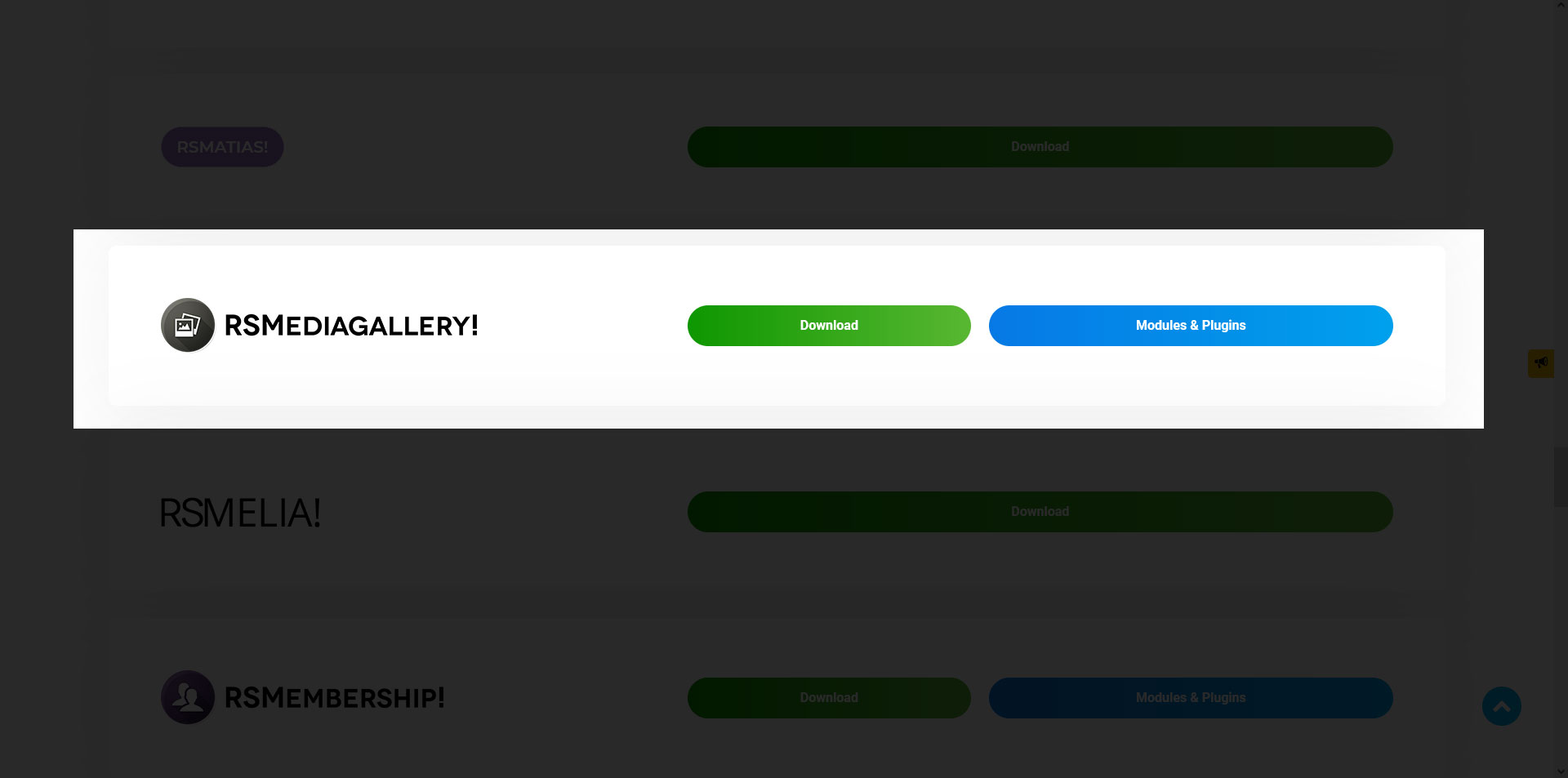
This module can be downloaded by logging into our website using the account that holds the RSMediaGallery! active subscription, heading to Downloads > RSMediaGallery! > Plugins & Modules > RSMediaGallery! x.x System Plugin
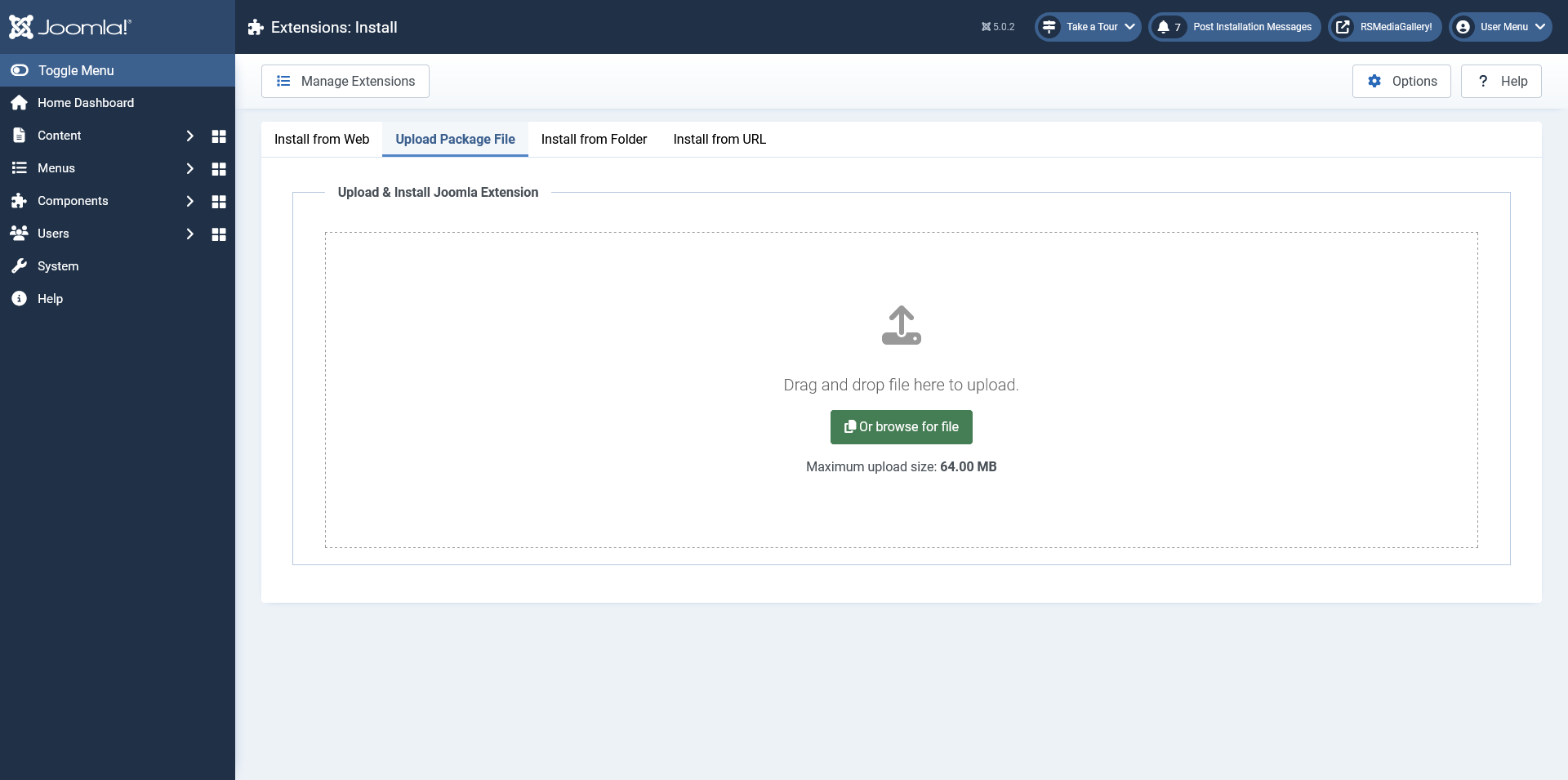
In order to install the module you will have to log in into your admin panel and head to Extensions > Manage > Install tab > browse for the "plg_system_rsmediagallery.zip" archive downloaded from our website and hit the Upload & Install button.
When hovering the cursor over a thumbnail, it displays an overlay containing the image title and description.
Configuration parameters
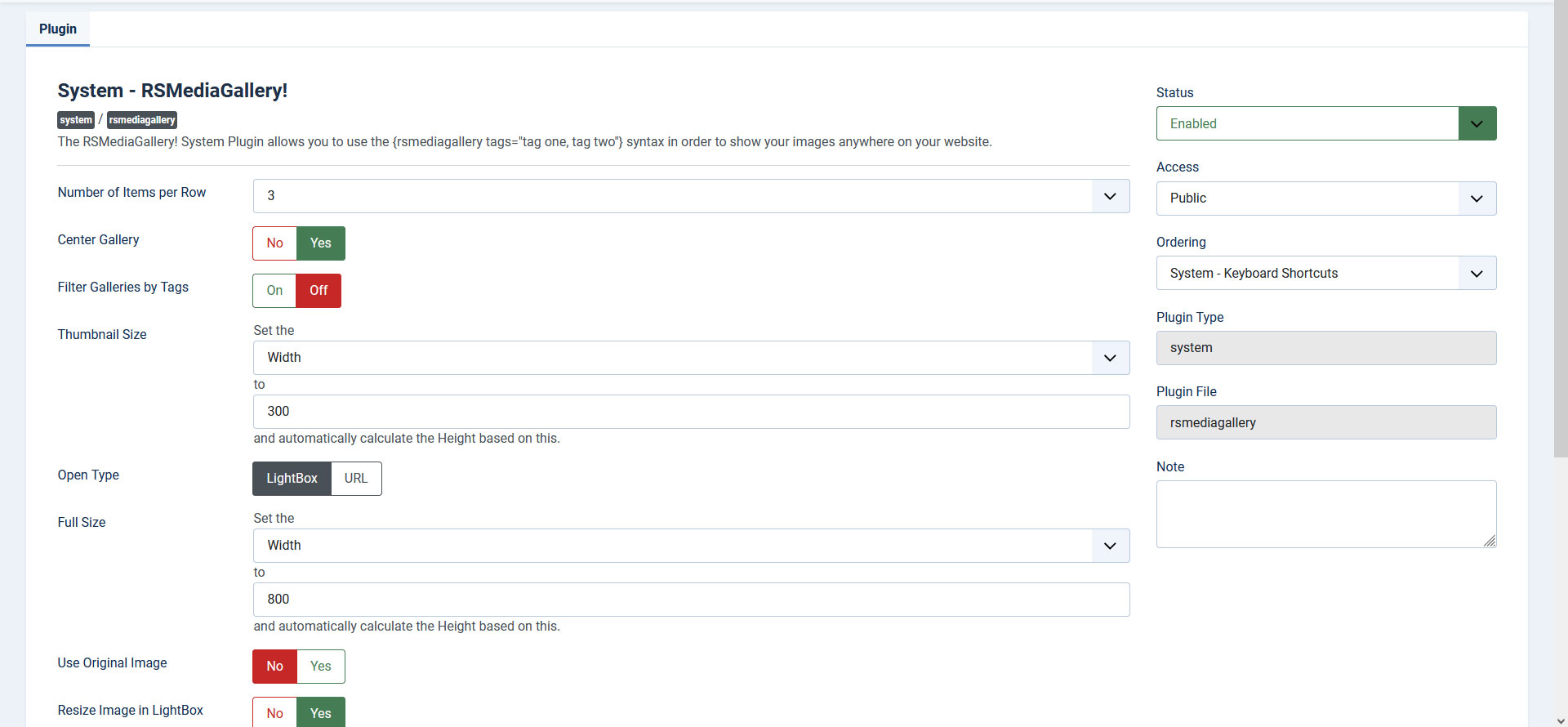
Note: The following parameters are applied globally - the same settings will be used for all galleries that are published via the RSMediaGallery! System plugin.
- Number of items per row: The number of thumbnails to be displayed per row
- Center gallery: Centers the gallery inside the container
- Filter galleries by tags: Adds a tag filter above the gallery. Clicking on a tag will render the gallery to only display images associated with it
- Thumbnail Size: Specify either the width or the height of the thumbnail images.
- Open Type: Specify how to open the image, either in a Lightbox or in the defined URL.
- Full Size: Specify either the width or the height of the full images.
- Use Original Image: Specify if the full image is shown instead of the full resolution crop.
- Resize Image in Lightbox: This will fit all content (image and details) in the window, if the height of the lightbox is higher than the window.
- Crop Image in Lightbox: If enabled this option will allow the image in lightbox to be cropped on devices with smaller screen resolution.
- Order Images By: Free Ordering / Random / Title / Description / Hits / Created date / Modified.
- Order Direction: Ascending / Descending.
- Number of Items: This is the number of images that will be displayed. Use 0 to display all.
- Show Title: Yes / No. If set to yes, the image title will be displayed.
- Show Description: Yes / No. If set to yes, the image description will be displayed.
- Show Details: Yes / No. Shows the Title / Description on the thumbnail. Note: They will appear only if above options are set to 'Yes'.
The above parameters can be included within the publishing syntax. The following attributes can be used:
- tags: the list of comma separated tags (eg. tags="dogs, cats")
- open_type: Specify how to open the image, either in a Lightbox or in the defined URL (eg. open_type="url" or open_type="lightbox")
- use_original: use 1 or 0
- thumb_width: specify the width of the thumbnails (eg. thumb_width="200")
- thumb_height: specify the height of the thumbnails (eg. thumb_height="400")
- full_width: specify the width of the full images (eg. full_width="200")
- full_height: specify the height of the full images (eg. full_height="400")
- ordering: ordering, title, description, hits, created, modified
- direction: asc, desc
- limit: use a number higher than 0 to limit the pictures displayed, or use 0 to show them all
- show_title: use 1 or 0
- show_description: use 1 or 0
- image: use the number of the image you would like to show up (eg. image="1" to show the first image from the set) and the others will be hidden but still visible in the lightbox when it opens up.
- itemsrow: how many thumbnails are shown on one row. You can use 1, 2, 3, 4, 6 or 12 (eg. itemsrow="4")
- animation: use 1 or 0 (eg. animation="0" will disable the filtering tags)
- default_tag: used to pre-select a tag of your choosing from the gallery filtering (eg. default_tag="cars" - whereas `cars` is the exact name of your tag)
To be able to add a gallery, the following syntax is required:
Here's an example of how you can use other parameters within the placeholder:
If you have multiple galleries loaded on your article, you can use the multiple="1" parameter to separate them while viewing the images in a Lightbox.
9 persons found this article helpful.
You Should Also Read
RSMediaGallery! Content Plugin HOT |
