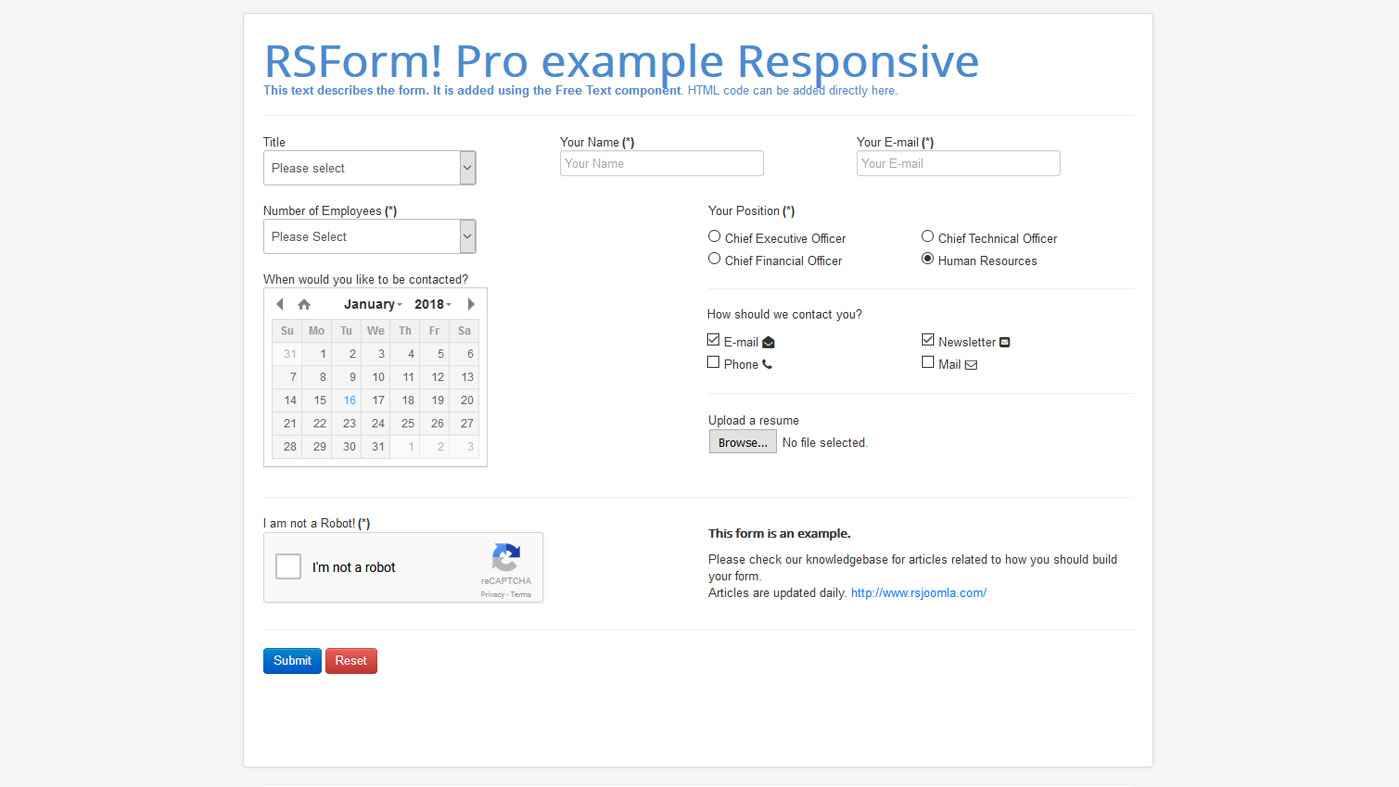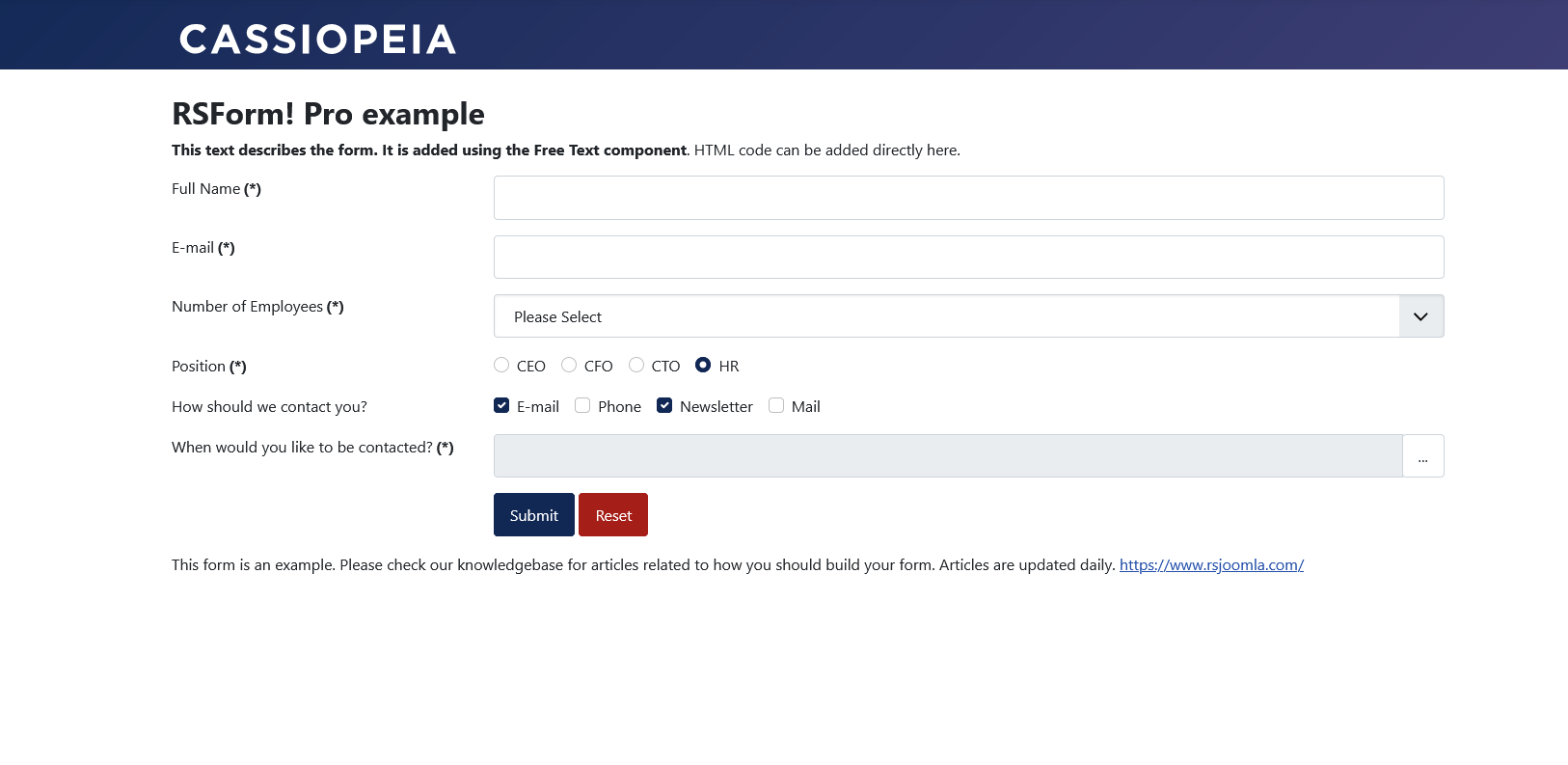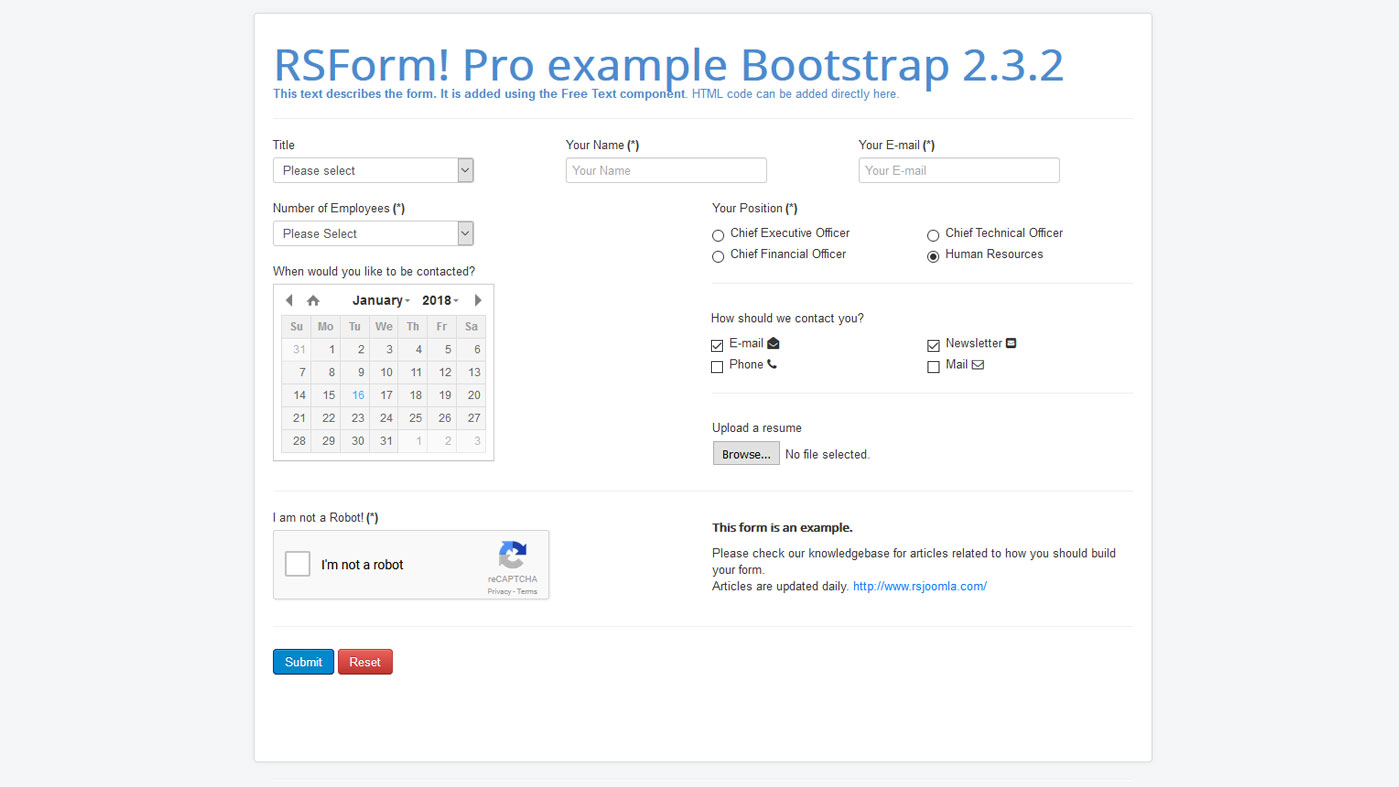

RSform!Pro - Professional Form Management Component RSForm is a popular form creation tool for Joomla. It can be used by noobs and pros alike, giving the user extended flexibility in the matter of forms creation. With RSForm Pro, some new features were added, especially to improve user experience and functionality. In this document you will ï¬nd everything about RSForm Pro, the concepts behind the component, some tips and tricks and ï¬nally some examples about how to implement certain, more fancy forms.
This section will explain the basic concepts about RSForm Pro. The most important (we think :p ) feature is that the components themselves and the way that they are shown to the user are now separate (something like the Model-View-Controller, for you gurus out there). For the noobs out there, think like this: first you say `ok, these are the components that the form will have', then you say `the components that I just defined will be shown in the front-end like this'. We added this feature because in the past version, the layout of the component was pretty hard to design (I'm sure everyone that used RSForm Lite remembers the FieldStyle attribute when creating a component). The user had to edit each element by hand, thus loosing the big picture about form layout. Now, things are pretty simple. First of all, the user has to specify in the administration part of RSForm 2.0 the components that the form will contain. When this stage is complete, the user selects one of the predefined layouts for the component and voilà, the form layout is created. Hardcore coders and designers, chill. We haven't forgotten you. If you want to make a custom form layout, you can create your own, using HTML and some simple placeholders we defined for your ease of use. And because work should be Really Simple (RS powered), you can take a predefined layout and customize it or start from scratch. Throughout this document, we will use some typing conventions, as described below - Important note!: when encountering this, focus you reading, as this note describes a very important setting / feature / component property
- (!): this symbol means experts only. In other words, don't mess up with the specified setting / feature / component property unless you know what you're doing.
- User: by user, we mean the person using the form (i.e. whoever is inputing data on your website). Not to be confused with Administrator (in this case, you) that customizes the components' look and behavior.
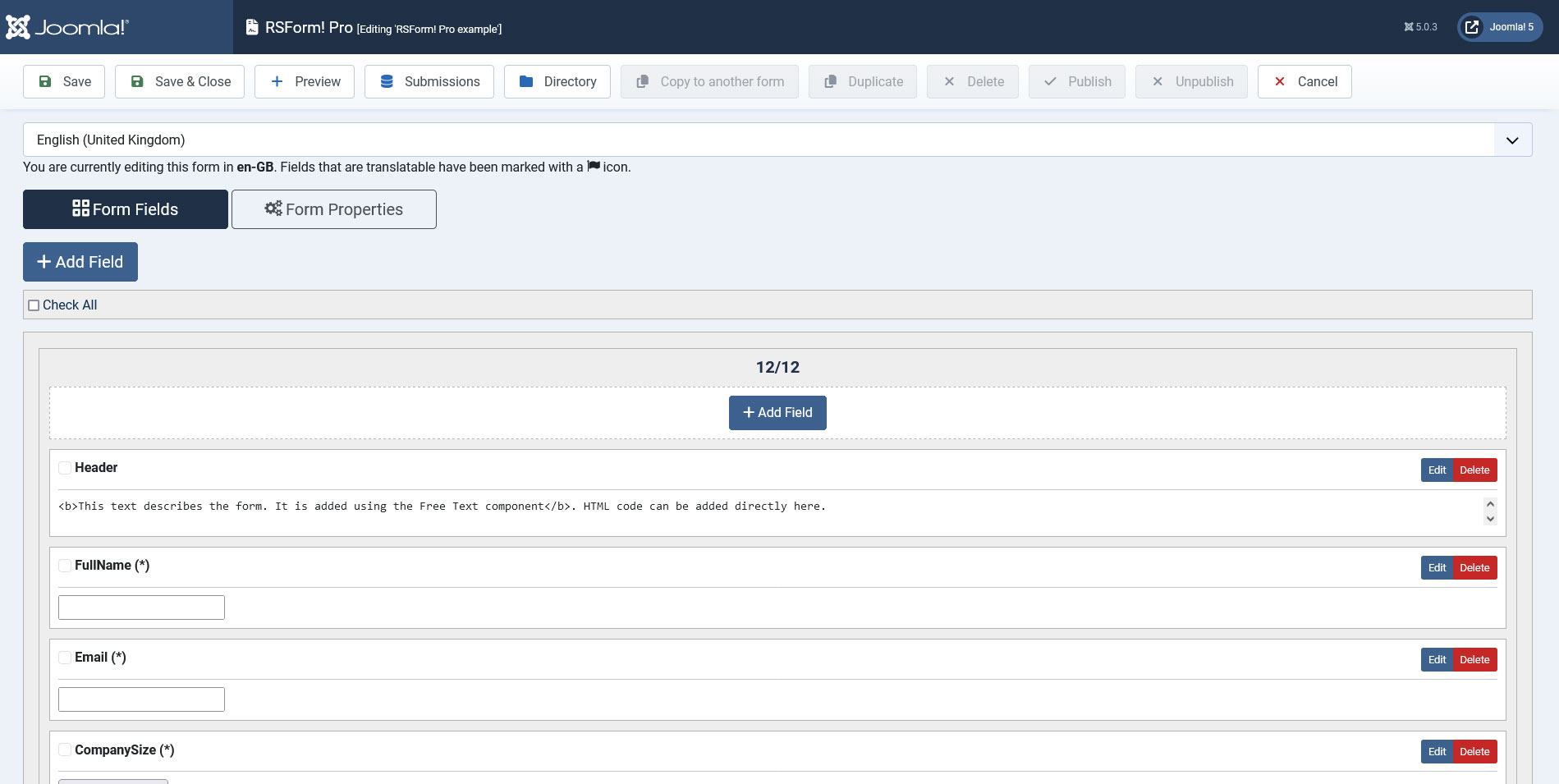
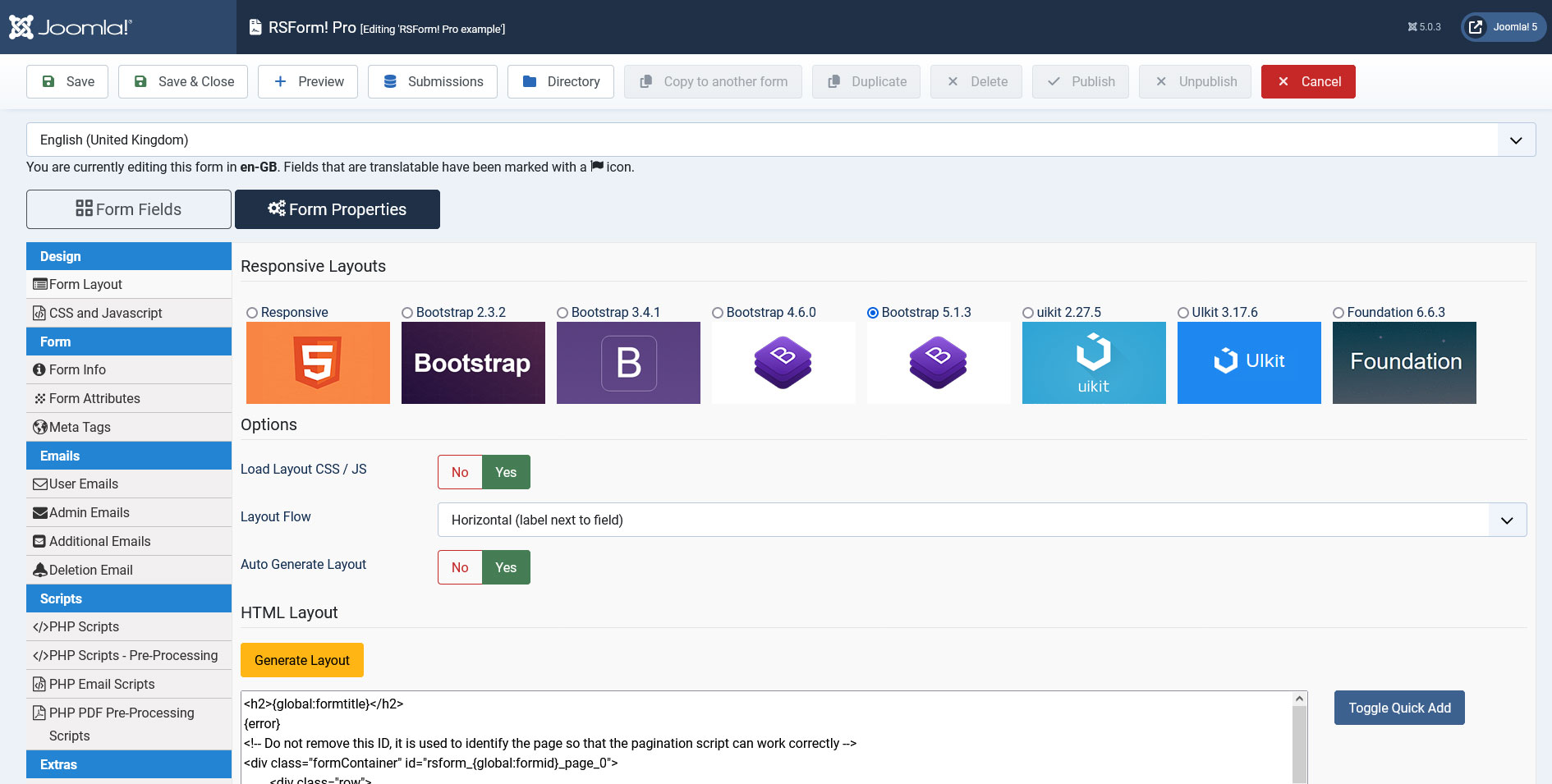
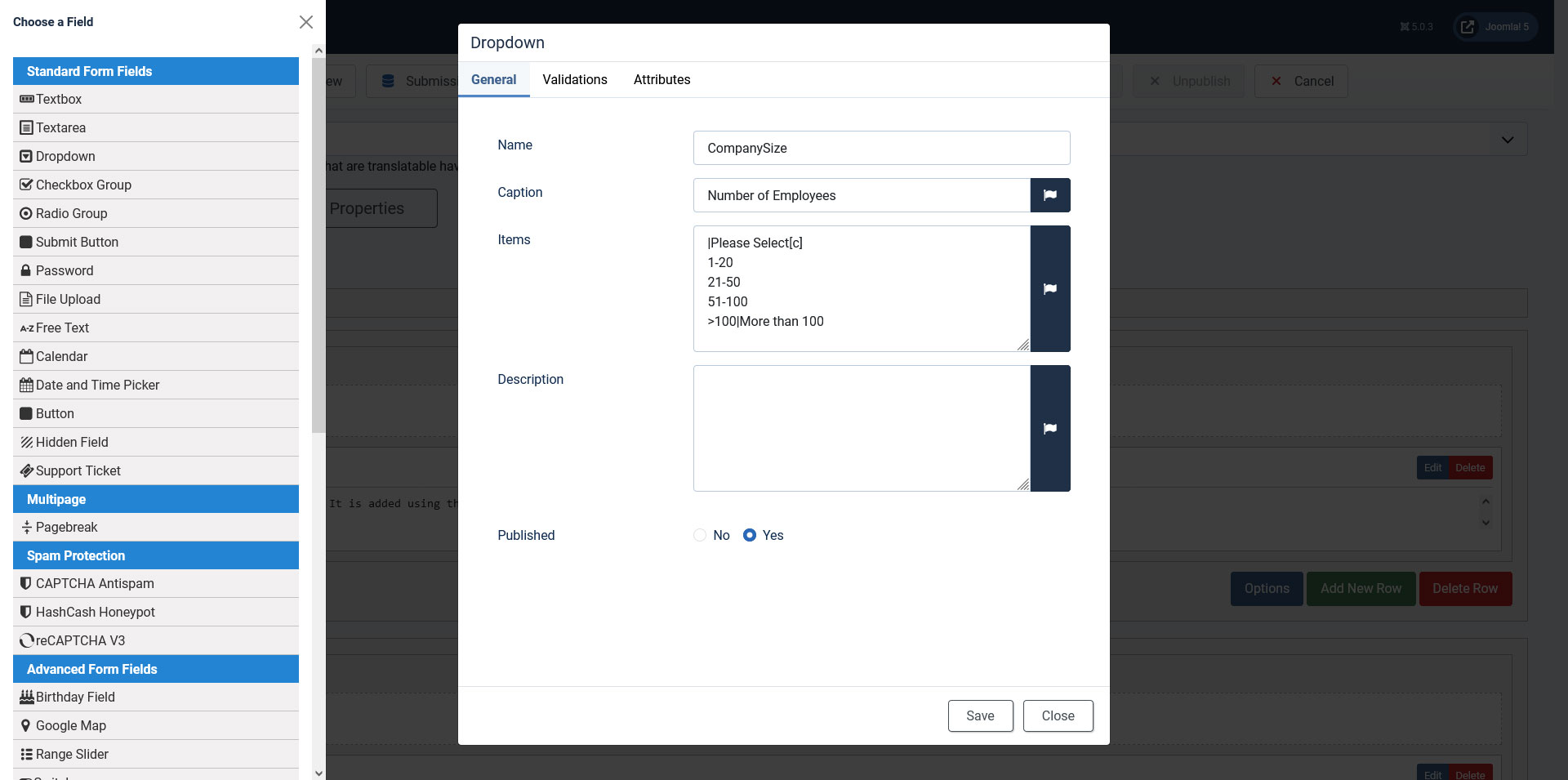
RSForm Pro was designed to accommodate noobs and pros alike. For simple form building, only some basic Joomla operating skills are required. If a more advanced form is needed (advanced means a more complicated layout, custom validation rules, etc) HTML and PHP skills are required. However, if you get stuck, please feel free to ask question using our official support center. This section describes the basic functionality of RSForm Pro. Let's have a short overview about components. We have included almost every component used in forms, so there shouldn't be any problem in finding the right one for you. As old users are accustomed, we are receptive to user input and we'll try to add new components as they are requested. Now, let's get back to our main topic. Every component is defined with properties. A property describes a specific part of that components' behavior. We can find general properties, found in all components (name and caption, for example) and some specific for every component (the possible values that should appear in a select list, for example). Important note! When adding components, you must always specify a unique, non-empty component name. The component name is essential, as almost every part in both front-end and back-end use the component name. In order to avoid problems, RSForm Pro will not allow you to save a component that has no name (i.e. the Name property is empty) or if another component in the same form has the same name. Naturally, it will display an alert whenever you don't follow these rules. In the following, we'll describe the available components in RSForm Pro, along with the properties associated to every component. Ok, let's begin.In RSForm Pro we added a new feature, called layouts. This separates the components' functionality from the way that they are displayed. Let's explain a little more. Generally, layouts are just HTML code, with styles, images and so on. The purpose is to integrate your components into predefined or custom created layouts. Currently, RSForm Pro supports 4 predefined layouts. Important note! As mentioned above, RSForm 2.0 supports 4 predefined layouts. If you want to use these, there's no need to read further about the layout system. Just check the `Autogenerate' layout option and RSForm 2.0 will do everything for you. In this section, you'll learn about the parts that make a component. From our point of view, a component has four distinct parts: - Caption: the text that describes shortly the component.
- Body: the actual component.
- Description: the components' extended description, as defined when creating the component.
- Validation: the validation message shown whenever the component doesn't comply with the desired validation rules or the required property.
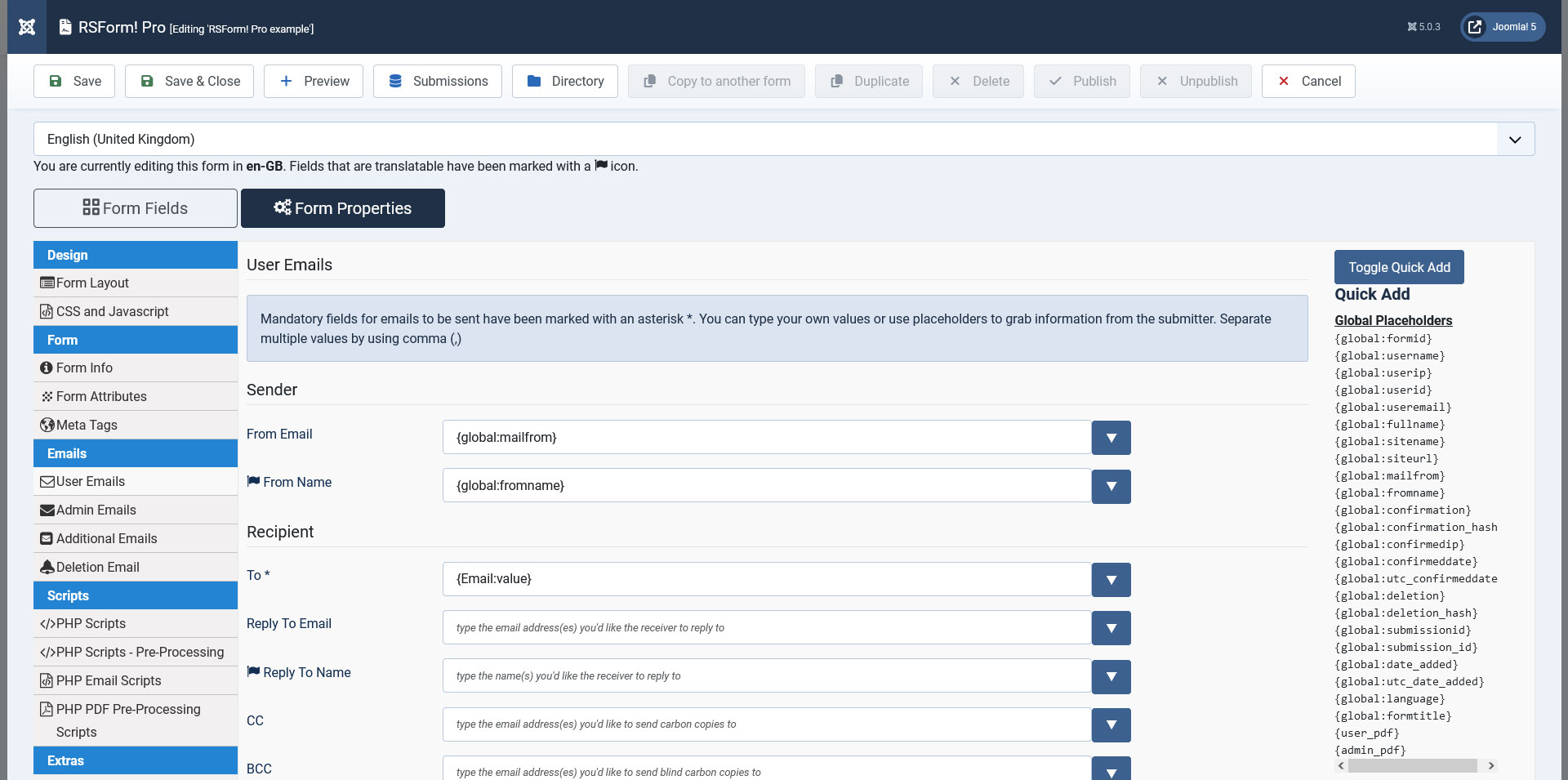
Now that we know what a component looks like, let's see how you can insert these parts into your layout. We defined a simple placeholder system. The general rule used is: {component_name:part_name} Let's see a short example on how to integrate our components into the layout. Suppose you created a text box named user_mail and want it to be displayed in the layout. In order to do that, write this in the layout section of RSForm 2.0 {user_mail:caption} {user_mail:body} {user_mail:description} {user_mail:validation} Let's see another example. Suppose you have three components, a text box (named username), a select list (named user_option) and a submit button with the reset button active (named submit_button). Further more, you want to display these components in a table like view, with the submit and reset button in the center. To do this, write: With RSForm 2.0, you can send custom emails to the users that submitted the form. Naturally, you can customize RSForm 2.0 to send another email to you, as administrator. These two types of email are configured separately, in the two corresponding tabs of the back-end form management. In both cases, you can use simple placeholders to display information. Because both forms are identical, we will cover them both Let's see what fields can be configured. - Email Form data to: the address where the email should be sent.
- Email Form data FROM: whenever the user receives the email, this will be be the senders' address (i.e. from who the mail came from).
- Email From Name: whenever the user receives the email, this will be be the senders' name (i.e. the person's name the mail came from).
- Email Subject: the subject of the email.
- Email Mode: you can send your email as plain text, or, if you wish to add more `color' to your message, you can send a HTML email.
- Email Text: the actual text of the email. If you set the last parameter (Email mode) to HTML, then you'll be able to put here HTML code, for a nicer email look.
Important note! If you write here HTML tags BUT haven't set the Email mode option to HTML, the HTML tags will not be interpreted and the user, instead of seeing a nice bold message, may see something like Hello dear user in his email. Please take caution. In all of these fields you can use placeholders to write important data. We defined for your ease of use general and form specific placeholders. Form specific placeholders are used just like layout placeholders are. Supported options for component placeholders are: - value: this returns the value typed by the user in the corresponding component.

- name: the name of the component, as defined in the back-end.
- caption: the caption of the component, as defined in the back-end.
Let's see a short example. Suppose that among others, your form has a text field that required the user to input his/her name. This component is called user_name. If you want to use that value in your user message, write this in your email text field: language=HTML commentstyle= basicstyle= tabsize=2 If an user typed `Albert Einstein', the email that he would receive after he submitted the form will be: language=HTML commentstyle= basicstyle= tabsize=2 Let's see now the second category, general placeholders. General placeholders are used like this: {global:placeholder_name} Consult the following table for all the placeholders supported.
| Placeholder name | Description | Logged in user required? | | username | If the user is registered to your Joomla website, his username will appear when using this placeholder | Yes | | userid | If the user is registered to your Joomla website, his user id will appear when using this placeholder | Yes | | useremail | If the user is registered to your Joomla website, his email will appear when using this placeholder | Yes | | fullname | If the user is registered to your Joomla website, his fullname will appear when using this placeholder | Yes | | userip | The IP of the user that submitted the form | No | | date_added | The date the user submitted the form | No | | sitename | The name of your site, as defined in your Joomla configuration | No | | siteurl | The URL of your site | No | So, let's say that in the admin e-mail you want to track the IP address of your submissions. Just add {global:userip} in your admin email message and every time you receive an email, the IP of the user that submitted the form will appear.RSform! Pro allows to add custom validation rules for the components that allow validation rules. In order to add a new validation rule, navigate in your Joomla file list, go to components/com_rsform/controller/validation.php. In this file you will find all the validation rules defined. In order to add a new validation rule, edit the file validation.php in the following manner: - Add a new function that allows only one parameter. The name of the function will be the name of the validation rule, as displayed when adding a new component.
- On success, the function should return true. On fail, the function should return false.
Caution: don't delete any validation rules unless you know what you are doing. In you still wish to delete one validation rule, check to see that the validation rule is not used anywhere inside your forms. RSform! Pro allows you to add your custom PHP code in various parts of you form. You can define code that will be executed upon form form display. To do this, select the form you wish to customize, go to the Scripts tab and add your custom code in the "Script called on form display " textarea. Please add this script without the PHP delimiters () You can also add custom PHP code once the form has been submitted. In order to do that, add the appropriate lines of code in the "Script called on form process ". Once the form is submitted, this piece of code is executed and after that the submissions are added to the database. Another place where you can insert your code is when using hidden fields. In order to update your RSform!Pro, go to the main component panel. You'll find here a button that says "Check for updates". Click it. A new windows appears that may contain one of the three messages below: - Your version is up to date, no downloads available. If you see this message, you have the newest version of RSform!Pro. No need to update

- A new version is available. Click here to download the update. If you see this message, follow these steps:
- Download the updates using the link provided (the text "Click here to download the update" is a link that will point you to the download).
- Once the component is downloaded, go to the main screen of RSform!Pro, click on "Check for updates". You'll notice in the bottom of the screen an upload component. Click "Browse", point to the update file that you downloaded.
- Click "Update" and RSform!Pro should be up to date.
- Please make sure you entered your license code correctly in the configuration script. If you see this message, then you haven't entered your license code correctly.
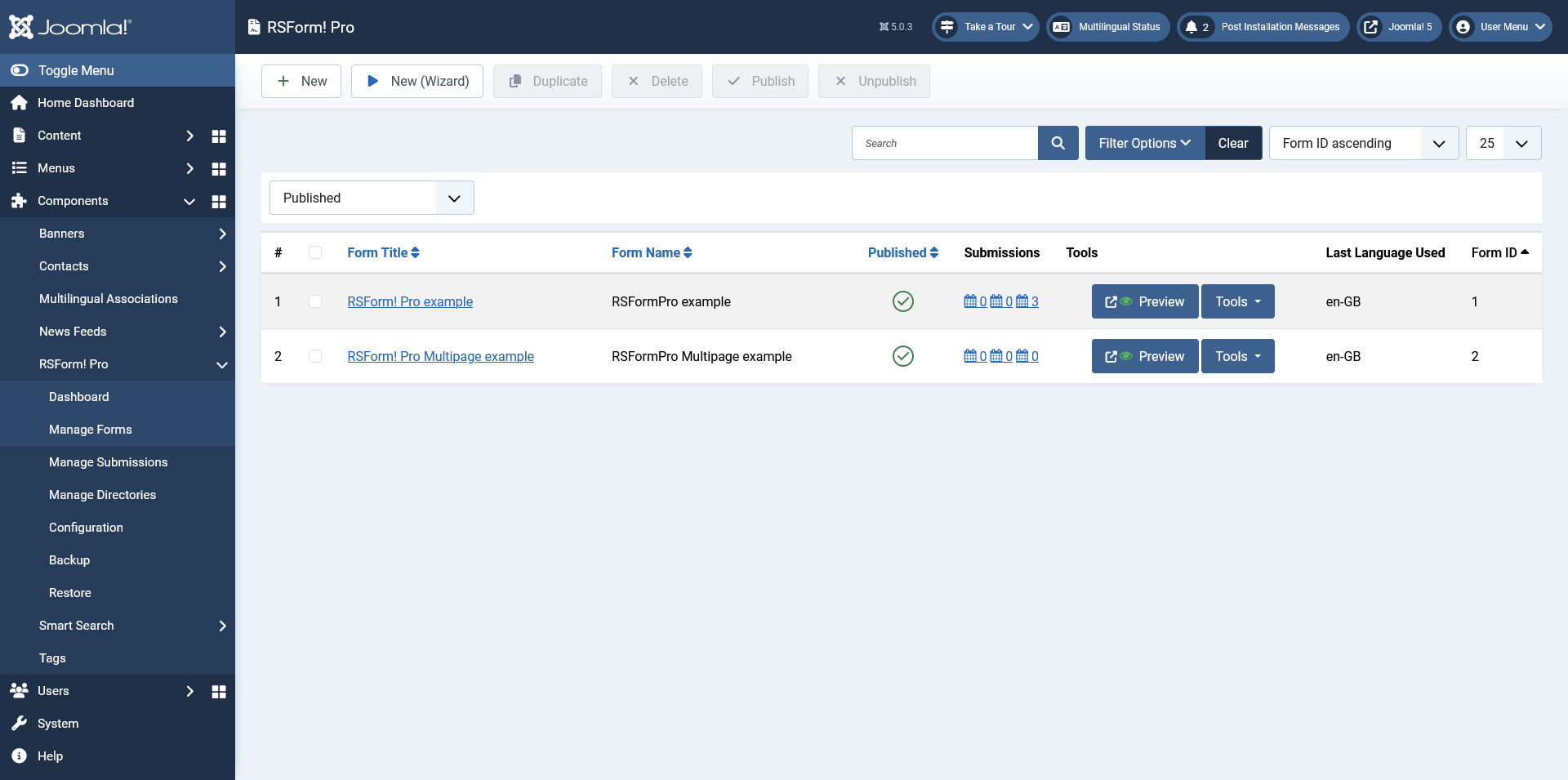
RSform!Pro has three different ways of adding a form to a menu item. - Go to Administrator > RSform!Pro > Manage Forms > and click on the Add to menu button listed on each form row. Select the menu where you want your form and give it a title
- Go to Administrator > Menus > Mainmenu > New > Internal Link > RSform!Pro then give it a title, and in the Form ID type the number that you see on the last column of the Forms Manager screen (usually 1, 2..)
- In the Forms Manager, click on Preview, and copy the generated link, then go to Administrator > Menus > Mainmenu > New -> External Link and paste the previously copied link
We advice you to use the first or the second method since it is compatible with all the 3rd Party SEF extensions for Joomla. If you wish to use multi-language forms in RSform!Pro, you have to follow these steps: - Let's assume that you have English and Spanish languages installed in your Joomfish. Create your English form first(Form Id = 2).
- Copy the form using the copy function, and translate it in Spanish. The new form will have Form id = 3 for example
- Go to Menus > Mainmenu > New > RSform!Pro > and set the Form Id to point by default to the english version (Form Id = 2)
- Go to Joomfish > Translation > English > Menus and select the previously created menu item, then in the Form ID type 2 as that is the English Form
- Go to Joomfish > Translation > Spanish > Menus and select the same menu item, only this time type 3 in the Form ID to show the Spanish Form
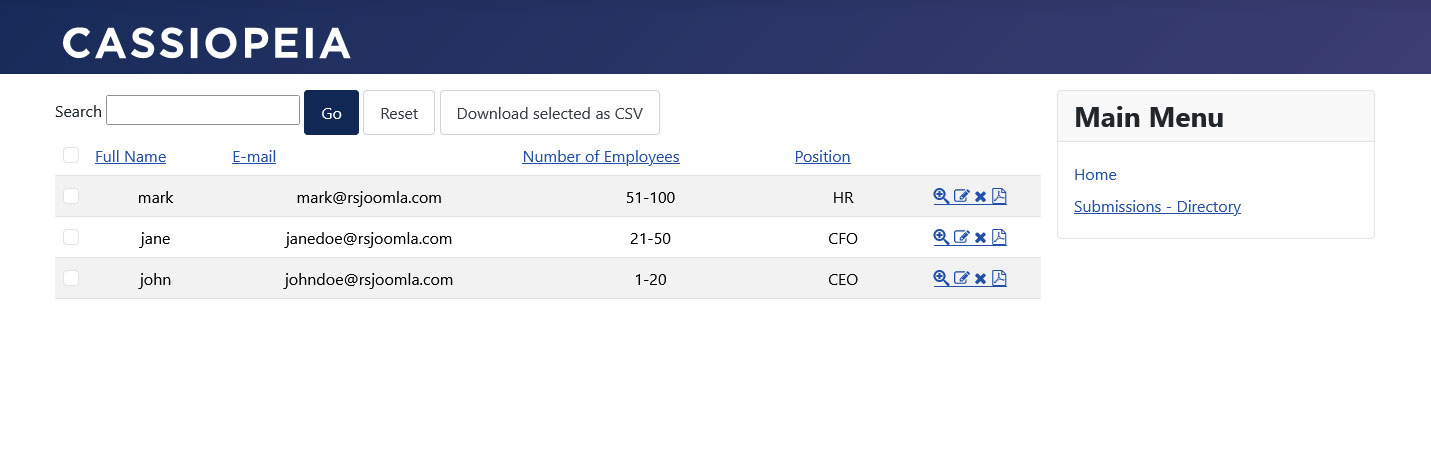
Submissions can be displayed in the front-end using the mod_rsform_list module. First you'll have to download, install and configure the mod_rsform_list module. You can download it by logging in to your RSjoomla! account, and going to the Support Center > RSform!Pro Downloads > Modules > mod_rsform_list.zip If you want to display the submissions inside an article, you have to follow these additional steps: - You have to place the module in a module position like user4 for example(somewhere where there's no other module published)
- In your article you'll have to use the {mosloadposition user1} for Joomla 1.0.x and {loadposition user4} for Joomla 1.5.x syntax which triggers the LoadPosition plugin
This function allows you to save the data from your submissions to an external table or tables, depending on your configuration. Using this functionality, RSform!Pro can be used to add data into whatever application you have installed in your Joomla powered site.
Please take into account that this function should only be used by professionals.
In order to map a submission value to one or more table columns you must have a form with all the components already configured. In order to define a mapping, please follow these steps: - Go to "Manage forms" in the main panel of RSform!Pro
- Select the appropriate form by clicking on it
- Here, build your form by adding components
- Once you are done adding components, please go to the "Mappings" tab located to he right
- Here, select as follows
- The component (identified by it's name) that it's value you wish to save
- The table where you want the specified submission value to be saved to
- The column from the selected table you want the specified submission value to be saved to
Now, when the form is submitted, the values defined under mappings will also be saved in the table / tables that you defined.
Please take into account to never map the same two submission values to the same column in the same table. This article describes how to generate and use the license code.
When clicking the link for your desired licensing option (located here), you will be redirected to our payment partner. There, you will have to complete a form and your payment will be processed.
Quick tip: when completing the form you must provide your email. If you have previously purchased a product (i.e. already have an account at rsjoomla.com) we advise you to use the same email. Our licensing system is configured to automatically create a new username for every new email address, so if you use three different emails to purchase, you will have three accounts, making things more difficult to manage.
When the purchase is complete (please allow up to 48 hours for processing), you will receive an email containing and username and password. Using this information, please login to rsjoomla.com . There, go to "My license codes" (located here). Here you will find all your newly purchased license codes.
In order to generate a license code, please click "Change domain" and input your domain name in the appropriate text box and save. The system will generate a new license code In this article we will describe the usage of the Migration tool. This is actually a free plugin that comes with any RSform!Pro installation.
The Migration tool moves the forms you created from RSform! to RSform!Pro. This plugin will not overwrite the forms you already have in RSform!Pro.
In order use this plugin you will have to have both RSform! and RSform!Pro installed on the same Joomla installation. To migrate the forms created in RSform! just go to Components > RSform!Pro > Configuration > Plugins and click "Migrate forms".
Note:
The scripts from RSform! will not be migrated since it is not compatible with RSform!Pro. |