Knowledgebase template overwrite
The standard output from any Joomla! Module or Component can be overridden by adding code to the html directory of your template. Using template overrides is recommended because the changes you have made to the layout will not be affected by component updates. In this example we will edit the output of the Knowledgebase layout.
- the first thing you need to do is go to templates/your_template_name/html and create a new folder named com_rsticketspro;
- inside this folder you will need to create a second folder named knowledgebase;
- you will then need to go to components/com_rsticketspro/views/knowledgebase/tmpl and copy the default.php file in your newly created knowledgebase folder.
You can now change the appearance of this view by editing the code of the default.php file from templates/your_template_name/html/com_rsticketspro/knowledgebase. For example:
<?php echo ' - ('.$this->escape($this->category->name).')'; ?>
below this line:
<a href="<?php echo RSTicketsProHelper::route('index.php?option=com_rsticketspro&view=article&cid='.RSTicketsProHelper::KbSEF($item)); ?>"><?php echo ($this->show_thumbs && $item->thumb) != '' ? HTMLHelper::_('image', 'components/com_rsticketspro/assets/thumbs/articles/' . $item->thumb, '', array('class' => 'rst-kb-article-thumb'), false) : ''; ?><?php echo $item->name != '' ? $item->name : Text::_('RST_NO_TITLE'); ?></a>
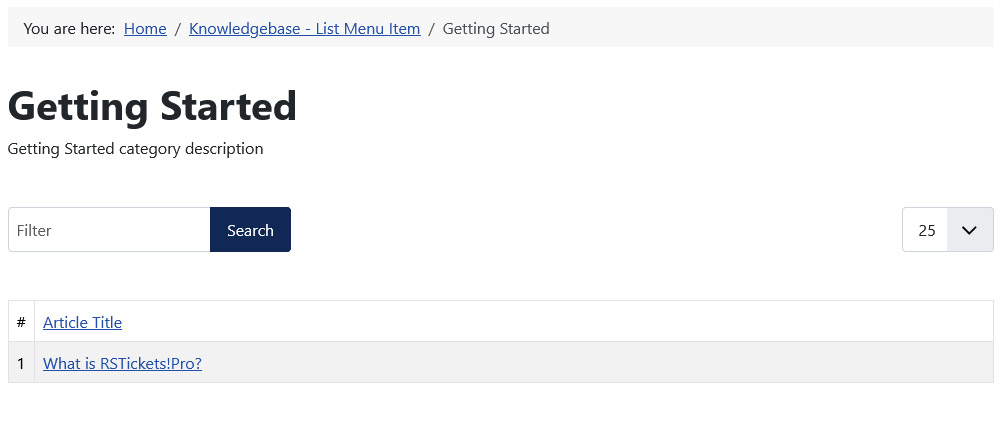
This will add the according category name next to the article title as you can see in the images.

One person found this article helpful.
You Should Also Read
Extract some database values inside a custom field |
Hiding the Priority field in the ticket submission form |
