Configuration
General configuration options are accessible via the Components > RSTickets!Pro > Configuration tab. The general behavior of the RSTickets!Pro component can be configured from here.
To facilitate component management, the configuration area is divided into 13 tabs: General, Data Protection, Messages, Ticket Submission, Tickets, Staff Options, CAPTCHA, Email, Autoclose, Notices, Knowledgebase, Article Template and Updates.
General
- Date and Time Format: a date/time mask that will be used through RSTickets!Pro to display the time. It uses the standard PHP date masks.
- Date (No Time) Format: throughout the component the date will be used without the time portion. Setting this field can enable a separate mask for displaying the time.
- Load Bootstrap: choose either to load or not the Boostratp CSS file.
- Load jQuery: choose if you want to load the jQuery library
- Use 'btn-group' On Radios: Some templates don't have the proper CSS and JS definitions for the 'btn-group' buttons. Setting this to No will remove all 'btn-group' classes from radios in the frontend.
- Use Magnific Popup for the modals: By setting this to 'Yes', the default Bootstrap modals will be replaced with the Magnific Popup script.
- Use the Joomla! editor for writing messages: Yes / No - if enabled, all RSTickets!Pro message boxes will display a WYSIWYG editor.
- Display Joomla! editor buttons: By enabling this, the buttons below the editor(Plugins - editor - xtd) will be shown.
- Attempt to calculate Item IDs: When a link with no Item ID is found, RSTickets!Pro will attempt to calculate the correct Item ID. Disable this if you experience issues(modules or menus disappearing).
- Show RSTickets! Pro Link in Footer: Yes / No - if enabled a small HTML RSTickets!Pro footer will be displayed below the main pages of RSTickets!Pro.

Data protection
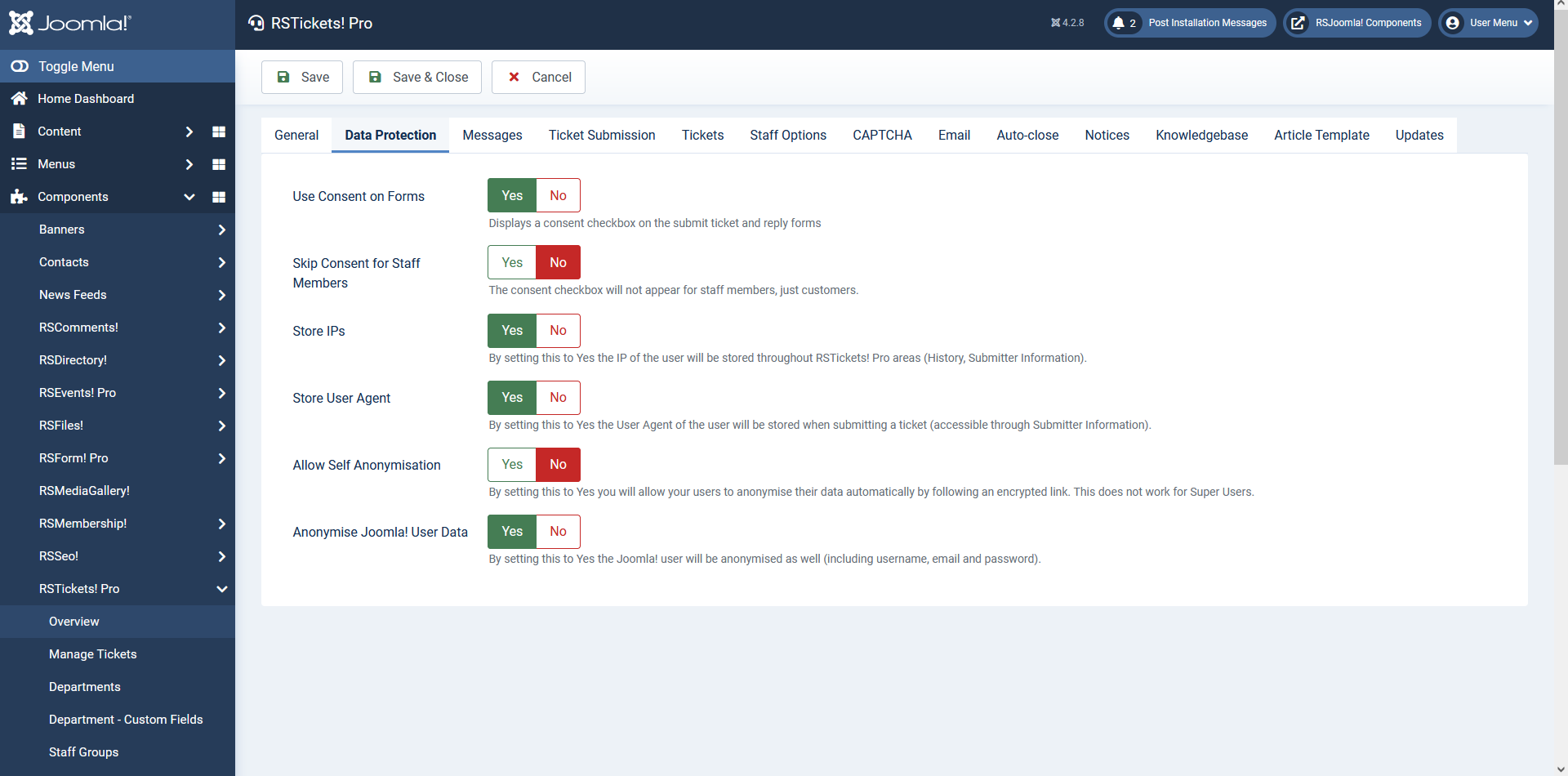
- Use Consent on Forms: Yes / No. By setting this to Yes, a consent checkbox on the submit ticket and reply forms will be displayed.
- Skip Consent for Staff Members: Yes / No. By setting this to Yes, the consent checkbox will not appear for staff members, just customers.
- Store IPs: Yes / No. By setting this to Yes the IP of the user will be stored throughout RSTickets! Pro areas (History, Submitter Information).
- Store User Agent:Yes / No. By setting this to Yes the User Agent of the user will be stored when submitting a ticket (accessible through Submitter Information).
- Allow Self Anonymisation:Yes / No. By setting this to Yes you will allow your users to anonymise their data automatically by following an encrypted link. This does not work for Super Users.
- Anonymise Joomla! User Data:Yes / No. By setting this to Yes the Joomla! user will be anonymised as well (including username, email and password).
Messages
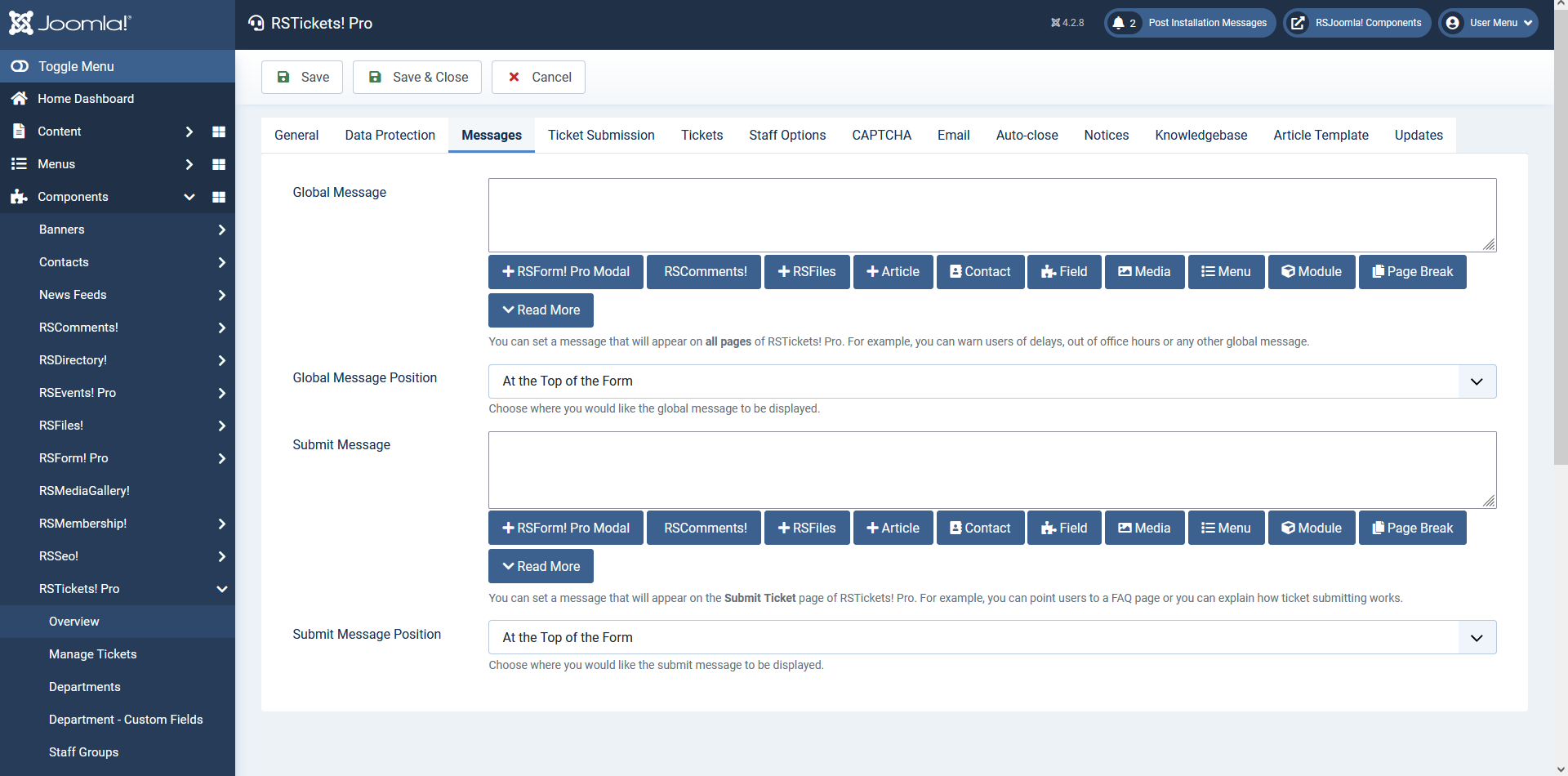
- Global Message: RSTickets!Pro allows you to set a message that will be displayed on all RSTickets!Pro pages. This can be used to announce support time schedule, or other useful information.
- Global Message Position: Choose where you would like the global message to be displayed. Available options:
- At the top of the form
- At the bottom of the form
- Submit Message: this message will be displayed on the submit ticket page. This can be used to advice the user to first use search through your FAQ area for example.
- Submit Message Position: Choose where you would like the submit message to be displayed.
- At the top of the form
- At the bottom of the form
Both Global Message and Submit Message can be placeholders, thus making multilanguage a possibility.To achieve this you can use language file placeholders in your messages and then define them in the language files.
Ticket Submission
- Receive Tickets From: everyone / registered users.
- Blocked email addresses: You can specify which email addresses should not be accepted. Each email should be specified on a new line. You can also use * as a wildcard eg. spammer@*.com.
- Emails as usernames: enable this to allow usernames to be created based on emails.
- Show Alternative Email: Only available when the Cron Plugin is installed, by setting this to Yes an 'Alternative Email' input will be provided when submitting a new ticket, which the customer can fill in to provide an alternative email address to be used when replying to tickets.
- Allow users to set their own password: select Yes if you want to allow your users to set their own passwords.
- New User Type: When creating a new user, this will be the default user group.
- Redirect to URL (after successful submission): After a customer submits a ticket, you can redirect him to a custom page. Just type the page URL here. If left blank, the page will get refreshed and a thank you message will be shown. The message itself can be adjusted directly from within the RSTickets!Pro front-end language file: language/en-GB/en-GB.com_rsticketspro.ini (search for RST_TICKET_SUBMIT_OK).
- Use Predefined Subjects: If enabled, the customers will be able to select a subject from a drop-down list, instead of typing it in. The predefined subjects are configurable per department: RSTickets!Pro > Departments > edit a department > Tickets. More details on the Department configuration options are available here.

Tickets
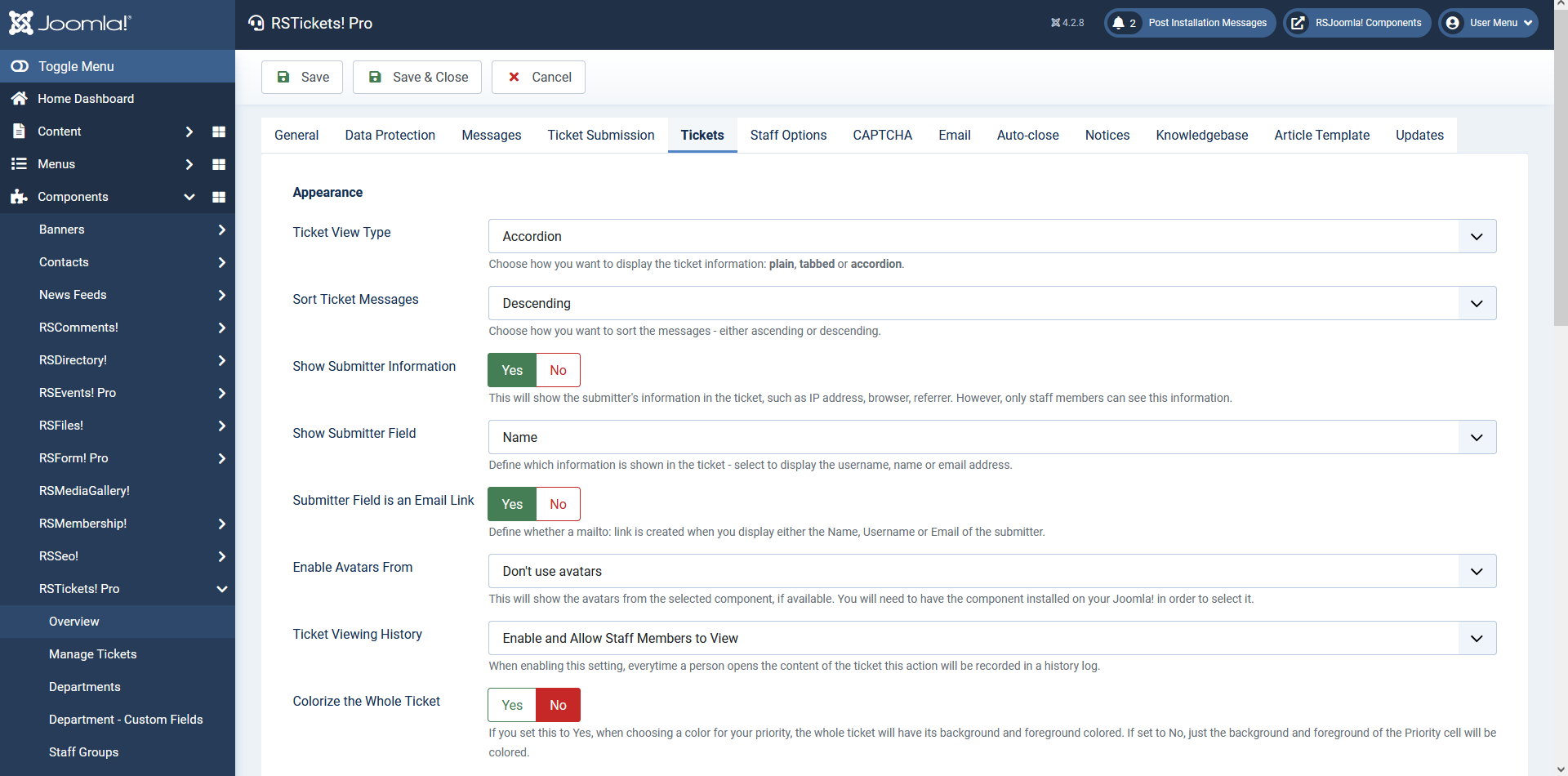
- Ticket View Type: Choose how you want to display the ticket information: plain, tabbed or accordion.
- Sort Ticket Messages: Choose how you want to sort the messages - either ascending or descending..
- Show Submitter Information: yes /no
- Show Submitter Field: name / username / email
- Submitter Field is an Email Link: yes / no
- Enable Avatars From - Enabling the avatars option will display a small picture in the ticket message. The avatar can be imported from several locations:
- Don't use avatars: will not display the avatar if used.
- Gravatar: will display the gravatar.com configured image.
- Community builder: will import the image from your configured CB profile account (if installed).
- JomSocial: will import the image from your configured JomSocial profile account (if installed).
- Kunena: will import the image from your configured Kunena profile (if installed).
- Ticket Viewing History: disable / enable and allow staff members to view / enable and allow staff members and customers to view
- Colorize the Whole Ticket: If you set this to Yes, when choosing a color for ticket priority, the whole ticket will have its background and foreground colored. If set to No, just the background and foreground of the Priority cell will be colored.
- Change Status Automatically: By default when a customer replies the ticket's status is changed to Open and when a staff member replies the ticket's status is changed to On-Hold. Set this to No if you'd like to disable this behavior.
- Enable followup email?: yes / no. By enabling this option, a feedback request email will be sent after a set interval of time.
- Check for tickets marked for autoclosing every (minutes): how often should RSTickets!Pro should check for autoclose tickets.
- Followup Email Interval: Set the time interval (in days) when the followup email should be sent.
- Allow Ticket Voting: yes / no
- Allow Customers to Close Tickets: yes / no
- Allow Customers to Re-open Closed Tickets: yes / no
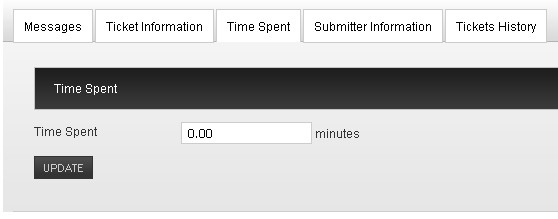
- Enable time spent: You can enable your staff members to monitor how much time they spent on a support ticket (this is however manually specified).
- Time Spent Type: Manual Input / Time tracking history. Select the appearance of 'Time Spent' - either a textbox that can be manually updated or 'Time Tracking History' that allows you to start and stop tracking.
- Time unit: the ticket time measurement unit (minutes / hours / days)
- Strip HTML Tags: Set this to Yes if you would like to strip HTML tags from the exported messages.
- Strip New Lines: Set this to Yes if you would like to strip new lines from the exported messages.
- Delimiter: the CSV fields delimiter
- Enclosure: the CSV fields encloser
Staff Options
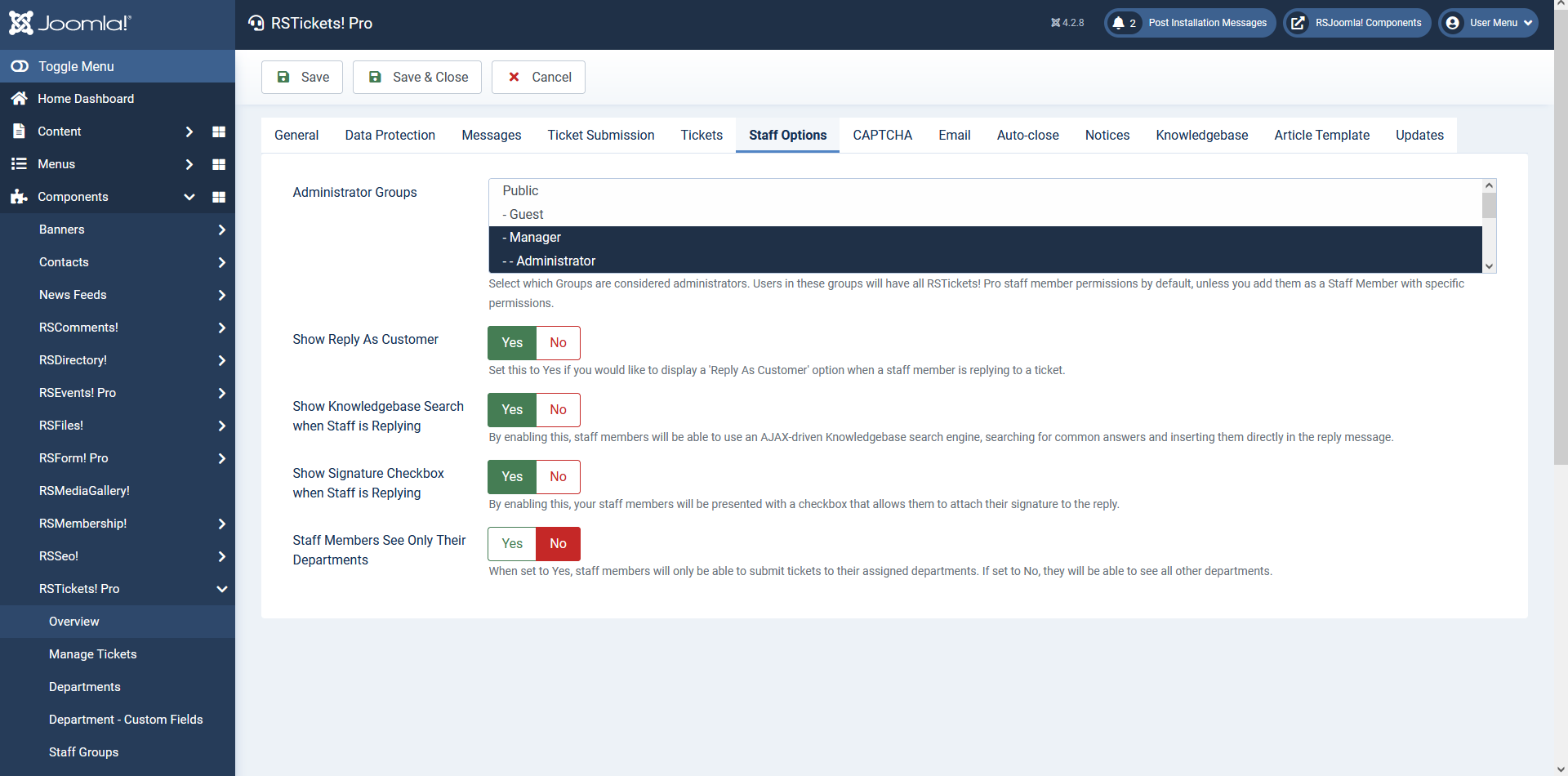
- Administrator Groups: Select which Groups are considered administrators. Users in these groups will have all RSTickets! Pro staff member permissions by default, unless you add them as a Staff Member with specific permissions.
- Show Reply As Customer: Set this to Yes if you would like to display a 'Reply As Customer' option when a staff member is replying to a ticket.
- Show Knowledgebase search when staff is replying: By enabling this, staff members will be able to use an AJAX-driven Knowledgebase search engine, searching for common answers and inserting them directly in the reply message.
- Show signature checkbox when staff is replying: By enabling this, your staff members will be presented with a checkbox that allows them to attach their signature to the reply. This will be checked by default.
- Staff members see only their departments: When set to Yes, staff members will only be able to submit tickets to their assigned departments. If set to No, they will be able to see all other departments.
CAPTCHA
Captcha will help you to prevent spam submission on your submit ticket form:
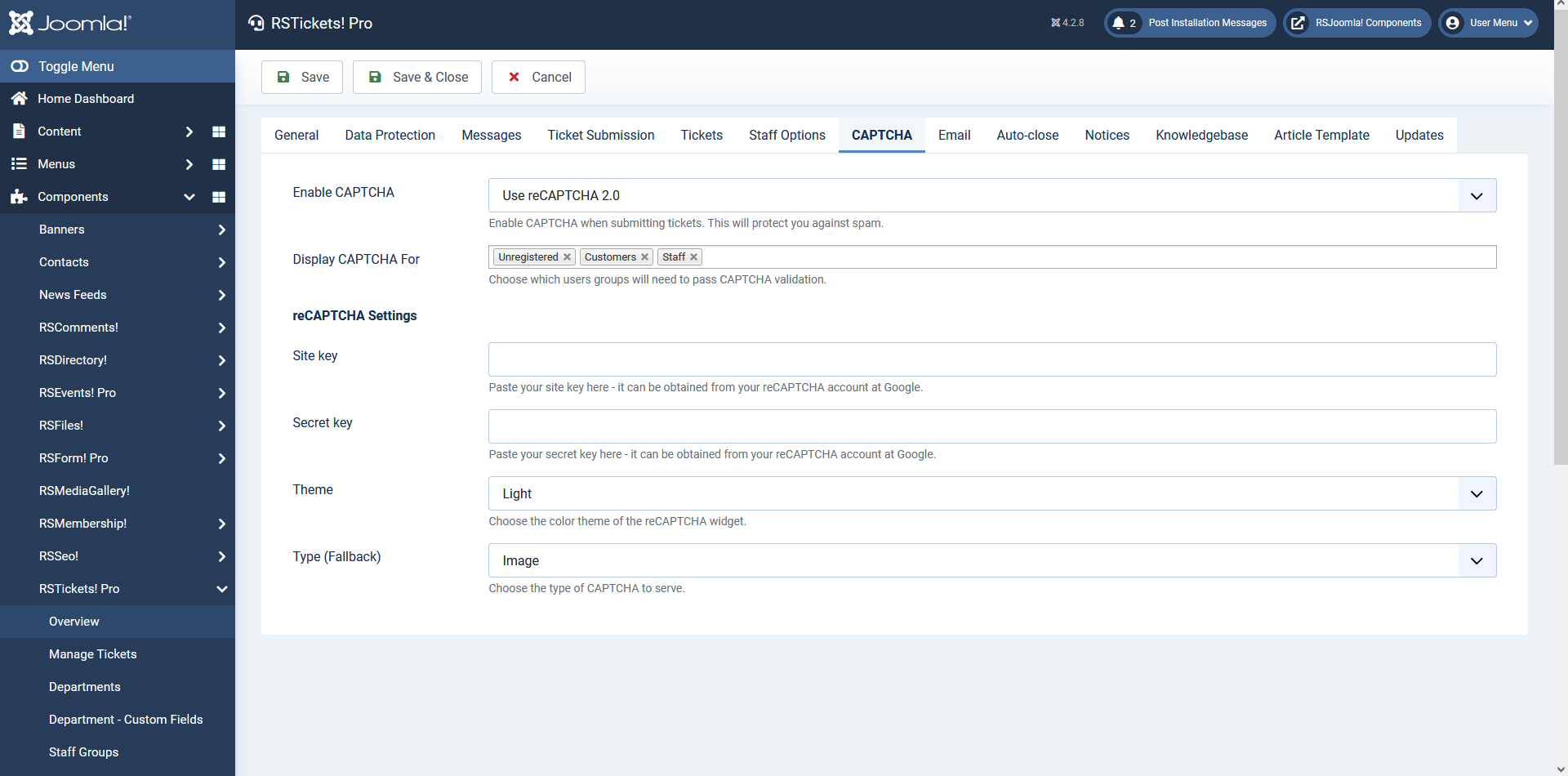
- Enable CAPTCHA: no / Use Built-in CAPTCHA / Use reCAPTCHA (New)/ Use Invisible reCAPTCHA / Use Joomla! Default Captcha Plugin.
- Display CAPTCHA For: Unregistered/Customers/Staff - to facilitate the user experience the captcha can be set to display just for a certain category of users.
Built-in CAPTCHA Settings
- Characters: number of generated chars (available for the built-in captcha only).
- Generate Lines: Yes / No - the generated image can contains lines to make it harder for spam bots to parse the image.
- Case Sensitive: Yes / No - to typed in captcha sequence will be case sensitive.
reCAPTCHA 2.0 Settings
- Site Key: - Paste your site key here;
- Secret Key: - Paste your secret key here;
- Theme: - Select your desired theme (Light / Dark);
- Type (Fallback): - Default CAPTCHA to serve in case the checkbox fails (can be Image / Audio);
reCAPTCHA Invisible
- Site Key: - Paste your site key here;
- Secret Key: - Paste your secret key here;
- Theme: - Select your desired theme (Light / Dark);
- Type (Fallback): - Default CAPTCHA to serve in case the checkbox fails (can be Image / Audio);
reCAPTCHA v3
- Site Key: - Paste your site key here;
- Secret Key: - Paste your secret key here;
- If you are an old reCAPTCHA user, there's no need to generate new keys for your domain, you can simply use the old reCAPTCHA Public and Private keys.
- If you're new to reCAPTCHA, use this link to get a reCAPTCHA account (Google account is required).
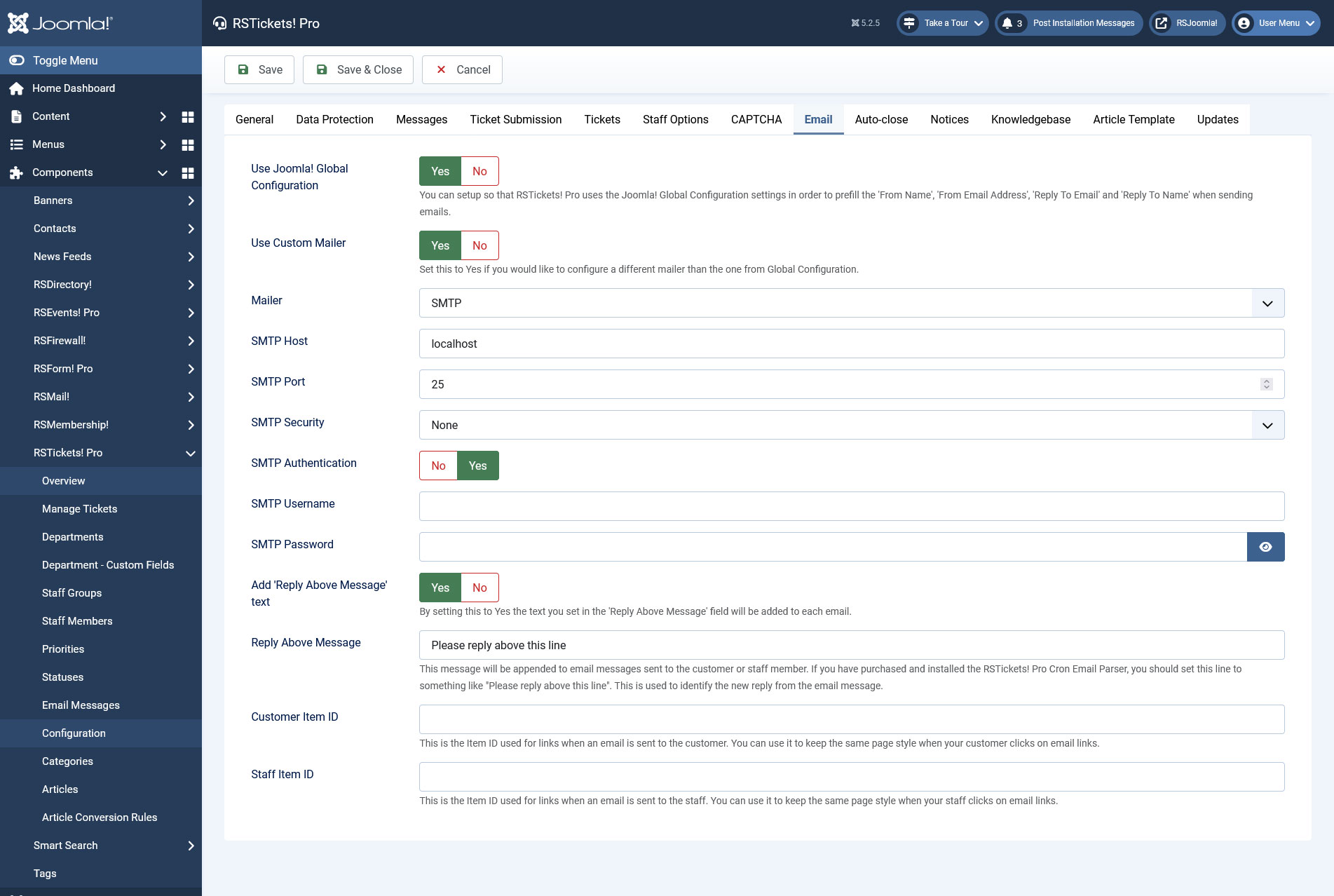
- Use Joomla! Global Configuration: Yes / No - enabling this will cause RSTickets!Pro to use the from email address and from name from your Joomla! Global Configuration area: Site > Global Configuration
- Use Custom Mailer: Yes / No - Set this to Yes if you would like to configure a different mailer than the one from Global Configuration
- Mailer: - can be SMTP / Sendmail / PHP Mail
- SMTP Host
- SMTP Port
- SMTP Security
- SMTP Authentication: Yes / No
- SMTP Username
- SMTP Password
- From Email Address: - can be set if the above option is set to no. (available only when 'Use Joomla! Global Configuration' is disabled)
- From Name: - can be set if the above option is set to no. (available only when 'Use Joomla! Global Configuration' is disabled)
- Reply To Email: - This is the email address of the 'Reply-To' header. (available only when 'Use Joomla! Global Configuration' is disabled)
- Reply To Name: - This is the name associated with the email address of the 'Reply-To' header. (available only when 'Use Joomla! Global Configuration' is disabled)
- Add Reply Above Message text: - By setting this to Yes the text you set in the 'Reply Above Message' field will be added to each email.
- Reply Above Message: - this is used to parse emails when a customer replies to a ticket directly from the email account
- Customer Item ID: This is the Item ID used for links when an email is sent to the customer. You can use it to keep the same page style (along with assigned modules) when your customer clicks on email links.
- Staff Item ID: This is the Item ID used for links when an email is sent to the staff. You can use it to keep the same page style (along with assigned modules) when your staff clicks on email links.
Autoclose
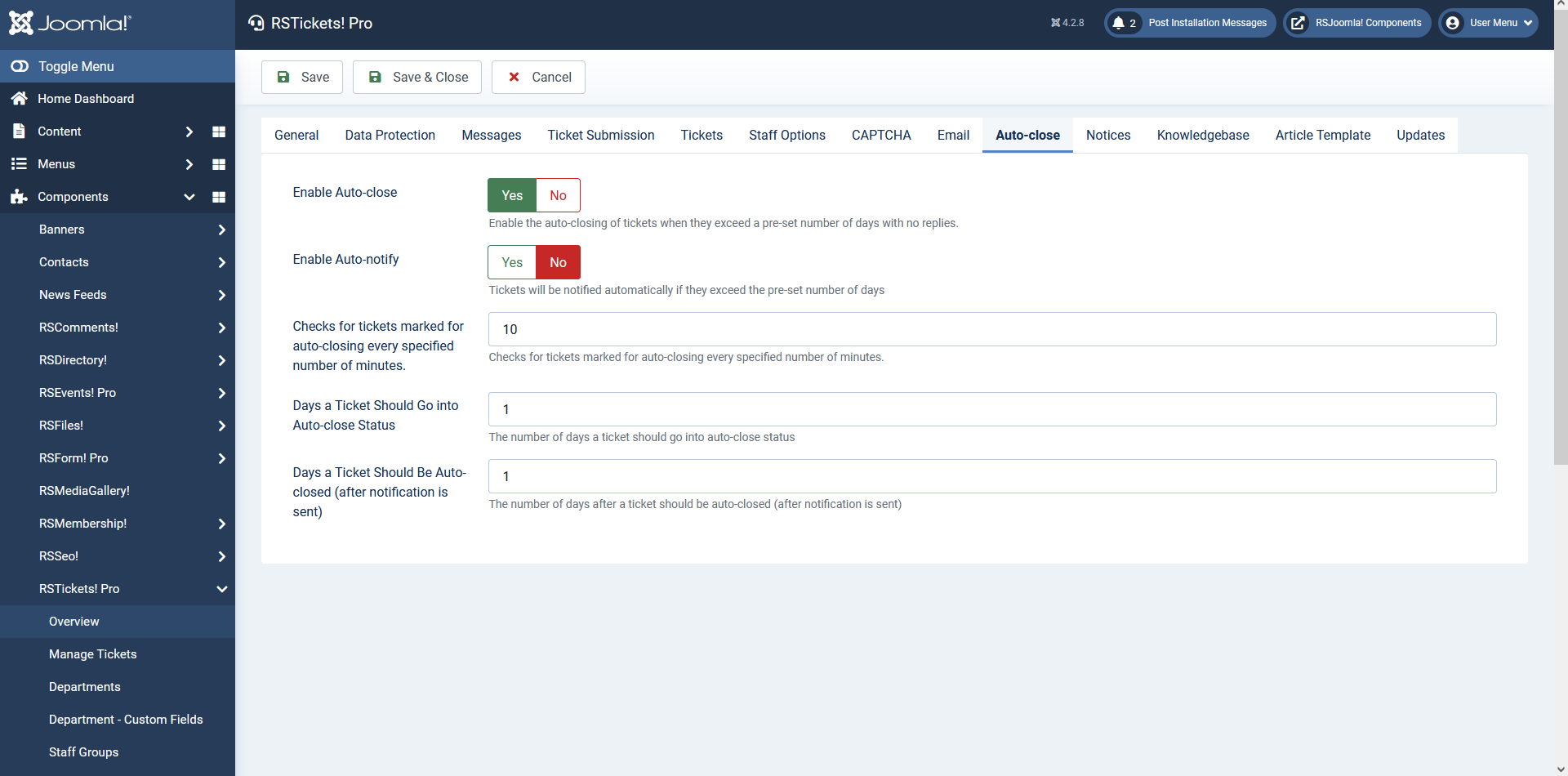
- Enable Autoclose: Yes / No - if a ticket has no activity for X number of days it can become eligible for autoclosing. It will not be automatically closed until a notification message is sent
- Enable Autonotify: if a ticket has no activity for a predefined number of days, a notification message will be automatically sent, if set to YES.
- Check for tickets marked for autoclosing every (minutes): how often should RSTickets!Pro should check for autoclose tickets.
- Days a ticket should go into autoclose status: days a ticket should go into autoclosing status if no activity.
- Days a ticket should be autoclosed (after notification is sent): days passed until the ticket is closed after the notification message is sent.
Notices
The Notices is particularly useful when you wish to be notified when tickets meet certain conditions. For example is faulty language is used or the customer added several replies without getting an answer.
- Email Address: to what email address should the notification email be sent.
- Number of Replies (Unassigned Ticket): how many replies need to be added so that the notification can be triggered for a ticket that hasn't been assigned to a staff member.
- Number of Replies (Assigned Ticket): how many replies need to be added so that the notification can be triggered for a ticket that has been assigned to a staff member.
- Triggered Keywords:if certain words are detected, the notification email can be triggered.

Knowledgebase
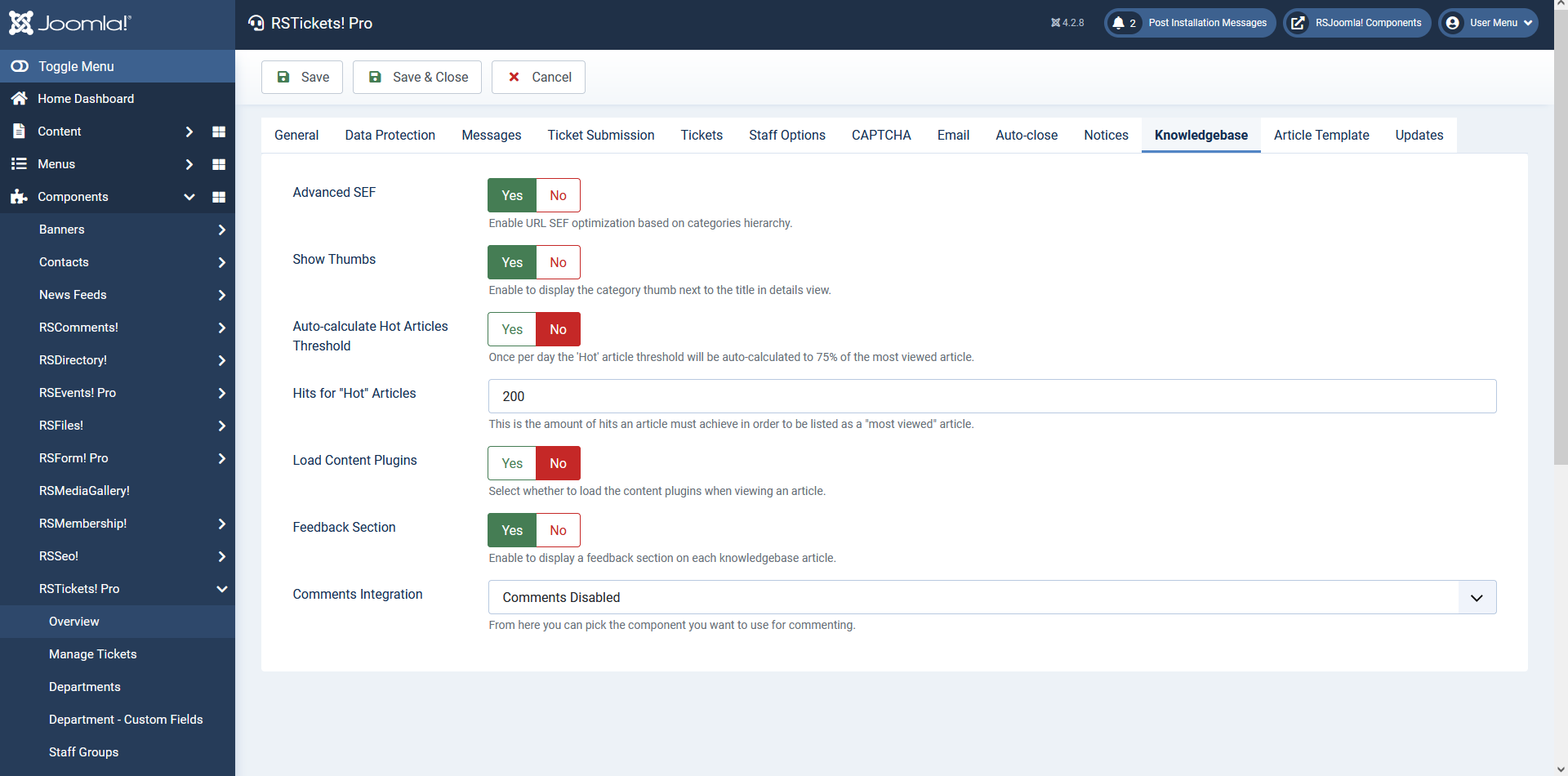
- Advanced SEF: You can enable URL SEF optimization based on categories hierarchy.
- Show Thumbs: You can enable this option in order to display the category thumb next to the title in details view.
- Auto-calculate Hot Articles Threshold: Once per day the 'Hot' article threshold will be auto-calculated to 75% of the most viewed article.
- Hits for "Hot" Articles: This is the amount of hits an article must achieve in order to be listed as a "most viewed" article. By default set to 200.
- Load Content plugins: Select whether to load the Joomla! content plugins when viewing an article
- Feedback Section: Enable this option to display a feedback section on each knowledgebase article.
- Comments Integration: You can allow users to comment on knowledgebase articles. If enabled you can allow them to comment with the following tools: Facebook comments, RSComments!, JComments and Jom Comment.
Article Template
- Template Body: This is the body of the template. You can add header and footer sections here. Remember to add the {ticket_messages} in order for the ticket information to appear correctly!
- Availale placeholders:
- {ticket_subject}
- {ticket_messages}
- {ticket_department}
- {ticket_date}
- Template Message Body: This is the body of the ticket message. It will be included several times into the template (depending on the number of messages).
- Availale placeholders:
- {message_user}
- {message_user_name}
- {message_user_username}
- {message_user_email}
- {message_date}
- {message_text}

Updates
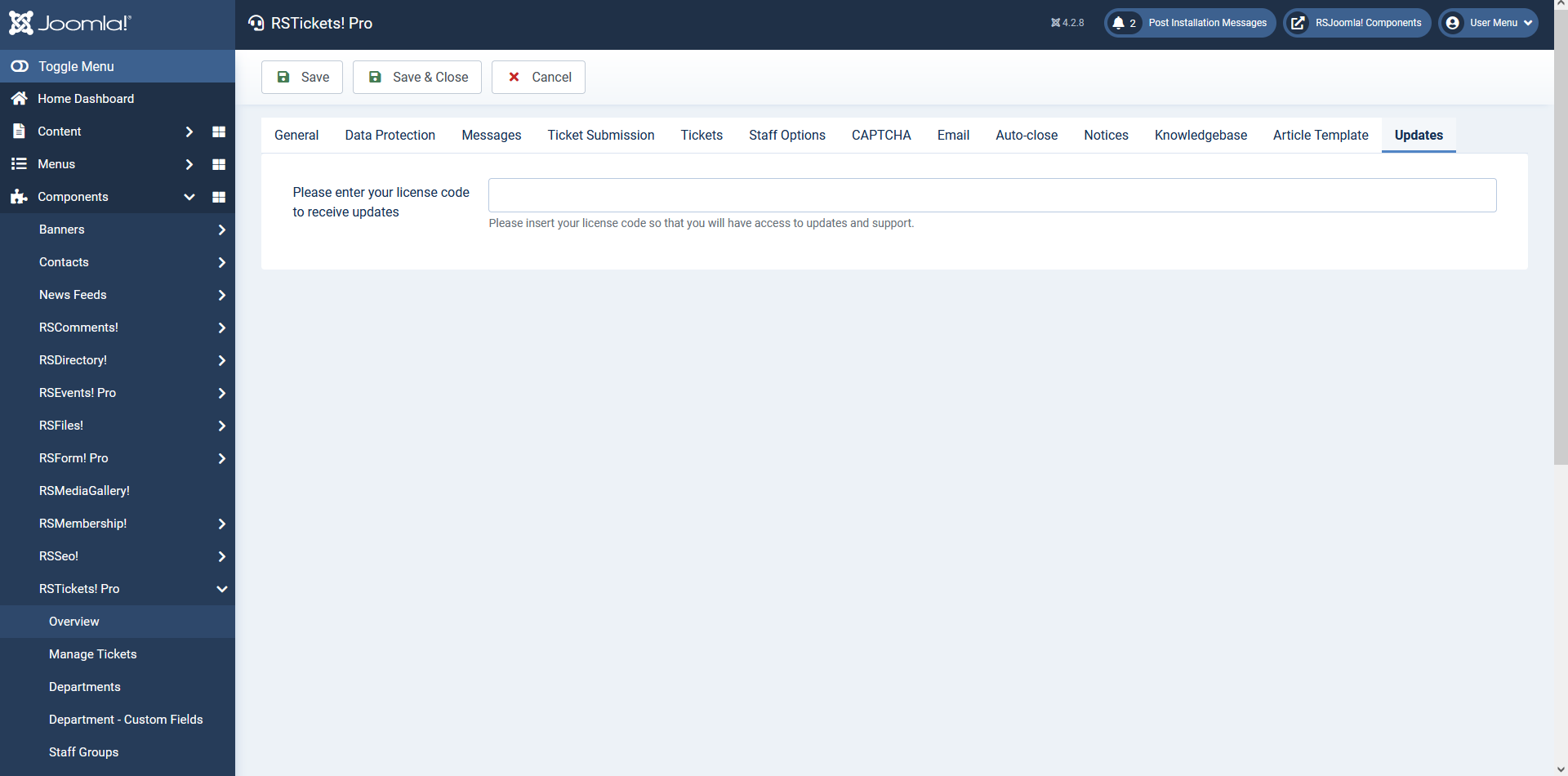
- Please enter your license code to receive updates: Insert the update code that you got when registering your domain in the My Memberships area on our website.
Permissions
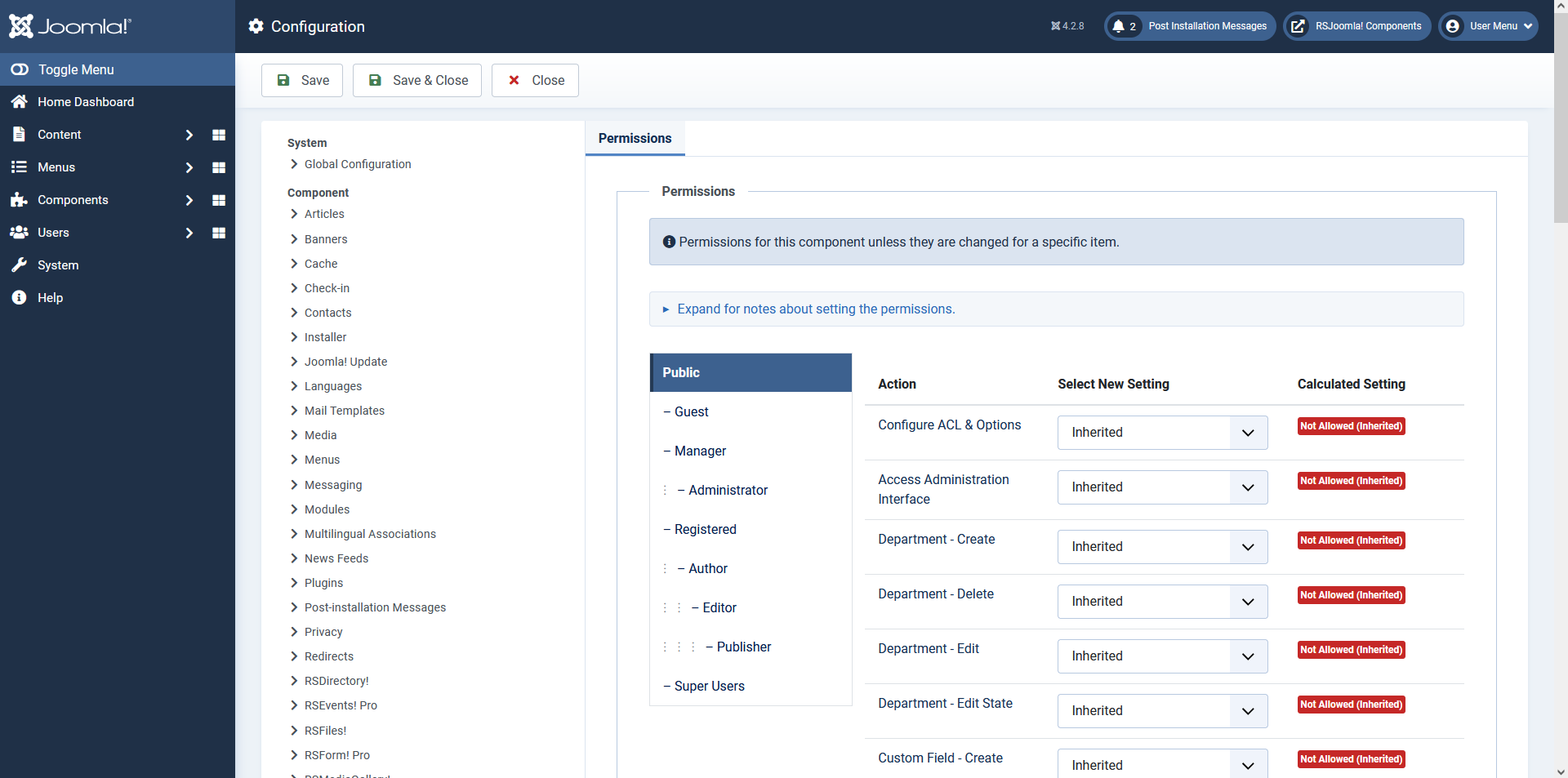
The ACL permissions for the component are available under Global Configuration area of your website.
21 persons found this article helpful.
You Should Also Read
Departments HOT |
Manage tickets HOT |
Email Messages HOT |
RSTickets!Pro Menu Items HOT |
What is RSTickets!Pro ? HOT |