Settings
The RSFiles! Settings tab represent the general control area of this component. This section is divided into 4 tabs: General, Files, Frontend and Emails.
General
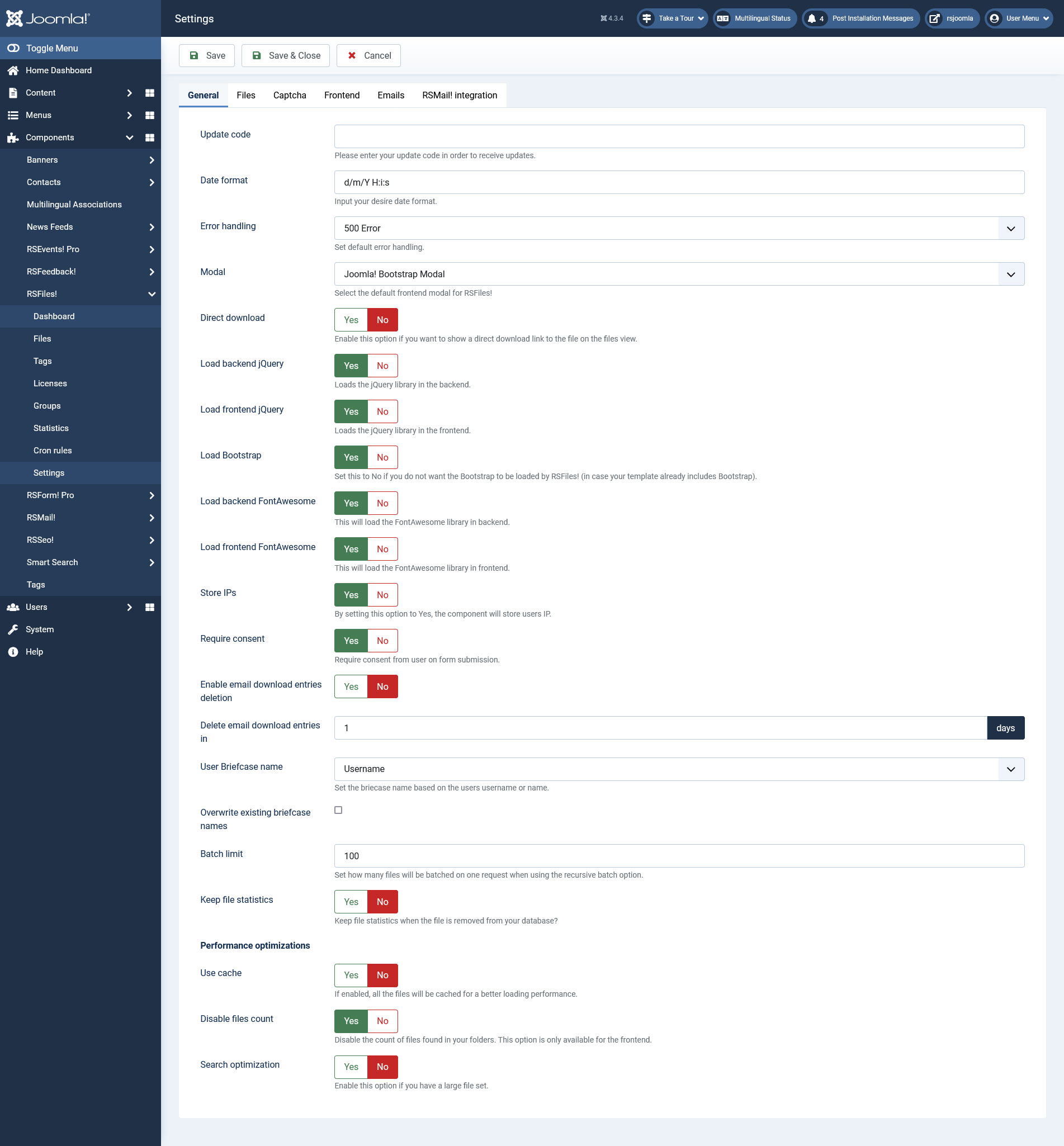
- Update code: the unique code of the license. This can be viewed in the View my license codes area.
- Date format: the date format that will be used through the whole component.
- Error handling: set the default error handling. You can choose between 500 error, 403 error and Redirect.
- Modal: select the default frontend modal for RSFiles!. You can choose between Joomla! Bootstrap Modal or Magnific Popup
- Direct download: enable this option if you wish to display a direct download link associated with each file in the file listing view.
- Load backend jQuery: loads the jQuery library in the backend area.
- Load frontend jQuery: loads the jQuery library in the frontend area.
- Load Bootstrap: Set to Yes if your template does not include Bootstrap. This way, RSFiles! will load it's own definitions.
- Load Backend Font Awesome: If set to Yes the FontAwesome library will be enabled in the backend area.
- Load Frontend Font Awesome: If set to Yes the FontAwesome library will be enabled in the frontend area.
- Store IPs: If set to Yes the component will store users IP.
- Require consent: Enable this to require consent from user on form submission (report files, email download, file edit).
- Delete email download entries in: enter a number of days after which the email download entries will be removed. Set to 0 in order to disable this feature.
- User Briefcase name: Set the briefcase name based on the users username or name
- Overwrite existing briefcase names: check this option if you want to overwrite the existing briefcase names
- Batch limit: Set how many files will be batched on one request when using the recursive batch option.
- Keep file statistics: Enable this option if you want to keep the file statistics when the file is removed from your database.
- Use cache: If enabled, all the files will be cached for a better loading performance.
- Disable files count: Disable the count of files found in your folders. This option is only available for the frontend area.
- Search optimization: Enable this option if you have a large number of files. This will enable the component to search directly in your database and provide faster results instead of parsing your current folders/files. (Note: You'll need to make sure that your files have a database entry. If you're uploading files through FTP, you'll need to use the 'Synchronization' button.)
Files
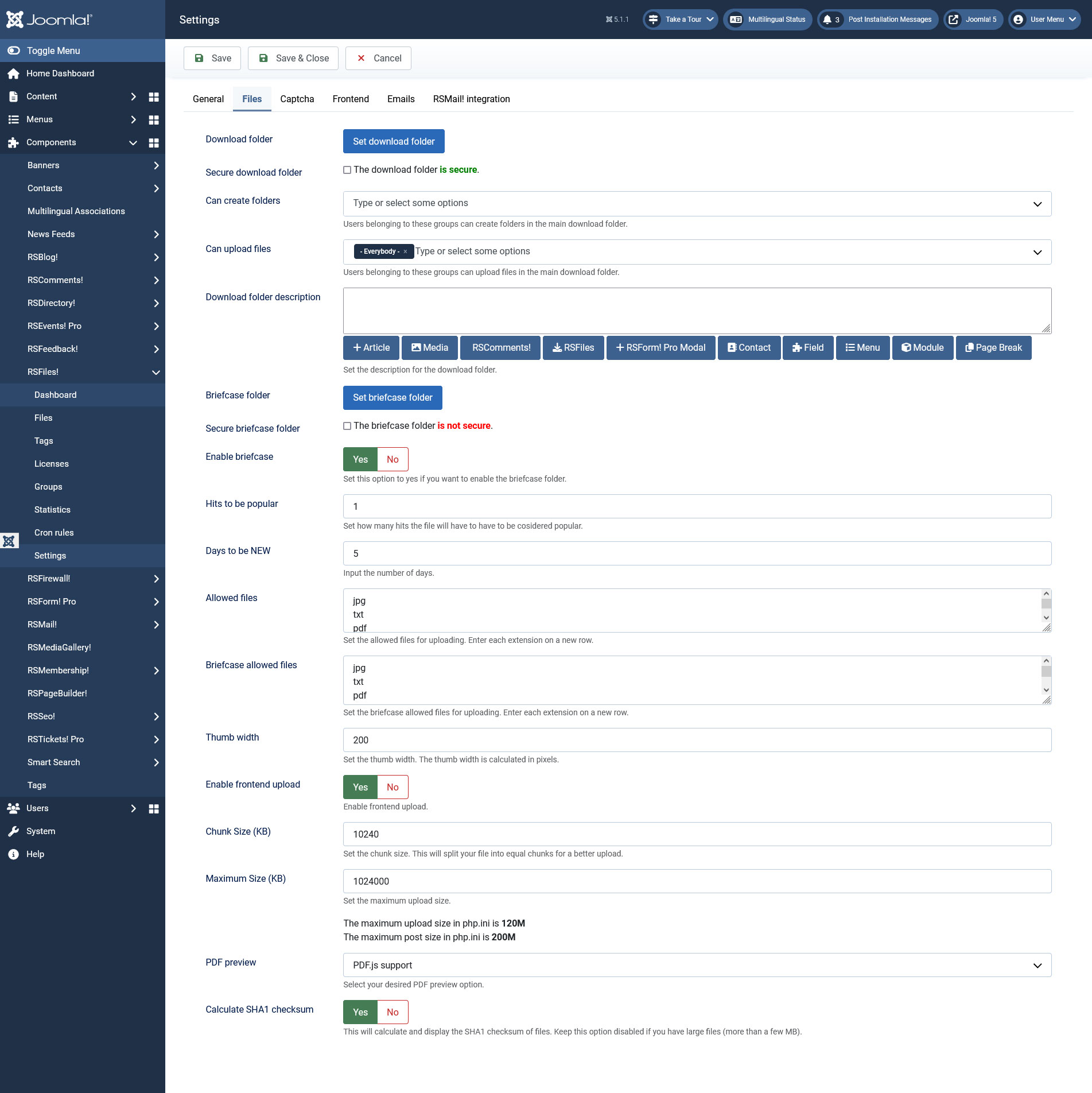
- (*) Download folder: allows you to set your download folder. This will become the root folder.
- (**) Secure download folder: creates a htaccess file that will restrict the access to the download folder.
- (*) Can create folders: Select which user groups can create new folders in the main download folder.
- (*) Can upload files: Select which user groups can upload files in the main download folder.
- (*) Download folder description: Set the description for the download folder.
- (*) Briefcase folder: allows you to set the briefcase folder. This will become the briefcase root folder.
- (**) Secure briefcase folder: creates a htaccess file that will restrict the access to the briefcase folder.
- Enable briefcase: Se this option to Yes if you wish to enable the briefcase folder.
- Hits to be popular: How many visualizations are required for a file to be marked as popular
- Days to be NEW: For how many days (from its upload) will the file be marked as new
- Allowed files: restricts the uploaded files from the frontend.
- Briefcase allowed files: restricts the uploaded files for briefcase.
- Thumb width: set up the thumbnail width
- Enable frontend upload: allow users to upload via the frontend. Since version 1.15.7 the frontend Flash upload has been replaced with jQuery upload.
- Chunk Size (KB): this will split your file into equal chunks for a better upload.
- Maximum Size (KB): the maximum size of the uploaded file
- PDF preview: Select your desired PDF preview option (PDF.js support / Native browser support)
- Calculate SHA1 checksum: Yes / No - This will calculate and display the SHA1 checksum of files. Keep this option disabled if you have large files (more than a few MB).
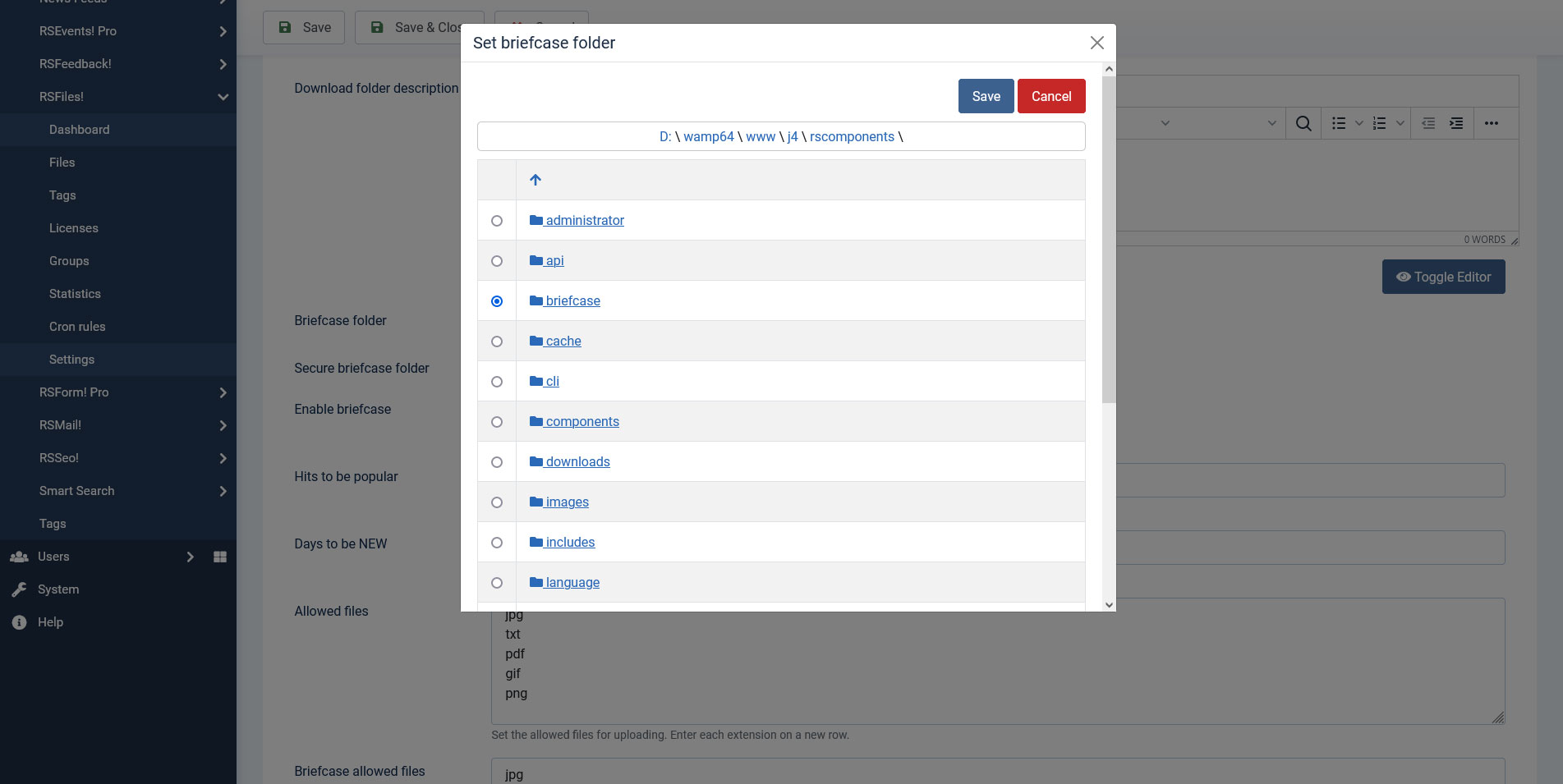
(*) Changing the root folder will cause information about the files in the older location (such as description, version number, etc.) to be lost.
(**) We recommend setting the download folder outside the Joomla installation folder.
Captcha
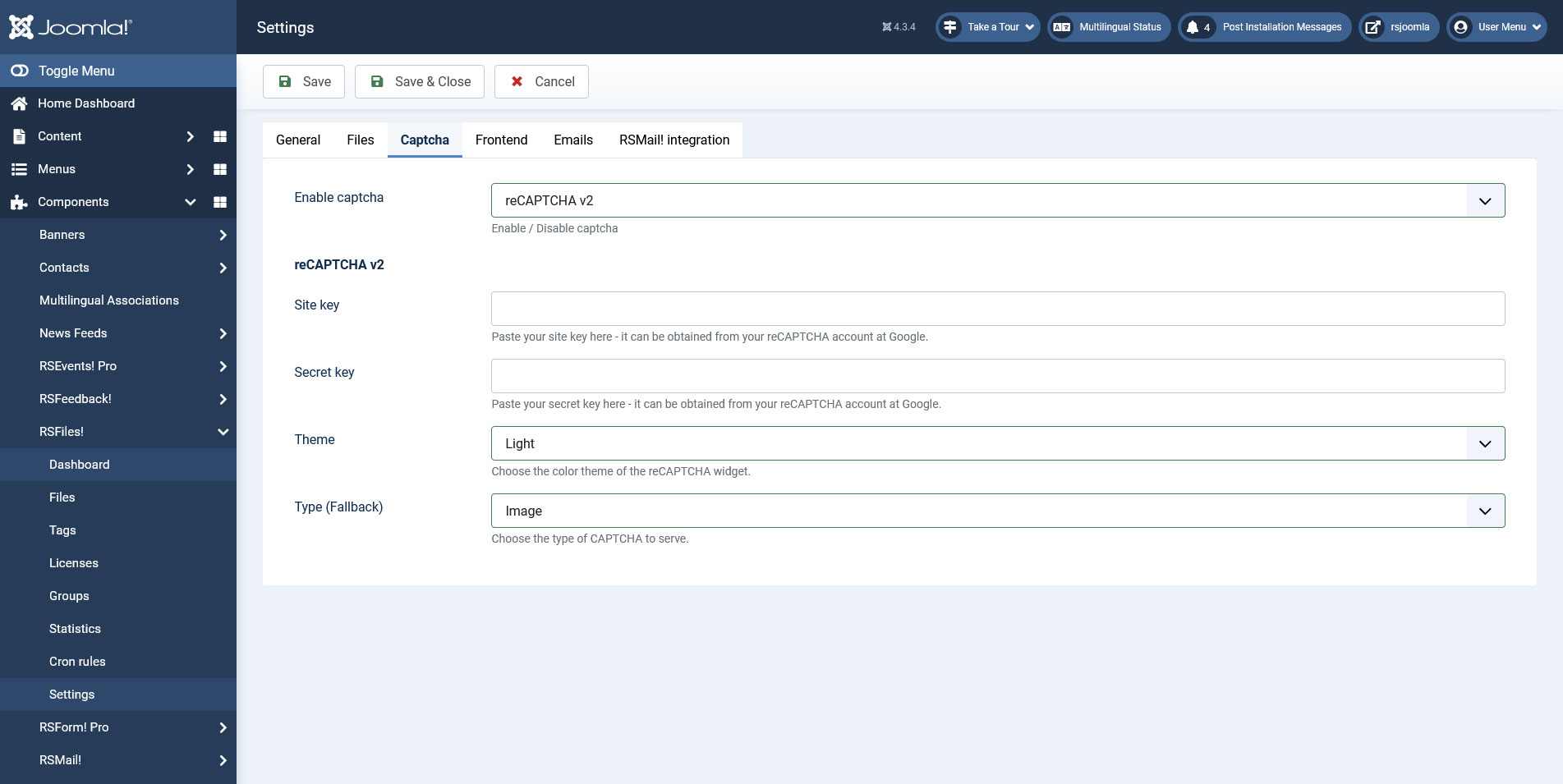
To protect your website from bots, you can enable the built-in CAPTCHA or the reCAPTCHA implementations.
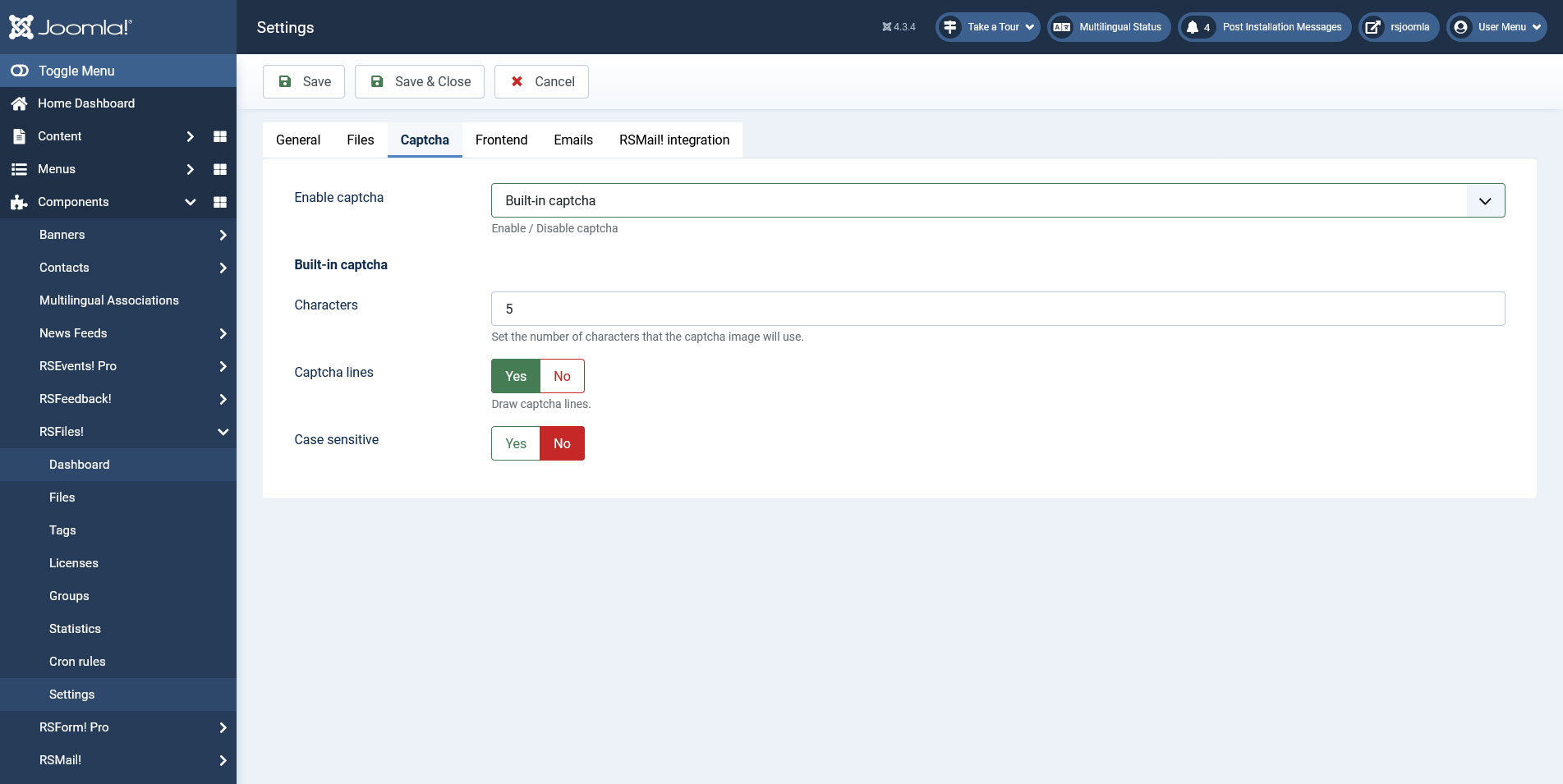
- Enable captcha: Choose between Buit-in captcha, reCAPTCHA, reCAPTCHA no CAPTCHA or Disable (disables both).
Built-in captcha:
- Characters: The number of characters to be displayed in the Built-in captcha field.
- Captcha lines: Yes / No - choose whther to display lines or not. Choosing Yes will increase protection.
- Case sensitive: Yes / No - choose whether the validation is case sensitive or not.
reCAPTCHA v2:
- reCAPTCHA site key: You can get this from your reCAPTCHA account.
- reCAPTCHA secret key: You can get this from your reCAPTCHA account.
- reCAPTCHA theme: Choose a theme for the frontend reCAPTCHA layout.
- reCAPTCHA type (Fallback): Choose the type of CAPTCHA to serve.
Frontend
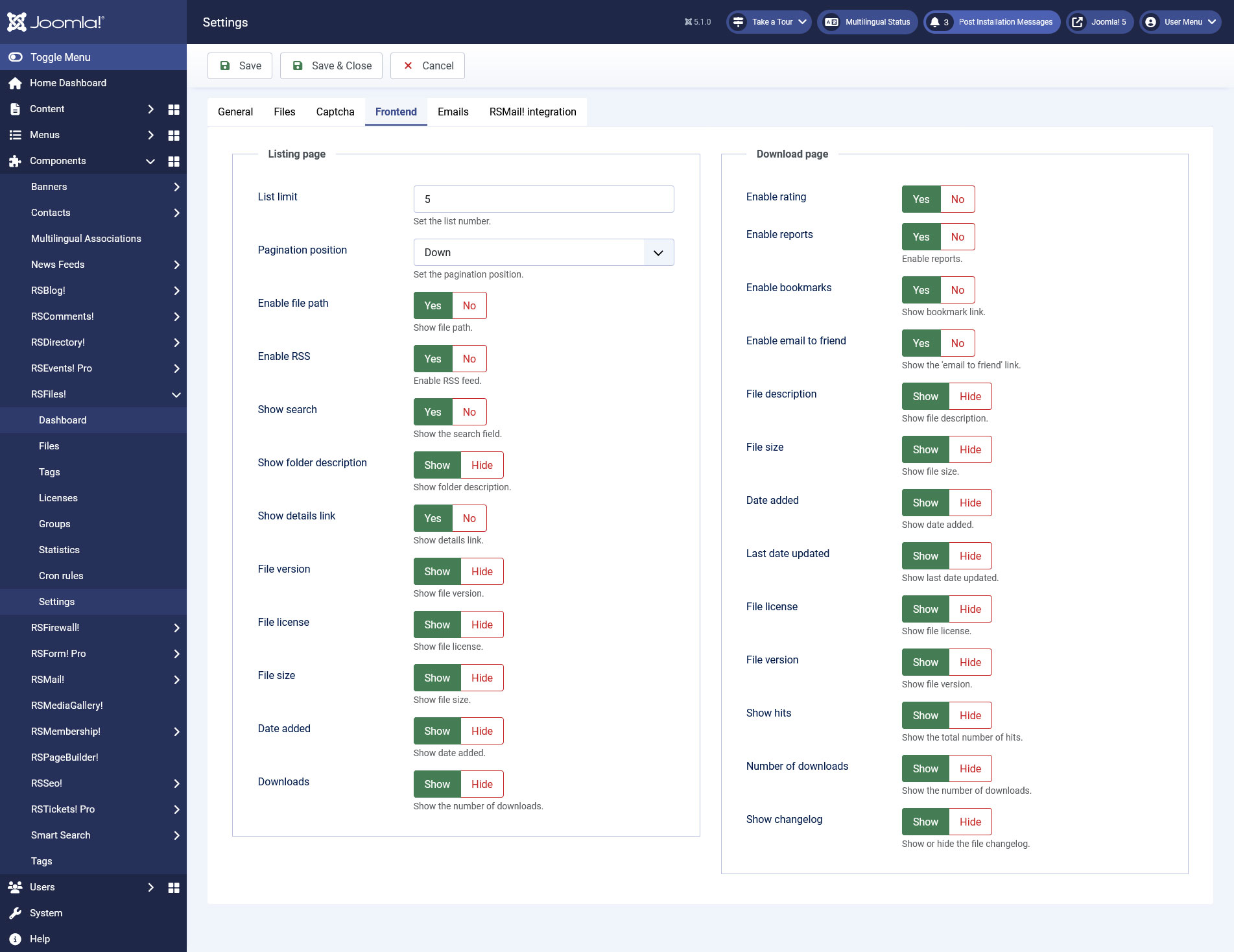
- List limit: Set the number of files to be displayed per page.
- Pagination position: Set the position in which the pagination will be displayed, relative to the files listing: Up, Down or Up & Down.
- Enable file path: Show the file path.
- Enable RSS: Display the RSS feed.
- Show search: Show the search field.
- Show folder description: Display the folder's description.
- Show details link: Displays a Details link associated with each file.
- File version
- File license
- File size
- Date added
- Downloads
Listing page
- Enable rating: Enable or disable the file rating.
- Enable reports: Enable reports.
- Enable bookmarks: Show the Bookmark link.
- Enable email to friend: Enables the possibility to send an email containing a download link for a certain file. Works only on Joomla! 3 since 'com_mailto' is not available in Joomla! 4/5.
- File description: Show the file's description.
- File size: Show the file's size.
- Date added: Show the date the file was added on.
- Last date updated: Show the last date the file was updated on.
- File license: Show the licensing terms for each file.
- File version: Show the file's version.
- Show hits:
- Number of downloads: Show the number of times the file was downloaded.
- Show changelog: Show or hide the file changelog, defined while editing the file.
Download page
Emails
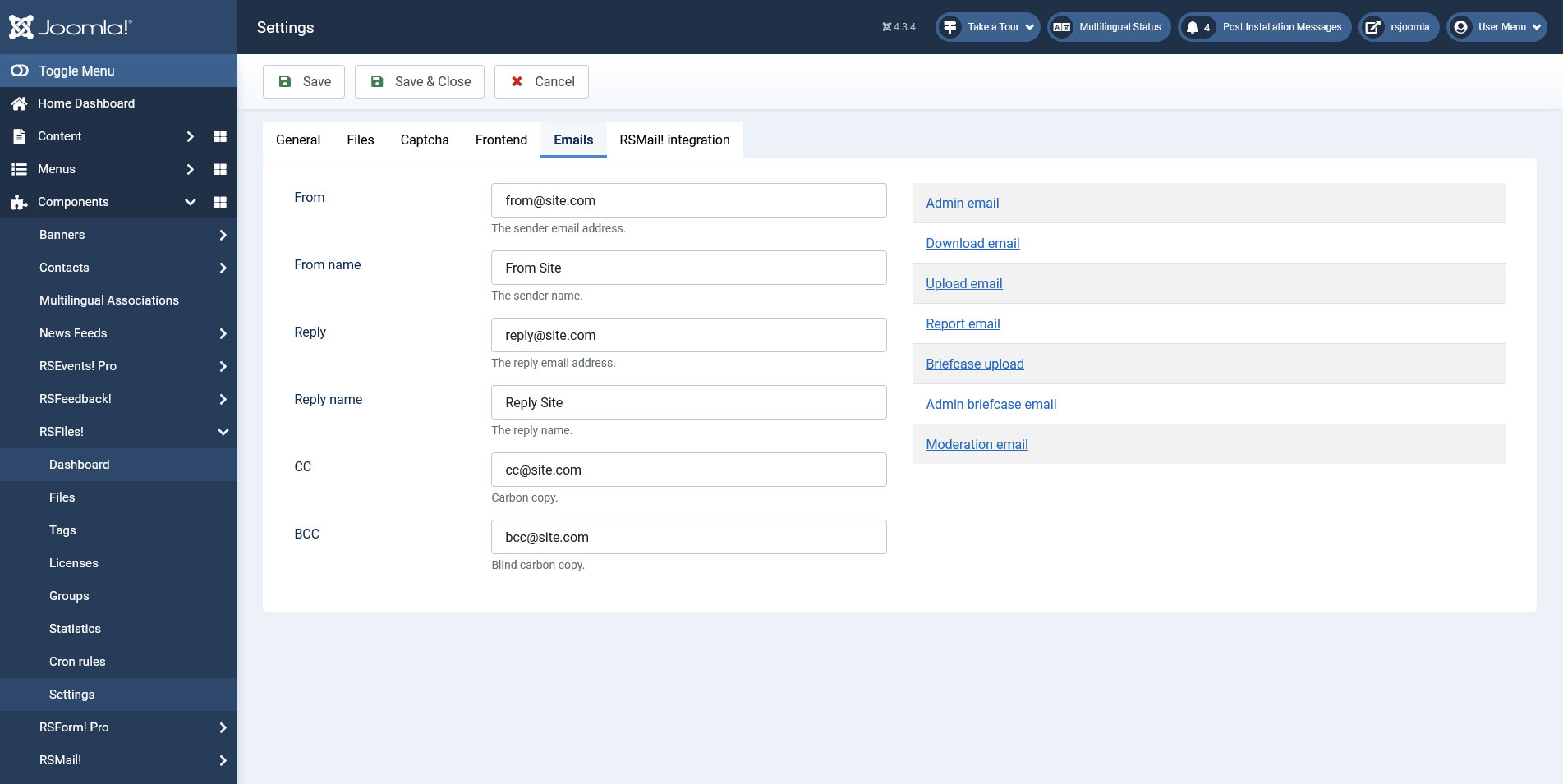
Via this settings tab you can configure some emails that can be generated with RSFiles!:
- (*) Admin email: enabling this email will generate a email (send to the site administrator) every time a new download has been made. This area offers general email configuration options: Language, To, subject, mode (text/html) and message (WYSIWYG text area).
- (**) Download email: if the Components > RSFiles! > Files > Edit a file > Download method option is set to email download then the email in question will be sent. Configuration fields: Language, Subject, Mode and Message
- Upload email: the upload email is sent to site administrator, whenever a user is uploading a file. This area offers general email configuration options: Language, To, subject, mode(text/html) and message (WYSIWYG text area).
- Report email: the report email is sent whenever a user submits a report for a given file. This area offers general email configuration options: Language, To, subject, mode(text/html) and message (WYSIWYG text area).
- Briefcase upload: this email is sent when a user that can maintain the briefcase, uploads a file in a user's briefcase folder
- Admin Briefcase email: This email will be sent when someone uploads a file in the briefcase folders.
- Moderation email: this email is sent when a user uploads a file that requires moderation
- Admin Email: {filename}, {ip}, {username}.
- Email download: {name}, {email}, {downloadurl}.
- Upload email: {name}, {username}, {file}.
- Report email: {filename}, {username}, {ip}, {report}.
- Briefcase upload: {name}, {uploader}, {file}.
- Admin Briefcase email:{briefcase}, {uploader}, {file}.
- Moderation email: {file}, {approve}.
RSMail! Integration
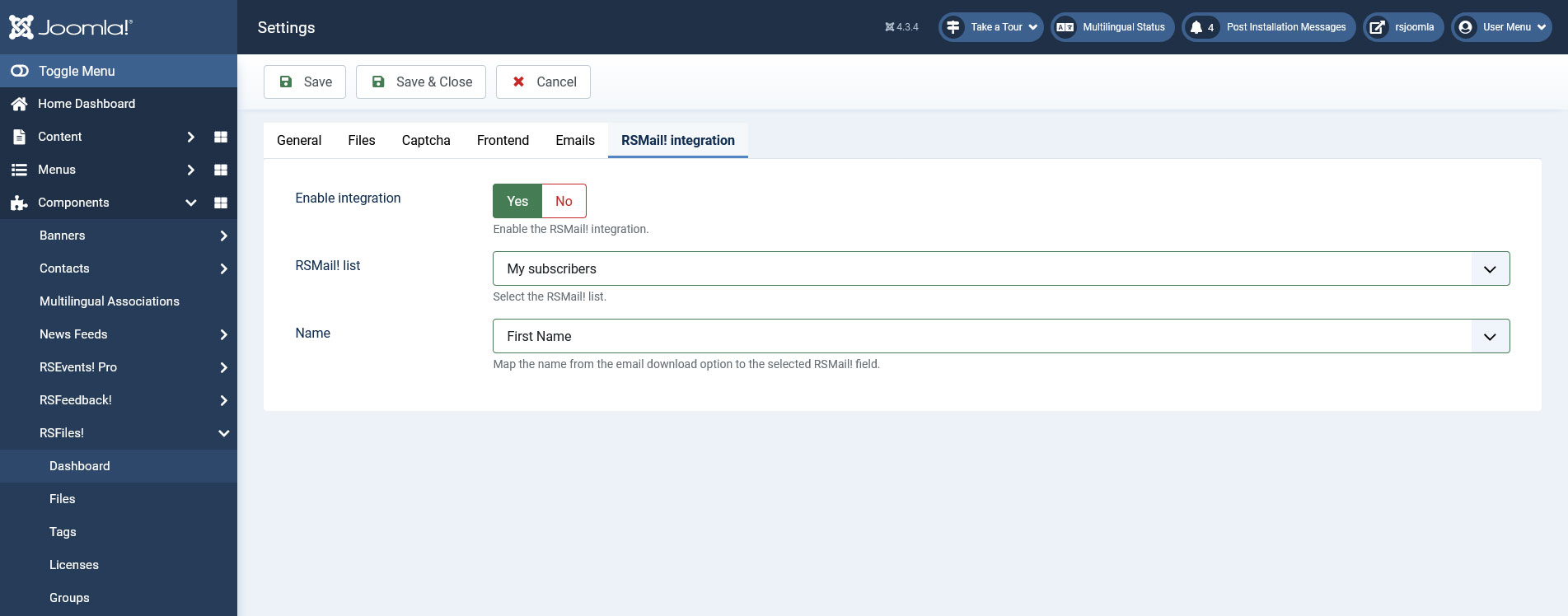
Note: The RSMail! Integration tab is available only if RSMail! is installed. This integration allows you to capture the filled in user details (name and email) when using the Email download method.
- Enable integration with RSMail!: Yes / No.
- RSMail! List: a drop-down select list with all the current configured RSMail! subscriber lists.
7 persons found this article helpful.
You Should Also Read
Setting up Briefcase Folders HOT |
RSFiles! Menu Items |
