Plugin - Payment Package (Wire Transfer, PayPal)
The Payment Package allows you to use the Payment Plugin with RSForm! Pro and to setup payments using PayPal or Offline payments.
The PayPal Plugin has been redesigned to allow multiple payment options on the same form, as well as a new "Quantity" and a "Donation" field.
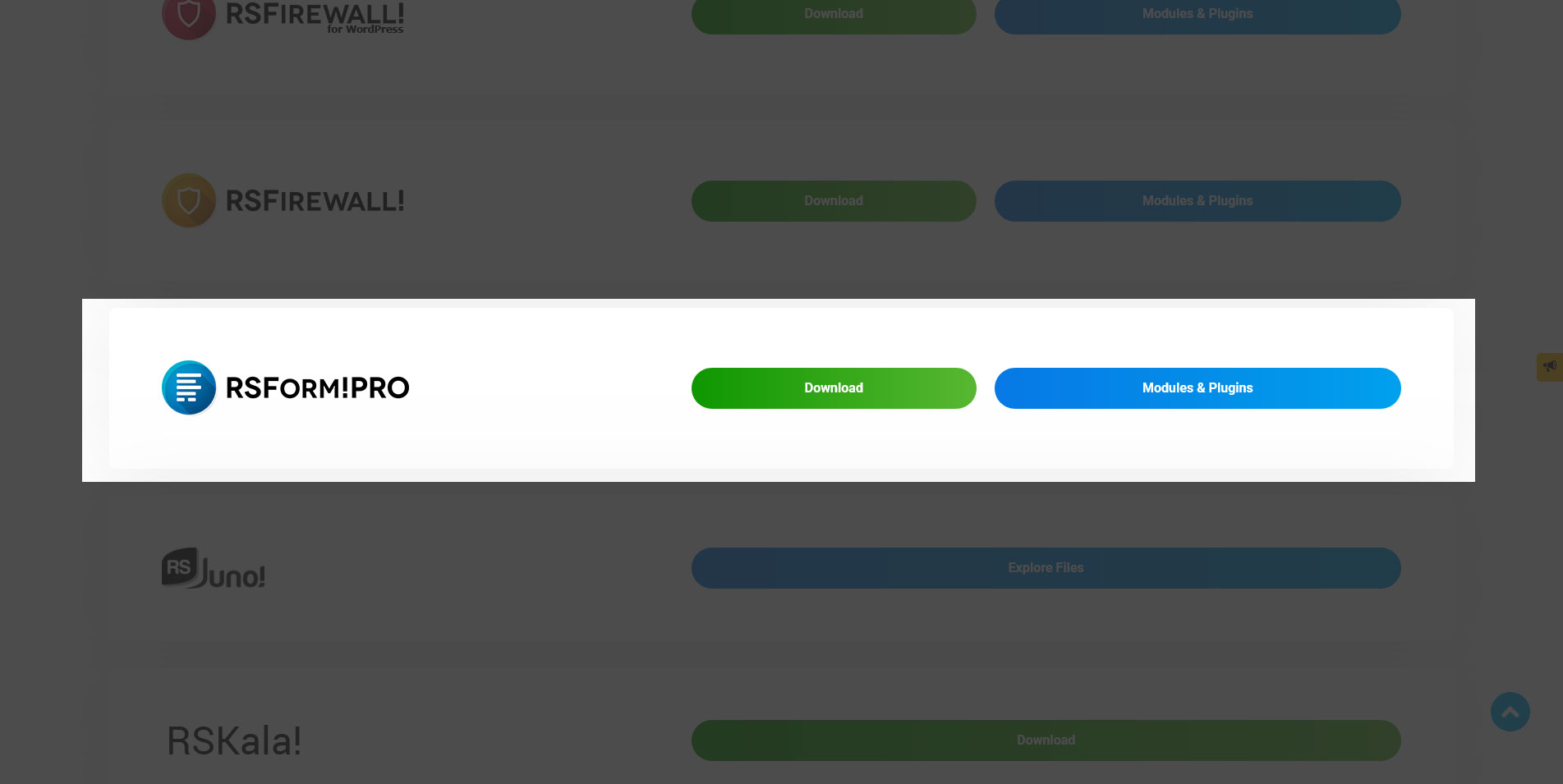
Download
This plugin can be downloaded by logging into our website using the account that holds the RSForm!Pro active subscription, heading to Downloads > RSForm!Pro > view all plugins and modules > RSForm! Pro Files > Plugins and clicking on the Payment Package (Payment Plugin + PayPal + Offline)
Install
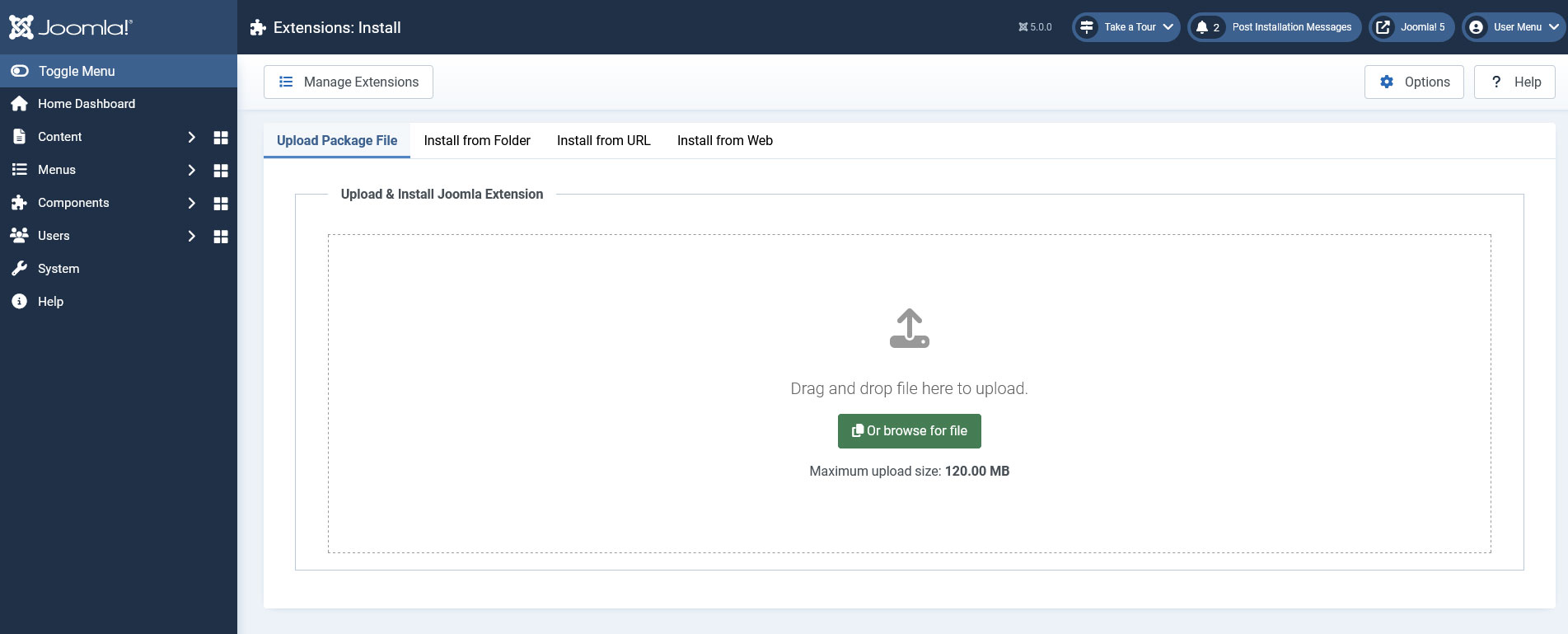
In order to install the plugin you will have to log in into your admin panel and head to Extensions > Extension Manager > Install tab > browse for the pkg_payment.zip archive downloaded from our website and hit the Upload & Install button.
Plugin configuration
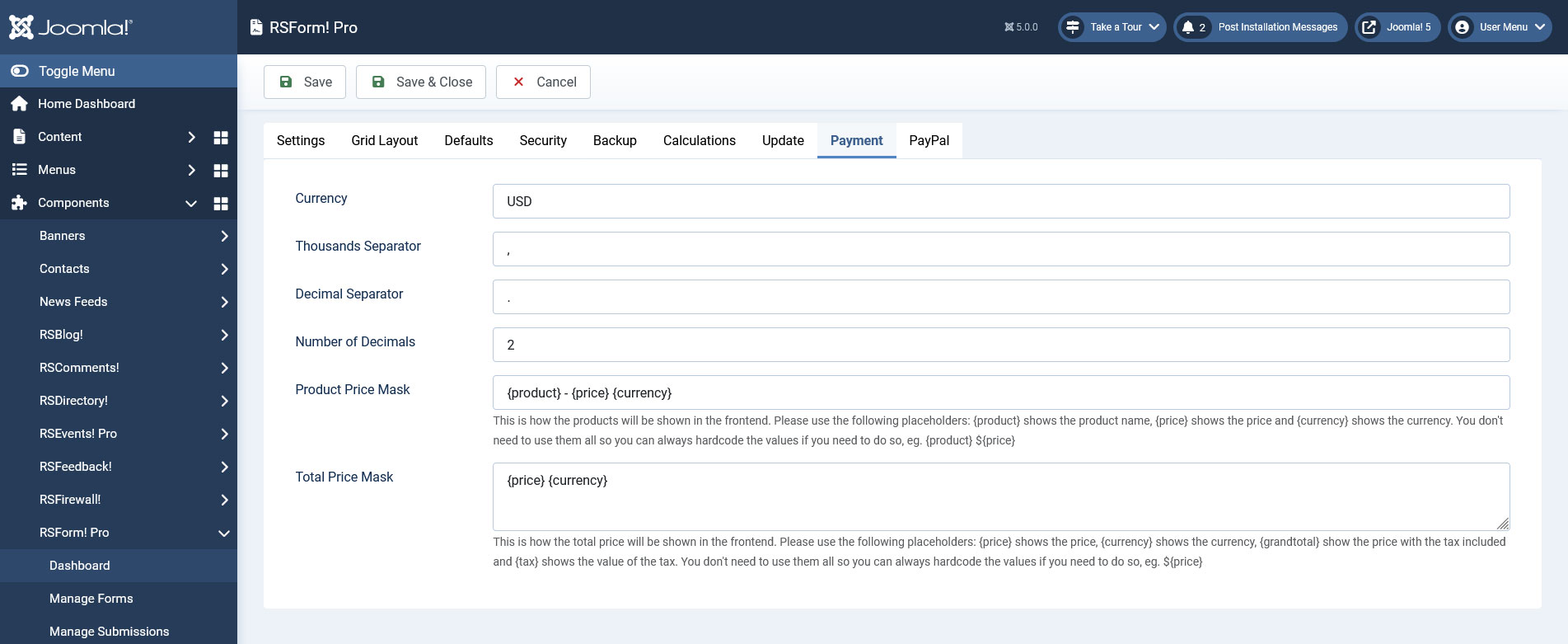
After installing the package you will notice that two tabs have been added within your RSForm!Pro Configuration page: Payments and PayPal each one with its own configuration options.
Payments
Using this tab you can configure the following options:
- Currency: Enter a 3-character currency code, for example USD - United States Dollar. Please consult this list when setting up your preferred currency.
- Thousands Separator: Set a character to separate thousands. By default, this is set to , (comma)
- Decimal Separator: Set a character to separate decimals. By default, this is set to . (dot)
- Number of Decimals: Set a number of decimals to work with
- Product Price Mask: Use the following placeholders to define a price mask for your multiple products fields: {product}, {price} and {currency}. You can place them in any order you like, and separate them by any characters or text. The multiple product fields' items will be generated based on this price mask
- Total Price Mask: This is how the total price will be shown in the frontend. Use the following placeholders: {price} shows the price, {currency} shows the currency, {grandtotal} show the price with the tax included and {tax} shows the value of the tax. You don't need to use them all so you can always hardcode the values if you need to do so, eg. ${price}
PayPal
In this tab are available the following options:
- PayPal E-mail Account: the email address you have used when creating your PayPal account
- Return URL: Optional, provide an URL to which the users will be redirected after finalizing the payment
- Cancel URL: Optional, provide an URL to which the users will be redirected after cancelling the payment
- Live Mode: Yes / No - set to No in order to enable the testing mode
- Enable Logging: Yes / No - When setting this to Yes an rsformpro_paypal_log.php file will be stored in your Joomla! Log Folder whenever the PayPal IPN is triggered - this is useful for debugging purposes.
- Tax Type: Percent (%) / Fixed Rate - Optional, set how you want to tax the form submitters - by a percentage of the total or by a fixed value
- Tax Value: Set the value that will be applied in conjunction with the Tax Type field. Leave blank if you do not wish to apply a tax
- Language code: Provide a 2-character language code. Please consult the Countries and Regions Supported by PayPal list for more information

Available fields
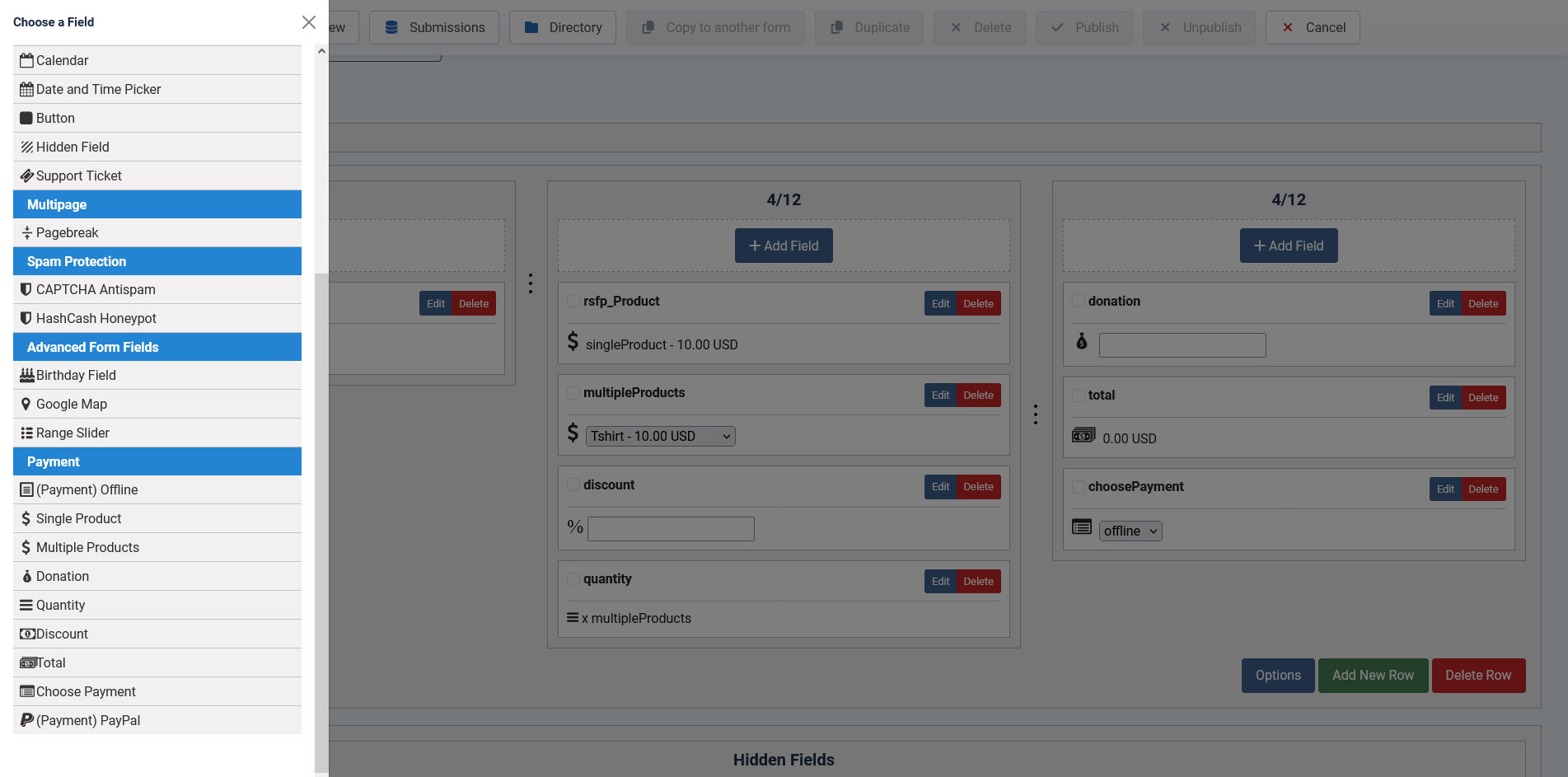
The new Payment Plugin is the one in charge of specifying what needs to be paid. It adds the following fields to the form:
Single Product:
Adds a single product to the form. The user will be redirected to the payment page upon submission. For this type of field you can set up a caption, description and a price. Being a single use field (you can add only one in a given form), its internal name will always be the same, rsfp_Product.
Multiple Products:
Adds the ability to display multiple products to be purchased either in a Dropdown or a Checkbox. Its items need to be specified in the following manner:
price|label for example: 15|T-shirt
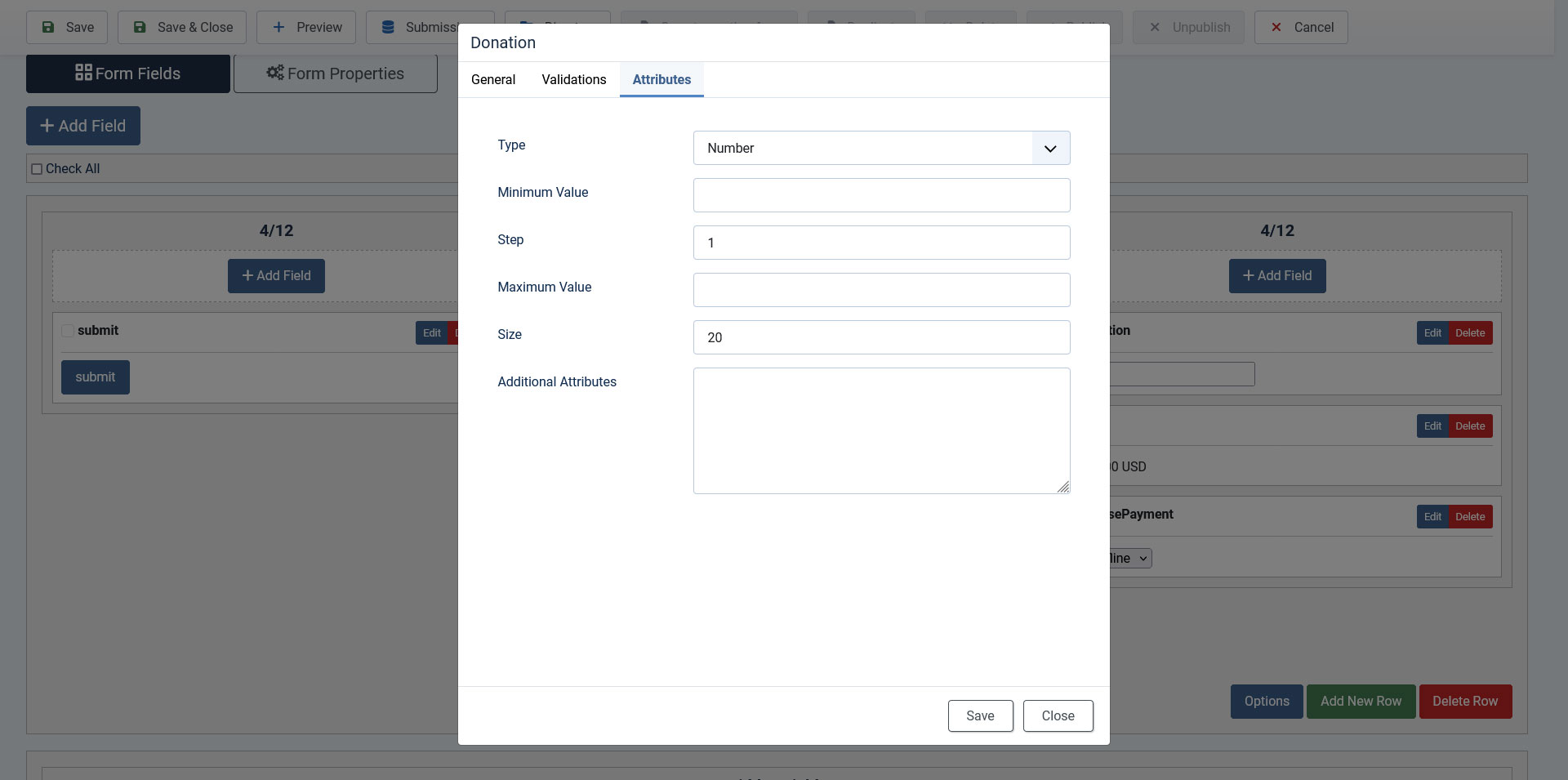
Donation:
Allows the user to type in the amount to be paid inside a standard Textbox. A default value can also be set and, using HMTL attributes, you can render the field as readonly in order to have a fixed value for the donation (by adding readonly="readonly" in the field's Additional Attributes area).
Configuration options:
- Type: Text | Number | Range
- Minimum Value: This is the minimum value (number) allowed for the input field.
- Maximum Value: This is the maximum value (number) allowed for the input field.
- Step: This is the step for the input field. If you want to allow decimals, consider adding 0.1 here instead of 1.
Quantity:
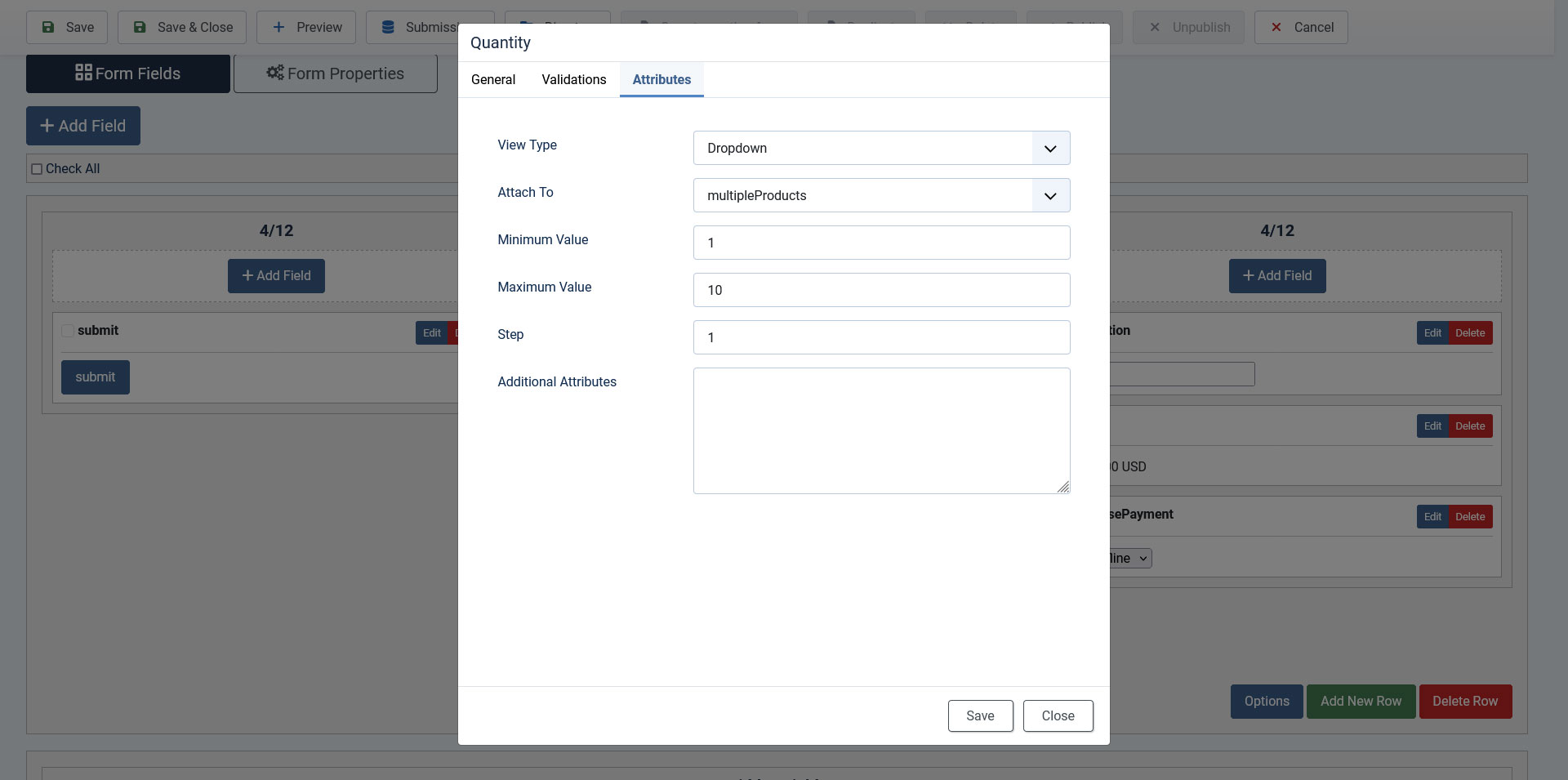
The quantity fields allows the user to choose the amount of products (simple or multiple). A default value can also be set and, using HMTL attributes, you can render the field as readonly in order to have a fixed value for the donation (by adding readonly="readonly" in the field's Additional Attributes area).
Configuration options:
- View Type: Dropdown / Textbox.
- Attach to: Select which payment field this quantity is attached to. This will multiply the payment field's value by the quantity specified in this field.
- Minimum Value: This is the minimum value (number) allowed for the input field.
- Maximum Value: This is the maximum value (number) allowed for the input field.
- Step: This is the step for the input field. If you want to allow decimals, consider adding 0.1 here instead of 1.
- {productfield:totalamount}. This will return amount of single or multiple products multiplied by the quantity field.
- {productfield:totalprice} This will return the price of the selected product multiplied with the quantity amount.
- {productfield:quantity} This will return the quantity amount for the selected product.
Discount:
This field allows users to setup a Discount through Coupon Codes which can be found under Additional Attributes area. Add each value on a new line in the form of discount|code.
For example: 5%|DISCOUNT5 (which will give a 5% discount) / 15|ANOTHERCODE (which will give a flat 15 discount). You can also use PHP code in here to generate your discount codes.
{discount} and {discountprice} placeholders can be used to return the discount itself or respectively, the calculated discounted amount.

Total:
This field is used alongside the Donation, Single and Multiple Products fields. It calculates the total price to be paid.
You can use the {totalField:price} placeholder to include the value calculated in this field in RSForm!Pro emails and thank you message. Make sure to replace 'totalField' with the actual name of your field.
If you have a tax configured for your payment, two more placeholders are available for usage {tax} and {grandtotal}. Which as suggested, will return the tax amount and the grand total being the total + tax.
While editing the Total field, under Attributes tab you can find the 'Calculate Server-Side' option. By enabling this, the 'Total' will be calculated server-side, after the form is submitted. This means that the rsfp_Total variable that's generated by the client-side will be ignored.
Choose Payment:
Allows the user to choose his payment method. It displays the payment methods added to the form in either a Dropdown or Radio Group (the radio group provides extra options such as Show Payment Icons or being able to set the radio group Flow: vertical/horizontal). It can be shown on the form (allowing the user to select his preferred payment method) or not (forcing the user to pay using the default payment method).
- {productfield:price}. This will return both the label and value (the product's price) of the item selected in the multiple product field's dropdown menu/checkbox group.
- {productfield:amount} This will return only the price of an item without formatting.
Multiple Payment Methods
After adding the payable "products" to your form, you need to add the Payment methods. The Payment methods have a (Payment) keyword in front of their name. When adding a new field you have the possibility of naming it (inside the "Label" field), so please use something descriptive (such as "Pay using your Credit Card through PayPal"). This label will appear in the "Choose Payment" field, as a Dropdown or Radio Group value. To this date, the Payment methods are:
- (Payment) PayPal: allows the user to pay for his purchase using "PayPal Payments Standard" (ie the user is redirected to www.paypal.com where a purchase can be completed by using a credit card or a PayPal account)
- (Payment) Offline: allows the user to pay using an offline payment method, such as a wire transfer. The details can be added in the "Wire transfer details" field, under the "Attributes" tab. You can use the {offline} placeholder in the Thank You Message or inside your emails to display this information to the user. If the Payment method is not "Offline" the placeholder will be replaced with a blank value.
A Tax can be set for this particular payment as well. It can either have a Percentual or a Fixed value
In order to redirect the user successfully to the Payment processor you'll have to add the "Choose Payment" field as well as at least one Payment method. For legacy reasons, adding the PayPal Payment method without a "Choose Payment" field will automatically redirect the user to PayPal. This does not happen for the Offline Payment method. If you do not wish to display the "Choose Payment" field (eg. if you have only one payment option) you can always set the "Show in front-end?" attribute to "No". You can also use CSS to achieve the same effect if you are using a custom form layout without the "Auto Generate layout" option.
Important: In order for this plugin to actually work you will need to have the "Save data to database" option enabled. This option is found in the Form Properties tab.
A full list of payment specific placeholders
(totalField and productField would be the actual field naming you've given to your elements; case sensitive):
| Placeholder name | Description |
|---|---|
| {totalField:price} | The calculated total according to your set Total Price Mask |
| {totalField:amount} | Returns the total price value without formatting |
| {tax} | The tax amount |
| {grandtotal} | Grand total value being the total + tax |
| {productField:price} | Can return both the label and value (the product's price) - according to the Product Price Mask |
| {productField:amount} | Will display only the price of an item without formatting |
| {productfield:quantity} | Will return the quantity amount for the selected product. |
| {productField:totalprice} | Will return the price of the selected product multiplied with the quantity amount. |
| {productField:totalamount} | Will return amount of single or multiple products multiplied by the quantity field. |
| {discount} | The discount, e.g. 15% |
| {discountprice} | The calculated discounted value |
| {_STATUS:value} | The status of your transaction. |
| {_TRANSACTION_ID:value} | Returns the transaction ID. This would only work after the payment is done. If for example you're using it within your email contents, the email itself should be deferred until the payment is done (more details on deferring emails in the next section). |
Only available when using the payment functionality in your form:
Transaction STATUS and ID can be found in the backend area > Components > RSForm!Pro > Manage Submissions > your form submissions > usually the most right columns from your listing information. If these do not show, click the "Choose which columns to show" button to include them.
In order to properly display the Transaction ID you will have to update the payment plugins you are currently using to the latest version. This can be achieved by downloading the latest version from our website and installing it over the current version(this acts as an update).
Sending emails after the payment is made
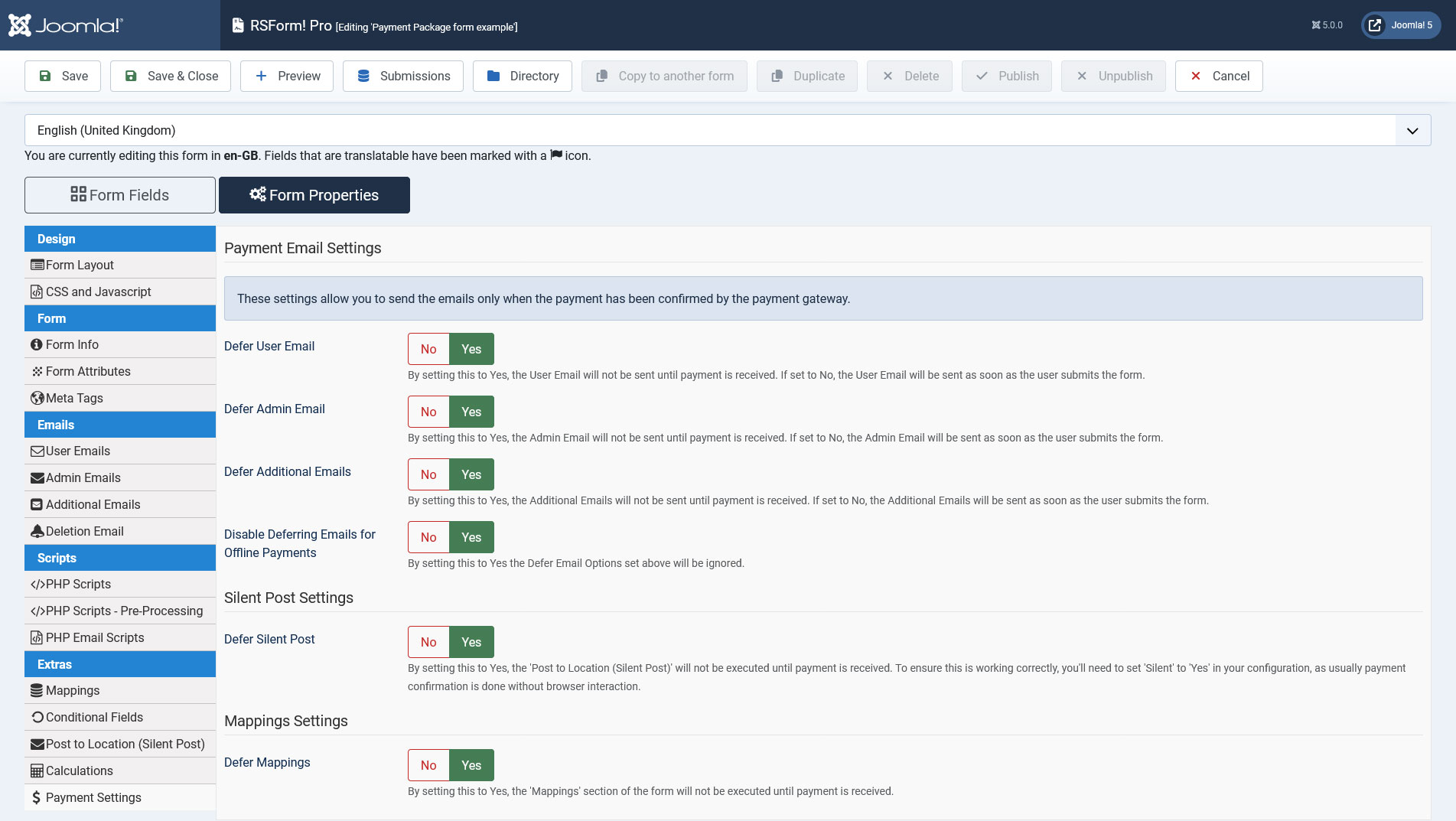
You can now defer emails until after the payment is made. By going to the "Properties" main tab and scrolling down to "Payment Email Settings" you now have the following options:
- Defer User Email: By setting this to "Yes" the User Email will be sent when the purchase is confirmed by the Payment gateway.
- Defer Admin Email: By setting this to "Yes" the Admin Email will be sent when the purchase is confirmed by the Payment gateway.
- Defer Additional Emails: By setting this to "Yes" all of the Additional Emails will be sent when the purchase is confirmed by the Payment gateway.
- Disable Deferring Emails for Offline Payments: By setting this to "Yes" all of the Emails will be skipped from deferring when the purchase was made using Offline Payment
- Defer Silent Post: By setting this to Yes, the 'Post to Location (Silent Post)' will not be executed until payment is received. To ensure this is working correctly, you'll need to set 'Silent' to 'Yes' in your configuration, as usually payment confirmation is done without browser interaction.
- Defer Mappings: By setting this to Yes, the 'Mappings' section of the form will not be executed until payment is received.
- Please note that this requires your website to be publicly accessible. PayPal will send a unique code back to your form and this is when the emails will be triggered. If access to your website is restricted (eg. through .htaccess, allowing only specified IPs to connect) this will not work.
Version 3.1.6
- Added - 'Enable Logging' option.
Version 3.1.5
- Updated - Payments are now sorted in the 'Choose Payment' field according to the same order in the form.
Version 3.1.4
- Added - Joomla! 5 native compatibility - no longer needs the 'Behaviour - Backward Compatibility' plugin.
Version 3.1.3
- Added - CSS icons for Square and PayPal V2.
- Added - $products passed to onRsformDoPayment is now an array of RSFormProPaymentProduct class.
- Fixed - {field:totalprice}, {field:totalamount} and {field:quantity} placeholders were not being generated if the Multiple Product was a checkbox with no value selected.
Version 3.1.2
- Added - Quantity field.
- Added - Placeholders: {field:totalprice}, {field:totalamount} and {field:quantity}.
- Updated - Bumped minimum requirements to use Joomla! 3.10.0
Version 3.1.1
- Fixed - In some cases, the PayPal response contained extra whitespace causing the validation of the transaction to fail.
Version 3.1.0
- Added - The 'Total' can be calculated server-side to prevent HTML manipulation by setting 'Calculate Server-Side' to 'Yes'.
- Added - 'Defer Silent Post' option.
- Added - 'Defer Mappings' option.
- Updated - Bumped minimum requirements to use RSForm! Pro 3.1.0
- Updated - A warning message will appear in the backend when required payment fields are missing.
- Updated - Payment fields will now be correctly placed in the 'Payment' group.
Version 3.0.4
- Updated - Dynamically generated Javascript will no longer be placed inline.
- Updated - PHP 8.1 compatibility improvements.
Version 3.0.3
- Fixed - 'Multiple Products' label was not pointing to the dropdown.
- Updated - Accessibility improvements: Radio and Checkboxes generate an 'id' attribute for the label in the form of 'fieldname0-lbl'.
- Updated - Accessibility improvements: Radio and Checkboxes generate an 'id' attribute in the form of 'fieldname-grouplbl' for the 'Caption', which is referenced by each item with an 'aria-labelledby' attribute.
- Updated - Accessibility improvements: Radio and Checkboxes are now contained inside a '<div role="group"></div>' container.
Version 3.0.2
- Fixed - Discounts greater than the total will now display 0 instead of a negative value.
Version 3.0.1
- Fixed - An SQL error could occur when 'Show Only Accepted Payments' was set to 'Yes' but the 'Payment Status' column was not selected in the Directory configuration.
Version 3.0.0
- Updated - Joomla! 4.0 and RSForm! Pro 3.0 compatibility.
Version 2.3.7
- Fixed - {Total:price} did not return the 'Total Mask'.
Version 2.3.6
- Fixed - In some cases a Javascript error would occur when Payment names contained spaces.
Version 2.3.5
- Updated - 'Total Price Mask' now accepts new placeholders ({grandtotal}, {tax}).
Version 2.3.4
- Updated - 'Total' field can now be set as 'Required' to disallow purchases of 0.00.
Version 2.3.3
- Fixed - 'Choose Payment' was incorrectly being validated when set to appear as a dropdown.
Version 2.3.2
- Fixed - 'Choose Payment' was incorrectly being validated when hidden through Conditional Fields.
Version 2.3.1
- Fixed - 'Choose Payment' was missing the 'Validation Message' property.
Version 2.3.0
- Added - 'Confirm Payment' button next to 'Payment Status' when editing a submission in the backend.
Version 2.2.9
- Added - 'Donation' field properties: Type, Minimum Value, Maximum Value, Step.
- Fixed - 'Donation' field validation rule was not being triggered.
Version 2.2.8
- Updated - Multiple 'Donation' fields can now be added to the form.
Version 2.2.7
- Fixed - Calculations were not reset in some cases.
Version 2.2.6
- Fixed - Multiple Products could not be set as required by specifying an item as '|Please select'
Version 2.2.5
- Fixed - Donation field was incorrectly set as mandatory even if hidden by conditional logic.
Version 2.2.4
- Fixed - When using the [g] flag in the Multiple Products field the total would not be calculated correctly.
- Fixed - In some cases the price was taken from the label part of the item.
Version 2.2.3
- Added - Radio Groups and Checkbox Groups can now be displayed on multiple columns.
- Updated - Rewrote payment fields to use the newer RSFormProField class.
- Updated - When editing a submission, the Choose Payment field is now a dropdown.
- Updated - When editing a submission, the Multiple Products field is now a dropdown.
Version 2.2.2
- Fixed - When payment total is 0.00 the emails are no longer deferred.
Version 2.2.1
- Fixed - When payment total is 0.00 the submission's status is automatically set to 'Accepted'.
Version 2.2.0
- Added - Menu item parameter for the Submissions Directory view: Show Only Accepted Payments.
- Updated - Bumped minimum requirements to use RSForm! Pro 2.2.2
Version 2.1.4
- Fixed - The Donation field was allowing '0' even if set as required.
Version 2.1.3
- Fixed - The Donation field did not have the correct classes.
Version 2.1.2
- Fixed - The Transaction ID field was not editable in the Directory area.
Version 2.1.1
- Fixed - The 0.00 amount was showing up incorrectly.
Version 2.1.0
- Added - 'Discount' field.
- Added - Can now specify a separate tax for each Offline Payment.
- Added - Transaction IDs now show up in a _TRANSACTION_ID column.
- Updated - Deferring emails can be skipped for Offline Payments.
- Fixed - {grandtotal} and {tax} placeholders are now formatted according to settings.
- Fixed - Payment related placeholders did not show up in the 'Toggle Quick Add' sections.
- Fixed - Removed some deprecated code.
- Fixed - Language file fixes.
Version 2.0.11
- Fixed - Negative amounts in the 'Multiple Product' field were not working.
Version 2.0.10
- Added - Placeholder {field:amount} which you can use to display the price of an item without formatting.
- Fixed - The {field:text} placeholder was showing up twice.
- Fixed - The {field:price} placeholder was not showing the correct value for the Multiple Product field.
Version 2.0.9
- Added - 'Show Payment Icons' option.
- Updated - Choose Payment can be selected in 'Conditional Fields'.
Version 2.0.8
- Updated - HTML of Radio and Checkboxes is now generated according to the Responsive Layout's markup.
Version 2.0.7
- Updated - Bumped minimum requirements to use RSForm! Pro 2.1.0
- Updated - Decoupled what code was left hardcoded in the RSForm! Pro component.
- Updated - Payment Status can now be selected in the Directory area.
- Updated - Removed a MooTools reference from the backend Javascript.
Version 2.0.6
- Fixed - Plugin was not firing correctly due to _STATUS field being cached.
Version 2.0.5
- Fixed - {:text} placeholders were not translating correctly.
Version 2.0.4
- Fixed - Defer options are only taken into consideration if payment fields are added to the form.
- Fixed - Some queries are now cached for better performance.
Version 2.0.3
- Updated - Code improvements.
- Fixed - 'onchange' and 'onclick' attributes are now added correctly on payment fields.
- Fixed - In some cases PayPal IPN does not send the 'business' parameter.
Version 2.0.2
- Added - Select first item by default for the 'Choose Payment' field.
- Updated - Correct layout classes for the 'Choose Payment' field.
- Updated - Code improvements.
- Fixed - 'Choose Payment' can no longer be left empty when submitting.
Version 2.0.1
- Updated - Generated Javascript is now added to the head tag.
Version 2.0.0
- Updated - Bumped minimum requirements to use RSForm! Pro 2.0.8
- Updated - Correct layout classes for the 'Multiple Products' field.
- Updated - Payment fields can now be used in Conditional Fields.
Version 1.51.9
- Updated - Bumped minimum requirements to use Joomla! 3.7.0
- Fixed - Multiple Validation Rules were not working on the 'Donation' field.
Version 1.51.8
- Updated - Bumped minimum requirements to use Joomla! 3.7.0
- Updated - Code improvements.
- Fixed - {:text} and {:price} placeholders were not appearing in the Quickfields area.
- Fixed - In some cases a PHP Notice would appear on tax calculation.
Version 1.51.7
- Updated - Convert prices to standard internal currency.
- Fixed - An incorrect Donation field could be taken into calculation.
Version 1.51.6
- Fixed - Incorrect value returned for the {tax} placeholder.
- Fixed - Duplicating a form would not copy the payment settings.
Version 1.51.5
- Added - PayPal IPN validation.
Version 1.51.4
- Added - Can add multiple 'Offline Payment' fields.
Version 1.51.3
- Added - {grandtotal} and {tax} placeholders.
- Fixed - {:price} placeholder was not returning the correct value for items that had a [c] flag.
- Fixed - Returning from PayPal now correctly shows the Thank You Message.
Version 1.51.2
- Fixed - Choose Payment field was not hidden when displaying the form with the RSForm! Pro System Plugin.
Version 1.51.1
- Updated - Bumped minimum requirements to use Joomla! 2.5.28
- Fixed - URL can now be overridden through the RSFormProPayPal::getInstance() function.
- Fixed - SQL installation files were not being run when using the MySQL PDO adapter.
Version 1.51.0
- Added - Joomla! automatic updates support.
- Updated - Bumped minimum requirements to use RSForm! Pro 1.51.0
- Updated - Some deprecated code has been removed.
Version 1.50.13
- Fixed - In some cases the correct option was not being selected from the Multiple Products field.
Version 1.50.12
- Fixed - 'Resend Emails' was not deferring Additional Emails correctly.
Version 1.50.11
- Fixed - 'Resend Emails' was not deferring emails correctly.
Version 1.50.10
- Added - {:price} placeholder for the Total field.
Version 1.50.0
- Updated - Deleting a form now correctly removes form's payment settings from the database.
- Updated - Payment settings can be backed up and restored.
Initial Release
74 persons found this article helpful.
