Email Messages
The Email Messages tab provides a central place for all the emails that will be generated with RSTickets!Pro.
By default, 13 email types are generated:
- Sent to the customer when he submits a new ticket
- Sent to the emails added in the department notify section
- Sent to the customer when a new reply is added
- Sent to the staff member when a new reply is added
- Sent to the staff member when a new ticket is submitted. Can be triggered by auto-assignment or manual assignment, if the department has the option enabled.
- This email will be sent after a predefined period of time after the ticket is closed
- Email sent when a new user is created
- This notification will be sent when the ticket department is changed
- Notification email sent to the customer when his ticket goes into auto-close status
- This notification will be sent when the number of customer replies exceeds the setting in the Notice Configuration (and the ticket is unassigned)
- This notification will be sent when a ticket contains any of the keywords in the Notice Configuration
- This notification will be sent when the number of replies with no staff response exceeds the setting in the Notice Configuration (and the ticket is assigned)
- Email sent when a ticket has been rejected based on current settings
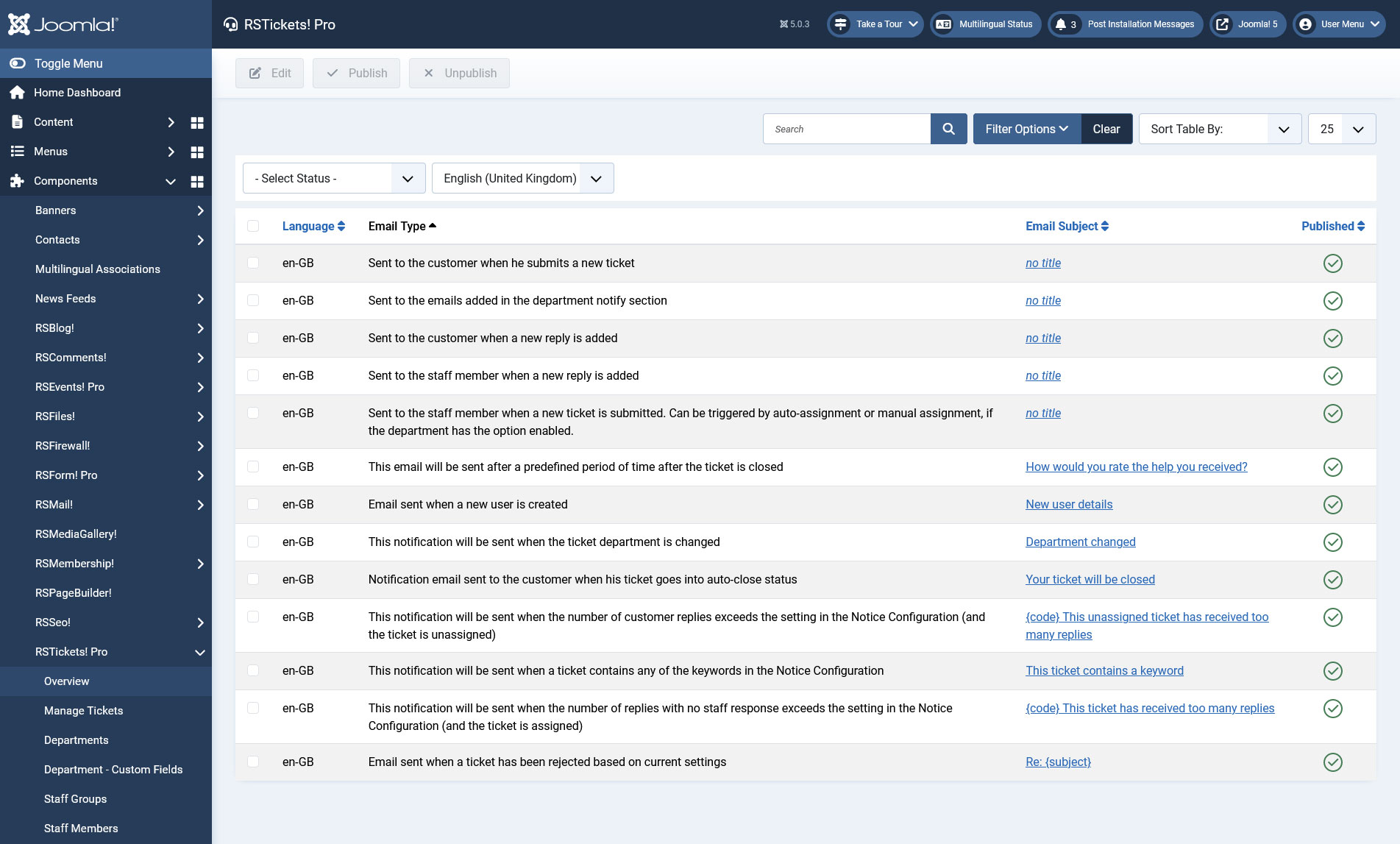
-
Sent to the customer when he submits a new ticket
Available placeholders:
- {live_site} - your website's URL;
- {ticket} - link to your ticket;
- {customer_name} - the customer's name;
- {customer_username} - the customer's username;
- {customer_email} - the customer's email;
- {code} - the ticket code;
- {subject} - the ticket subject;
- {message} - the ticket message;
- {custom_fields} - the custom fields defined for the selected department;
- {department_id} - the department unique id;
- {department_name} - the department name.
- {status} - the ticket's status
- {priority} - the ticket's priority
-
Sent to the emails added in the department notify section
Available placeholders:
- {live_site} - your website's URL;
- {ticket} - link to your ticket;
- {customer_name} - the customer's name;
- {customer_username} - the customer's username;
- {customer_email} - the customer's email;
- {code} - the ticket code;
- {subject} - the ticket subject;
- {message} - the ticket message;
- {custom_fields} - the custom fields defined for the selected department;
- {staff_name} - the staff's name;
- {staff_username} - the staff's username;
- {staff_email} - the staff's email;
- {department_id}
- {department_name}
- {status} - the ticket's status
- {priority} - the ticket's priority
-
Sent to the customer when a new reply is added
Available placeholders:
- {live_site}
- {ticket}
- {customer_name}
- {customer_username}
- {customer_email}
- {code}
- {subject}
- {message}
- {staff_name}
- {staff_username}
- {staff_email}
- {department_id}
- {department_name}
- {status} - the ticket's status
- {priority} - the ticket's priority
-
Sent to the staff member when a new reply is added
Available placeholders: Same as above
-
Sent to the staff member when a new ticket is submitted. Can be triggered by auto-assignment or manual assignment, if the department has the option enabled.
Available placeholders:
- {live_site}
- {ticket}
- {customer_name}
- {customer_username}
- {staff_name}
- {staff_username}
- {staff_email}
- {code}
- {subject}
- {field-CUSTOM_FIELD_NAME}
- {code}
- {customer_email}
- {message}
- {custom_fields}
- {department_id}
- {department_name}
- {status} - the ticket's status
- {priority} - the ticket's priority
-
This notification will be sent when the ticket department is changed
Available placeholders:
- {live_site}: your website's URL;
- {ticket}: link to your ticket;
- {customer_name}: the customer's name;
- {customer_email}: the customer's email;
- {customer_username}: the customer's username;
- {subject}: the ticket subject;
- {message}: the ticket message;
- {code}: the ticket code;
- {department_name}: the department name;
- {department_id}: the department unique id;
- {department_from}:
- {department_to}:
- {priority}: the ticket's priority;
- {status}: the ticket's status;
- {staff_name}: the name of the staff member;
- {staff_email}: the email of the staff member;
- {staff_username}: the username of the staff member;
- {custom_fields}: the custom fields defined for the selected department.
-
Email sent when a new user is created
Available placeholders:
- {live_site}
- {username}
- {password}
- {email}
-
Notification email sent to the customer when his ticket goes into auto-close status
Available placeholders:
- {live_site}
- {ticket}
- {customer_name}
- {customer_username}
- {customer_email}
- {staff_name}
- {staff_username}
- {staff_email}
- {code}
- {subject}
- {inactive_interval}
- {close_interval}
-
This email will be sent after a predefined period of time after the ticket is closed
To activate this email, access Configuration > Tickets, scroll down to the Customer Input area and click Yes to "Enable followup email".
Available placeholders:
- {ticket}
- {code}
- {subject}
- {yes}: returns a link for the user to click as a positive feedback
- {no}: returns a link for the user to click as a negative feedback
- {live_site}: your website's URL
- {ticket}: link to your ticket
- {customer_name}: the customer's name
- {customer_email}: the customer's email
- {customer_username}: the customer's username
- {subject}: the ticket subject
- {message}: the ticket message
- {code}: the ticket code
- {department_name}: the department name
- {department_id}: the department unique id
- {department_from}
- {department_to}
- {priority}: the ticket's priority
- {status}: the ticket's status
- {staff_name}: the name of the staff member
- {staff_email}: the email of the staff member
- {staff_username}: the username of the staff member
- {custom_fields}: the custom fields defined for the selected department
-
This notification will be sent when the number of customer replies exceeds the setting in the Notice Configuration (and the ticket is unassigned)
Available placeholders:
- {code}: the ticket unique code.
- {ticket}: the ticket URL.
- {replies}: the number of replies added without a staff member reply in between.
- {customer_name}: the name of the customer.
- {customer_username}: the username of the customer.
- {customer_email}: the email of the customer.
- {subject}: ticket subject.
- {message}: ticket message.
- {department_id}
- {department_name}
- {status} - the ticket's status
- {priority} - the ticket's priority
-
This notification will be sent when a ticket contains any of the keywords in the Notice Configuration
Using `staff` related placeholders within the 'Keywords Notification email' will only work if a staff member is actually assigned to that ticket when this notification gets sent.
Available placeholders:
- {code}: the ticket unique code.
- {ticket}: the ticket URL.
- {replies}: the number of replies added without a staff member reply in between.
- {customer_name}: the name of the customer.
- {customer_username}: the username of the customer.
- {customer_email}: the email of the customer.
- {staff_name}: the name of the staff member.
- {staff_username}: the username of the staff member.
- {staff_email}: the email of the staff member.
- {subject}: ticket subject.
- {message}: ticket message.
- {department_id}
- {department_name}
- {status} - the ticket's status
- {priority} - the ticket's priority
-
This notification will be sent when the number of replies with no staff response exceeds the setting in the Notice Configuration (and the ticket is assigned)
Available placeholders:
- {code}: the ticket unique code.
- {ticket}: the ticket URL.
- {replies}: the number of replies added without a staff member reply in between.
- {customer_name}: the name of the customer.
- {customer_username}: the username of the customer.
- {customer_email}: the email of the customer.
- {staff_name}: the name of the staff.
- {staff_username}: the username of the staff.
- {staff_email}: the email of the staff.
- {subject}: ticket subject.
- {message}: ticket message.
- {department_id}
- {department_name}
- {status} - the ticket's status
- {priority} - the ticket's priority
-
Email sent when a ticket has been rejected based on current settings
Available placeholders:
- {subject}
- {customer_name}
- {department_id}
- {department_name}
Clicking on a email, will open up a simple screen with a WYSIWYG editor for easy HTML message creation.
RSTickets!Pro allows setting up emails for each language that you have installed on your Joomla! site, this is a key part when having a multilingual site.
17 persons found this article helpful.
You Should Also Read
Configuration HOT |
Departments HOT |
Manage tickets HOT |
RSTickets!Pro Menu Items HOT |
What is RSTickets!Pro ? HOT |
