First of all, I will share with you a gorgeous recipe, one that you can apply for a variety of Joomla! sites.
Let's see the ingredients: 
- we take 1 Joomla! form created with RSForm!Pro
- the RSForm!Pro PayPal Plugin
- like other successfully recipes, one secret ingredient that will add that all important touch to the final result, custom script example that enhances the flexibility and allows you to use quantity, products and donations.
------------------------------------------------------------------------------
Result = the perfect symbiosis between the most popular Joomla! form and the most popular payment processor.
What we want to explain
Enough talking...briefly, this article will explain how can you turn your Joomla! site into a small shopping cart, when to use the RSForm!Pro PayPal Plugin and when to use the custom script so you can decide yourself which one suites best for your project.
This article is part 1 of a 3 part series:
- in the first part, we will talk about the RSForm!Pro PayPal Plugin with the Single Products field
- the second article will have information and screenshots about the RSForm!Pro PayPal Plugin with the Multiple Products field and the video tutorial How to add PayPal functionality to your Joomla! forms using the RSForm!Pro PayPal Plugin
- the last article will explain the custom script available on the forum with some examples.
Before we start, let's first answer a basic question:
When to use the RSForm!Pro PayPal Plugin and when to use the custom script?
The RSForm!Pro PayPal plugin allows you to add to your forms PayPal fields for selling products trough the payment processor. It can be used successfully for selling one or multiple products with a fixed amount.
The custom script extends the form flexibility and can be adapted for different kinds of scenarios, e.g. when you want to specify the products quantity, for products that don't have a fixed amount (calculated value) or donations.
1. The RSForm!Pro PayPal Plugin:
Download:
The RSForm!Pro PayPal plugin allows you to add PayPal functionality to your Joomla! forms, it integrates with any form created with RSForm!Pro, doesn't require a special setup in the PayPal account and can be downloaded free (requires an active license of RSForm!Pro) from View my downloads -> RSForm!Pro files > Plugins .
Installation: The plugin installs like any other Joomla! plugin/module/component by uploading the file in the backend administrator panel. (Head to Extensions -> Install/Uninstall -> Upload Package File).
Configuration: After downloading and installing the plugin, you must configure it from Components-> RSForm!Pro -> Configuration so it can work with PayPal.
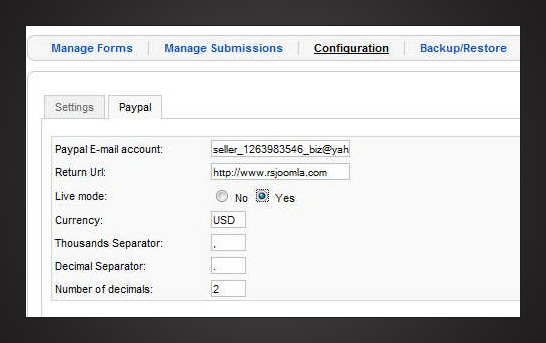
You will see a new tab called PayPal, near the Settings tab.
Here you can set the seller's PayPal account, the Live Mode (set it to "No" when you want to test the plugin with PayPal Sandbox and to "Yes" when you want to enable your PayPal transactions), the Currency which usually is EUR or USD, but you can find other PayPal currency codes on the developer's page, the Return Url - the page where the user is redirected after making a payment, the Thousands and the Decimal Separator.
How to add PayPal functionality
After Configuration, in the backend panel head to Components -> RSForm!Pro -> Manage Forms and select the form for which you want to add PayPal functionality.
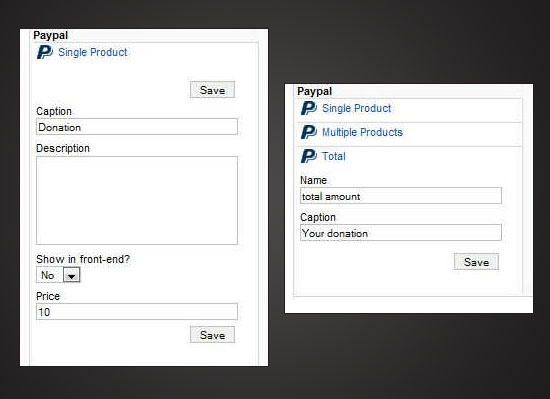
In the bottom of the page you will see 3 new PayPal fields (besides the usual components like Textbox, Textarea, Dropdown or Checkbox): Single Product, Multiple Products and Total.
We will treat each field separately, so you can better understand how to use them.

- A Total field that calculates the total amount must be added at the end of the form, whether you will be using the Single Product or the Multiple Products field.
- The Multiple Products can be used multiple times, but the Single Product and the Multiple Products fields can not be used simultaneously.
1.1 The RSForm!Pro PayPal Plugin with a Single Product field
The Single Product field is used for selling one product, fixed donations or attachments.
Let's see an example of using the plugin with a Single Product field and a Total field:
A non-profit organization site wants to collect donations trough their Joomla! form, with a pre-established amount of USD 10. To achieve this, we will add a Single Product PayPal field and a Total field to the form created with RSForm!Pro.
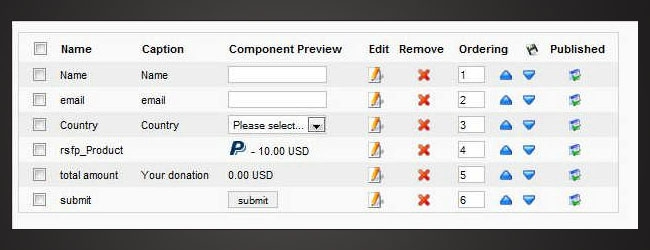
Backend Preview:
This is how the form looks in the backend after adding the above PayPal fields:
Frontend Preview:
And this is how the form looks in the frontend after adding the Single Product field. Notice that this field isn't displayed in the frontend because we have selected "not to show in frontend" option.
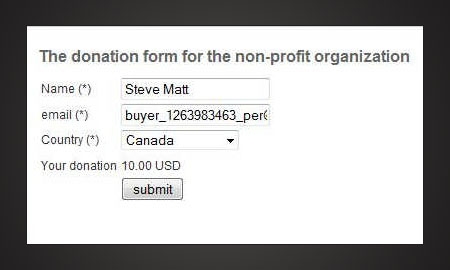

A PayPal button won't be necessary anymore, because the Submit Button will handle its function. After clicking the Submit Button, the user will be redirected to the PayPal Page.
The transaction page:
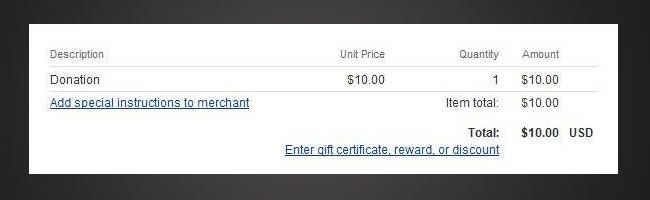
The transaction page lists the product's information: its description, price, quantity and the total amount that will be withdrawn from the user's PayPal account.
Verify the payment status:
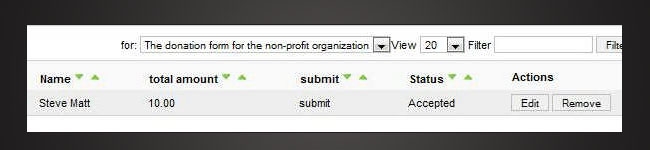
To verify the payment status in the backend Joomla! panel, head to Components -> RSForm!Pro -> Manage Submissions. The status will be automatically changed to Accepted after PayPal sends a notification to your script. If the payment is refused, the status changes after 12 hours into Denied.
Next article will explain how to use the Multiple Products field within the RSForm!Pro PayPal Plugin. We have prepared a video tutorial and an example of using the Multiple Products field with a checkbox and a dropdown view.
So, see you next time. If you have questions, please leave them in the comments.
Related articles:
- 3 ways to create a small Joomla! shopping cart with RSForm!Pro and Paypal - Part 2
- 3 ways to create a small Joomla! shopping cart with RSForm!Pro and Paypal - Part 3
- 3 ways to create a small Joomla! shopping cart with RSForm!Pro and Paypal - Part 4: payment confirmation

@Scott
This is not something RSForm!Pro specific but PayPal specific. Paying without a PayPal account is not supported everywhere and further to this, once a first payment is made (without an account) an automated one will be created.
QuotePaypal User Account
I am confused about what users need to use the Paypal functionality of RSForm!Pro. Do users have to have a personal Paypal account? We are currently using Paypal on a Drupal website. Our users do not need a Paypal account, plus they can use a credit card of their choice to pay. Is this how the RSForm!Pro Paypal functionality works? Thanks.
QuoteNo, you are not missing anything. The standard PayPal plugin does not incorporate this, nor the above custom implementation.
Quotepaypal status to denied
Hi,
QuoteIn theory, after 12 hours a not completed transaction should be tagged as Denied. However, in our site are still with status Pending.
What part of the configuration are we missing? Is there a cron job task that we've forgotten to set up?
Thanks in advance
Number in Textbox together with packet price on PayPal
Hi all,
QuoteI'm a new user and need some help. Does somebody know how to send the Kart Number in Textbox together with packet price on PayPal? At the moment only the price and the product number will be send.
Thanx in advance
@Suman
You can check out the following forum thread: http://www.rsjoomla.com/forum/37-rsform-pro/4877-rsform-pro-paypal-integration.html
Quoteintegrating custom amount into paypal total field
It was really great using Rs-form into my site. But coincidentally i had 1 problem using this component's plugin with Paypal.
QuoteI want blank field for price which will be input by user itself and pay it by paypal. How to integrate this custom amount into paypal.
Best regards,
@Sandeedp
Please address this question to the forum or the customer support area.
Quotehow to add paypal logo to the form
Hi RSform Pro admin,
QuoteI have successfully setup the forms and thanks for your efforts and wonderful plugin. Can you please advise how I can have the verified by Paypal, credit card etc image on the form?
@Keith
Yes, of course, but you will need to modify the PayPal parameters that are being used.
Quote